
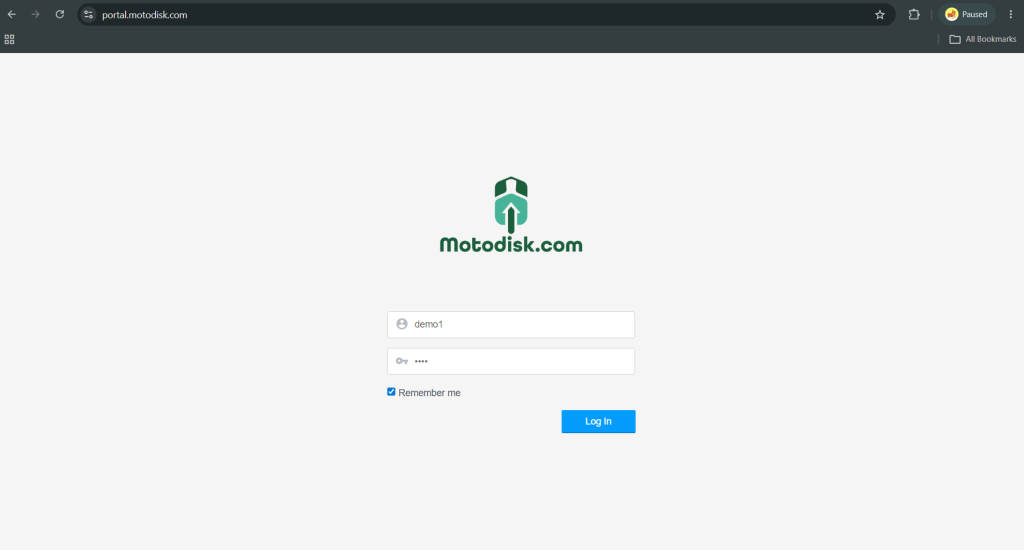
Step 1: Log In
Go to https://portal.motodisk.com and log in to your account.
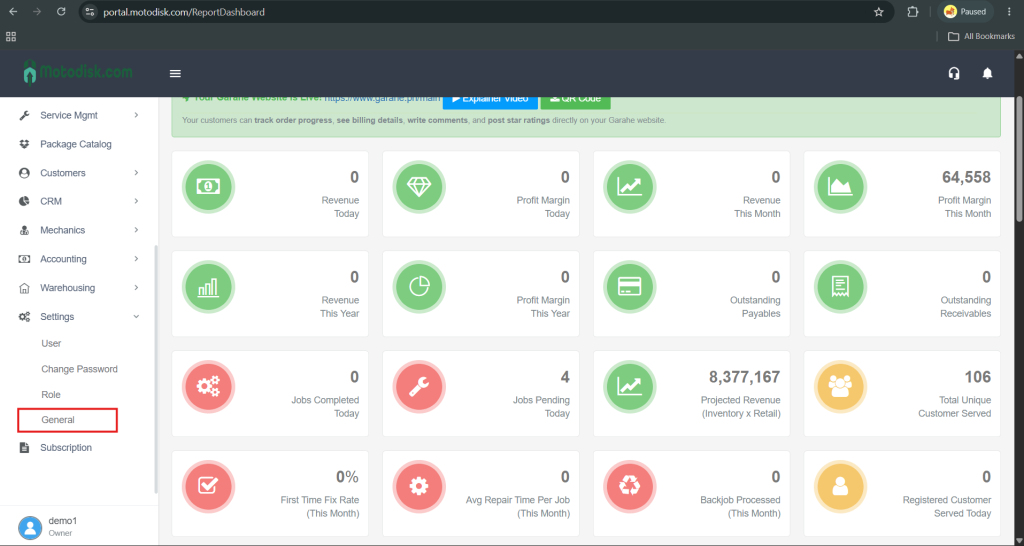
Step 2: Open General Settings
On the sidebar menu, click General.
Step 3: Update Company Details
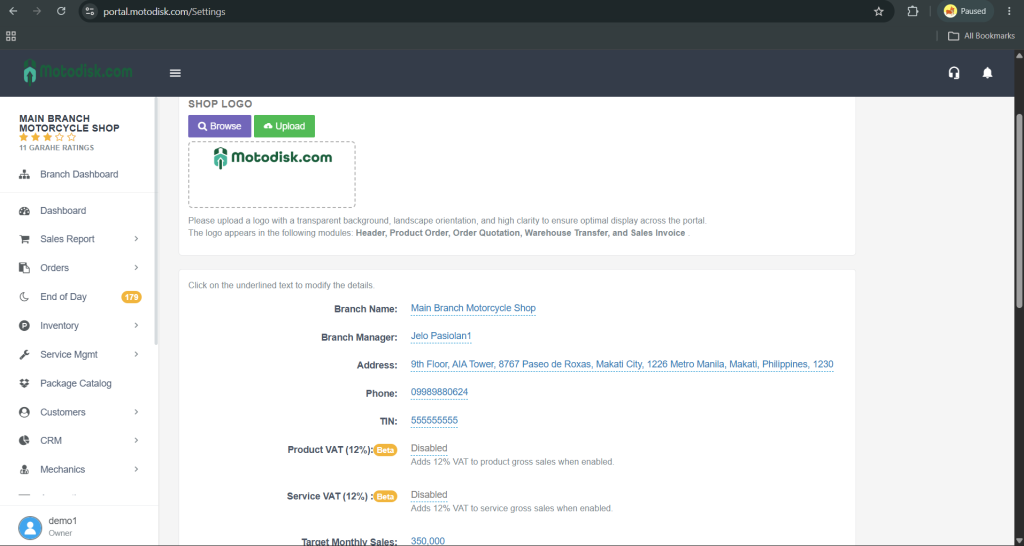
Review the following information:
- Branch Name
- Branch Manager
- Address
- Phone Number
- TIN
To update, just click on the field you want to change and type the correct information.
Step 4: Configure System Preferences
Set up the following options as needed:
- Receipt Printing
- Toggle Enable if you use a POS printer.
- Select Disable if you don’t print receipts.
- Receipt Printing Font Size
- Choose a font size that fits your printed receipt layout.
- Mechanic Commission Rate
- Enter a percentage if your mechanics earn commission.
- Leave at 0% if not applicable.
- Loyalty Points Conversion
- Set the conversion rate (e.g. 1 point = ₱1 or based on your system).
- Sales Receipt Footer
- Edit the footer message that appears at the bottom of printed receipts.
- Labor and Item Warranty
- Set warranty period (e.g., 7 days, 30 days) if applicable.
- Two-Factor Authentication
- Choose Enable if you want to receive an OTP when logging in.
- Choose Disable to skip OTP during login.
- How Cashiers/Staff Remit End-of-Day Collections to the Owner
- How to Navigate the Sales Service
- How to Add a New Cash Account in Cash
- How to Add a New Customer
- How to Add a New Transaction
- How to Add a Warehouse and View Inventory
- How to Add an Expense in POS
- How to Add and Edit Category
- How to Add and Edit Reorder Level
- How to Add Branch
- How to Add Cash Account
- How to Add Mechanic
- How to Add more Products to the Created PO
- How to add new Customer (POS)
- How to add product (Via Copy Button)
- How to add product(Via Add Product Button)
- How to Add Service Catalog
- How to Add Supplier
- How to add User and Assign Roles
- How to Add/Replenish Stocks (Manual)
- How to Bulk Update the Inventory Price
- How to Cash Account Balance Transfer
- How to collect receivables
- How to Create a New Payable
- How to Create a Package
- How to Create a Payable
- How to Create an Advance
- How to create Appointments
- How to Create Cashier Account
- How to Create New Product Orders
- How to Create Purchase Orders (P.O.)and Add More Products
- How to create Sales Return
- How to Create Service Catalogue
- How to Customize Roles in the POS/Sales Register
- How to Edit Customer Details
- How to Install the Printer Driver for the Thermal Scanner
- How to log-in and change your password
- How to Mass Upload Inventory
- How to Navigate and Create Stocks Transfer
- How to Navigate and Manage Stock Audits
- How to Navigate and Read Inventory Movements
- How to Navigate and Read Non-Moving Products
- How to Navigate and Read the Dashboard
- How to Navigate and Read the Fast Moving
- How to Navigate and Update General Settings
- How to Navigate and Use the Package Catalog
- How to Navigate Mechanic Summary Page
- How to Navigate the Sales Invoice Page
- How to Navigate the Sales Product Page
- How to Navigate the Service Summary Page
- How to Navigate, Create and Read Stock Transfer
- How to Print Mechanic Labor or Service Cost
- How to Pull-out Stocks
- How to Record a Sale of Package
- How to Record an Expense in Back Office
- How to Record Sales with Job Order
- How to Record Sales without Job Order
- How to Renew a Subscription
- How to Reverse a Service
- How to Rollback in the end of the day
- How to save Estimate Completed Orders
- How to Search a Customer in the Master list
- How to Search a Receipt Number in Receivables
- How to Search for a Product Receiving
- How to See the Sales Transactions
- How to Set-up Receivable
- How to Stock Transfer
- How to Switch Branch
- How to update Permission for Roles
- How to use Back Office
- How to use Cashflow
- HOW TO USE POS
- How to Use Profit and Loss
- How to use Stock Finder
- How to view Completed Job Orders
- How to view Customer’s Report
- How to view End of Day Report
- How to view Mechanic Commisson history
- How to view ongoing Job Orders
- How to View Products Sold
- How to view Recievable Report
- How to Void a Transaction in POS
- New Release Notes
- Test
- What’s-new-POS
- 🗂️ Step-by-Step: How to Create a Category in Motodisk
