How to Sales Return
Step 1: Login to Motodisk Application
Step 2: Enter your credentials to login.
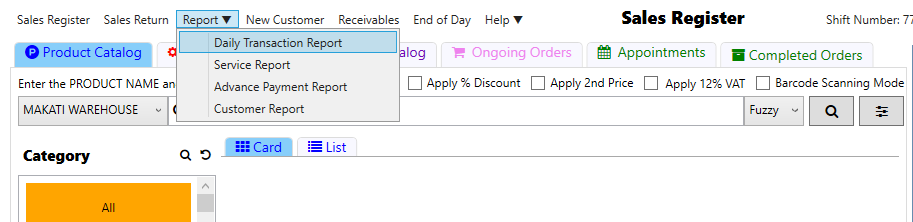
Step 3: At the top, click Report then, Daily Transaction Report
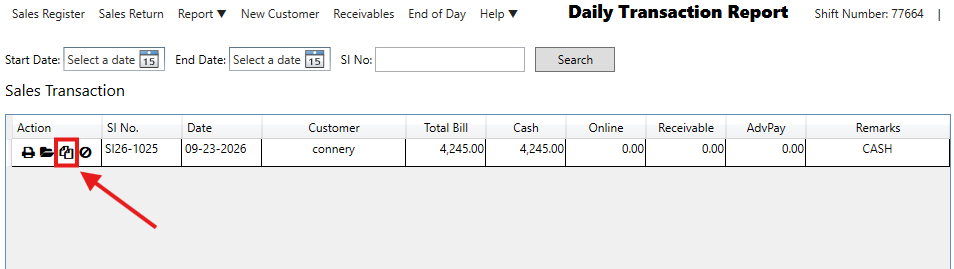
Step 4: Copy the Sales Invoices (SI) Number from the Sales Transaction
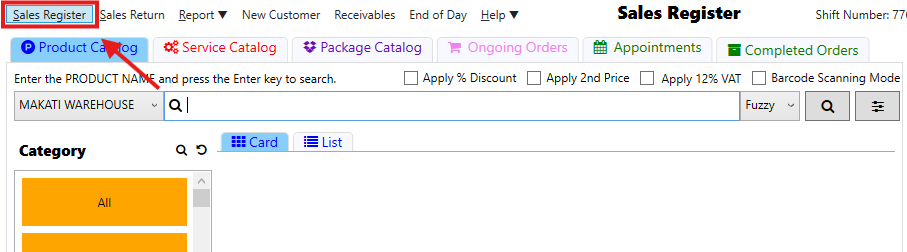
Step 5: Go to Sales Return
Step 6: Paste the Sales Invoices (SI) Number then, Search
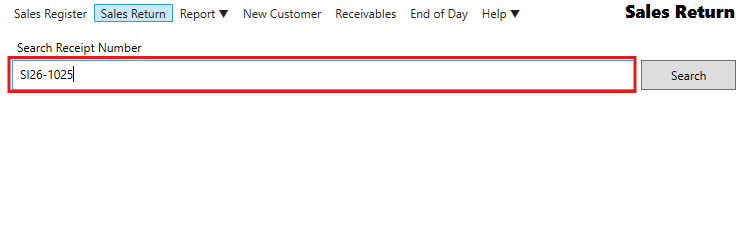
Step 7: Select item to Return.
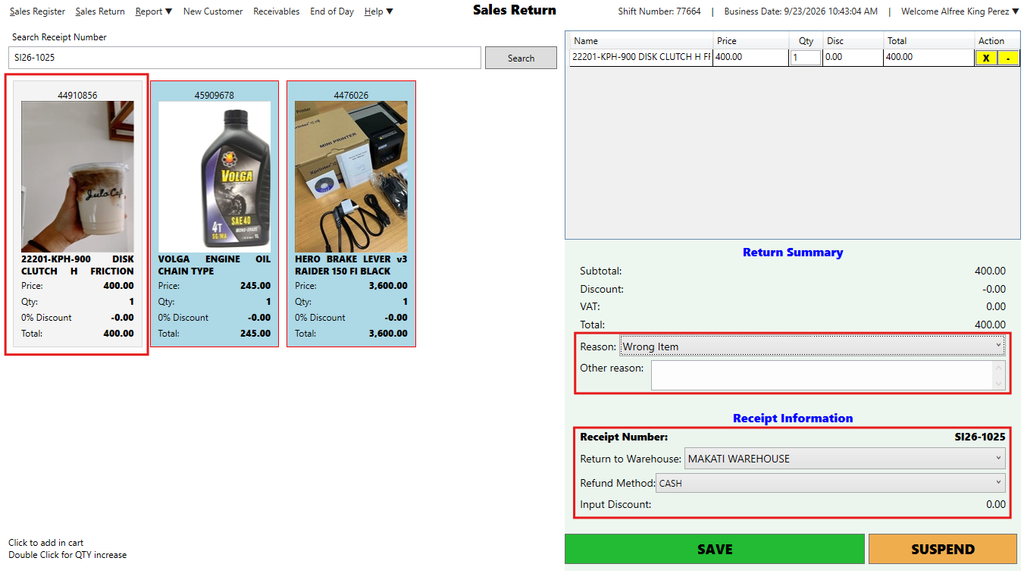
In the right side panel, fill in the following:
- Return Reason – select the reason for the return from the dropdown
- Return to Warehouse – choose the warehouse where the returned item will go
- Refund Method – select how the refund will be processed
Step 8: Click Save after finalizing.
✅ The returned items will be recorded and reflected in inventory and sales reports.
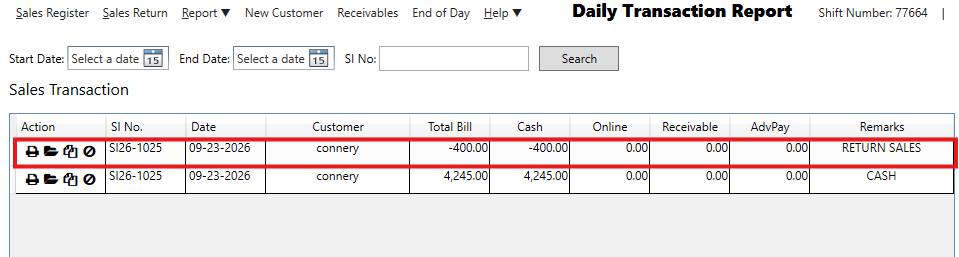
Step 7: Confirm the Return in Reports
- On the top bar menu, go to Report > Daily Transaction Report
- You should see the Sales Return transaction listed along with the details.