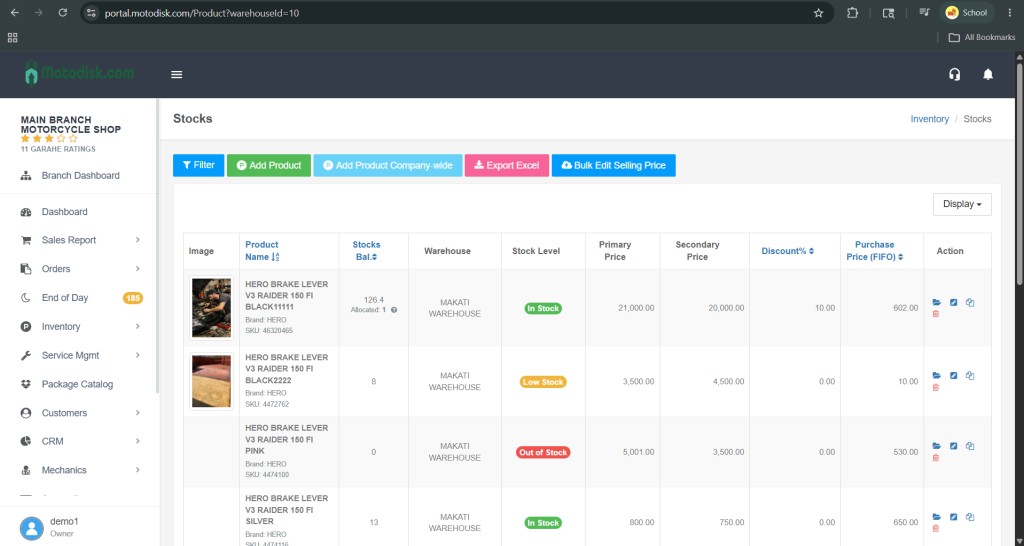
- Go to https://portal.motodisk.com and log in
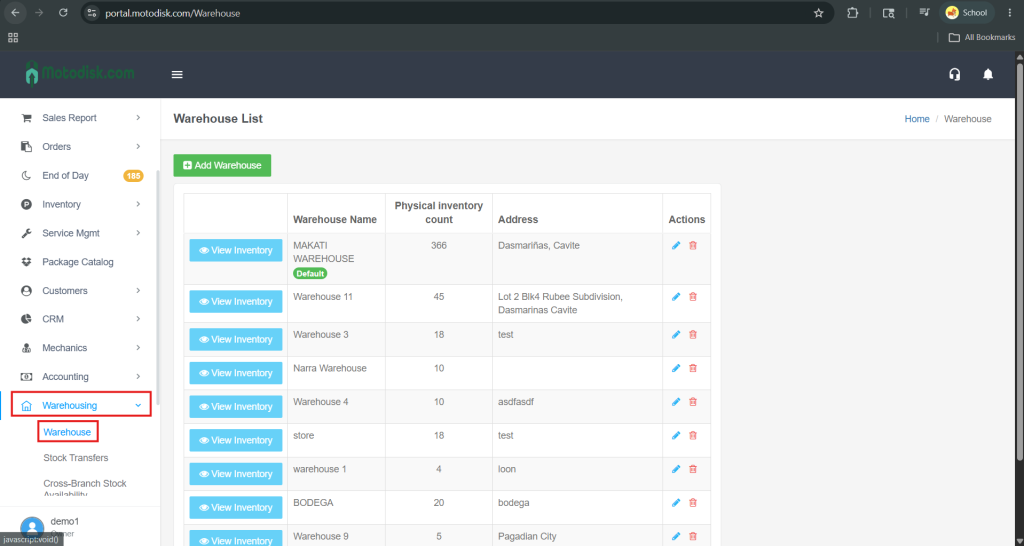
- In the side bar, select Warehousing > Warehouse
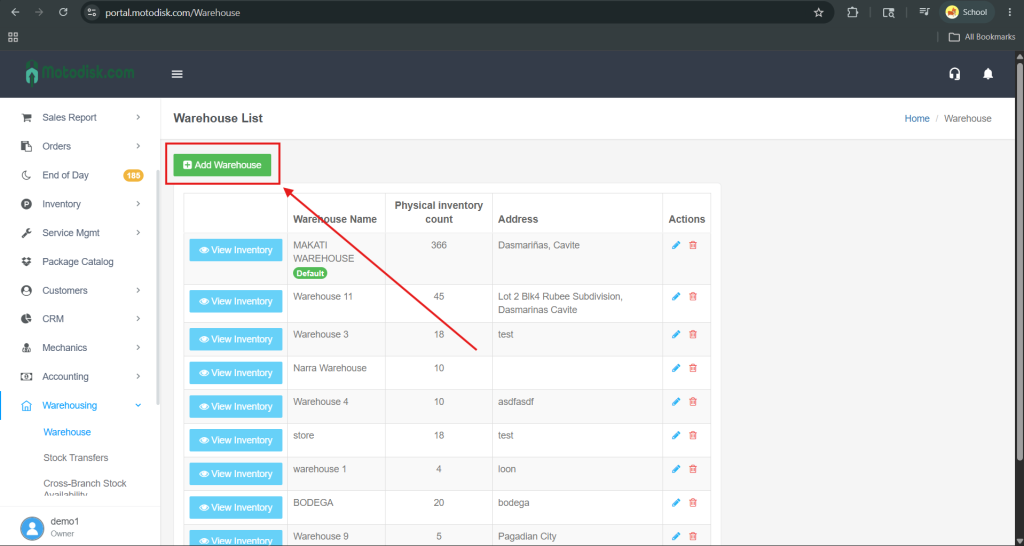
3. At the top-left corner, click the Add Warehouse button
4. After clicking Add Warehouse, enter the warehouse name and its address, then click Save to add the warehouse
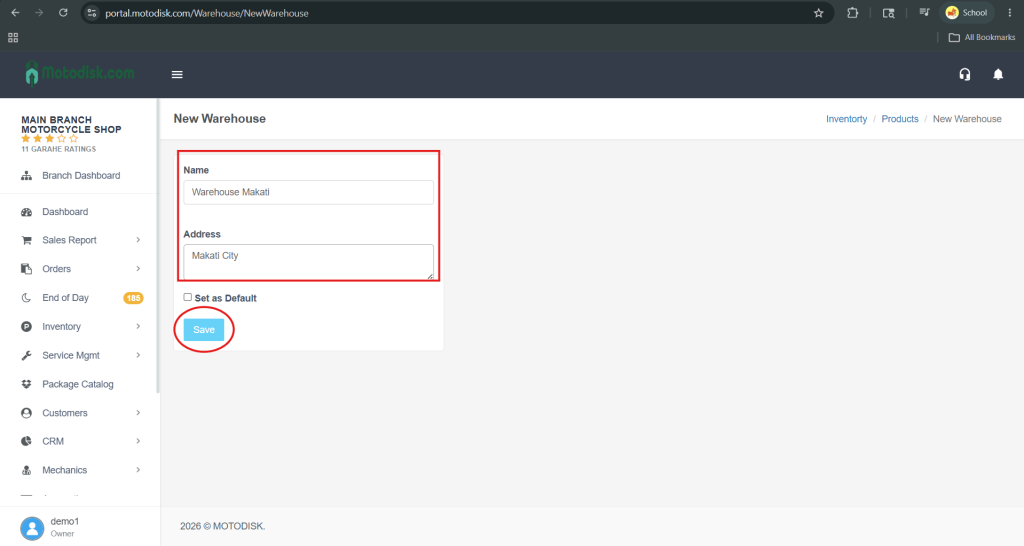
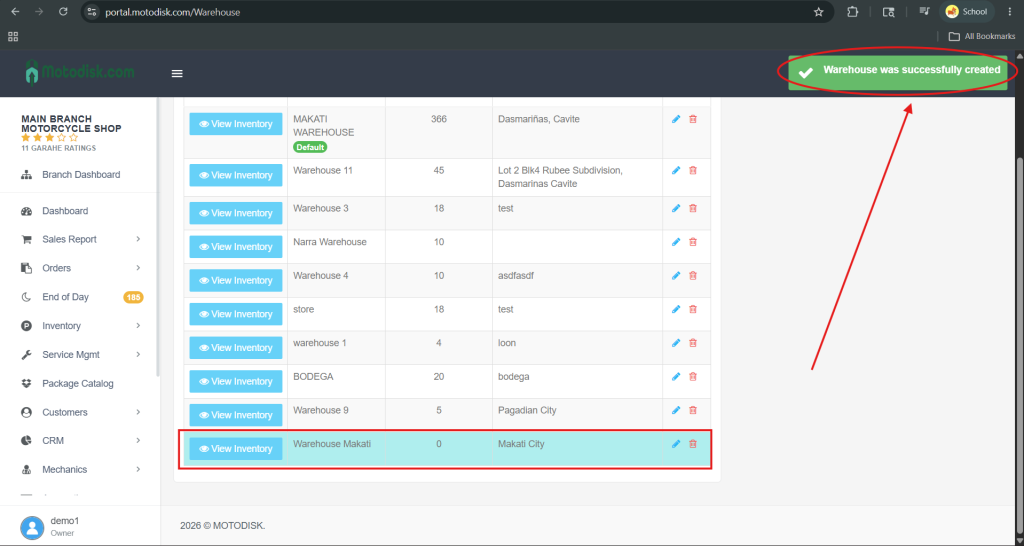
5. Click Save to create the warehouse. A success message will appear in the top-right corner, and the warehouse will be added to the bottom of the list.
HOW TO VIEW INVENTORY IN WAREHOUSE
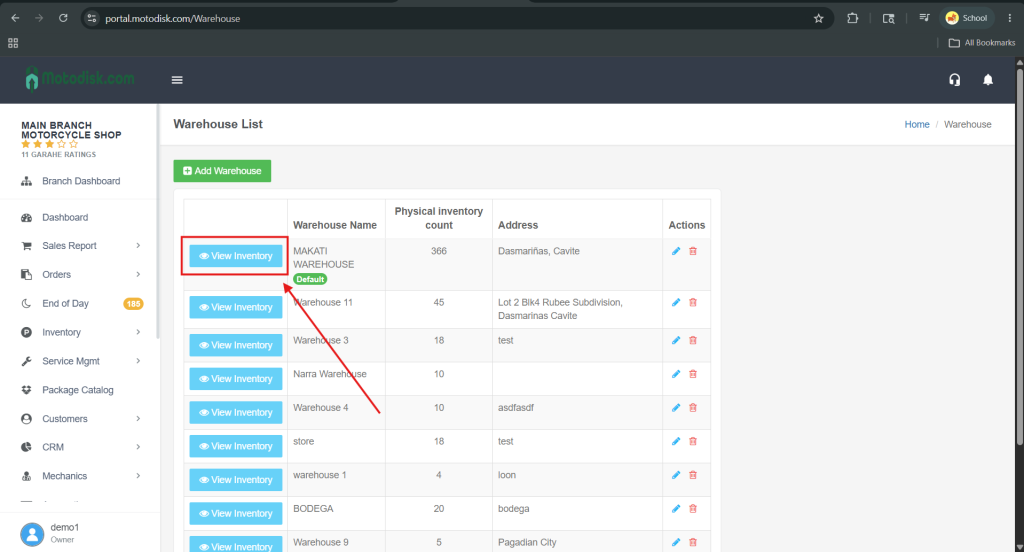
- On the left side, click View Inventory to see all products under that warehouse.
You will then see all the inventory available in your warehouse.