
- Go to https://portal.motodisk.com and log in
- In the side bar, select Accounting > New Transaction
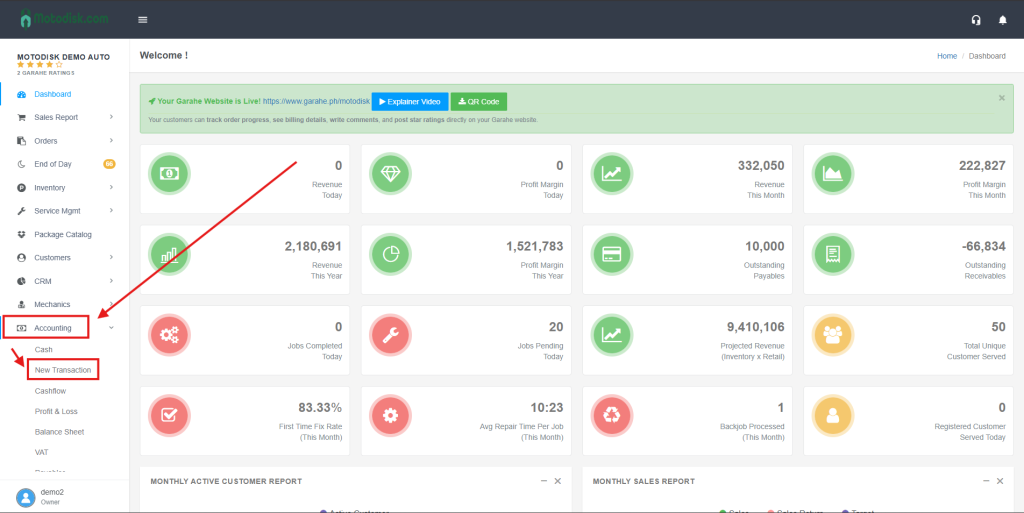
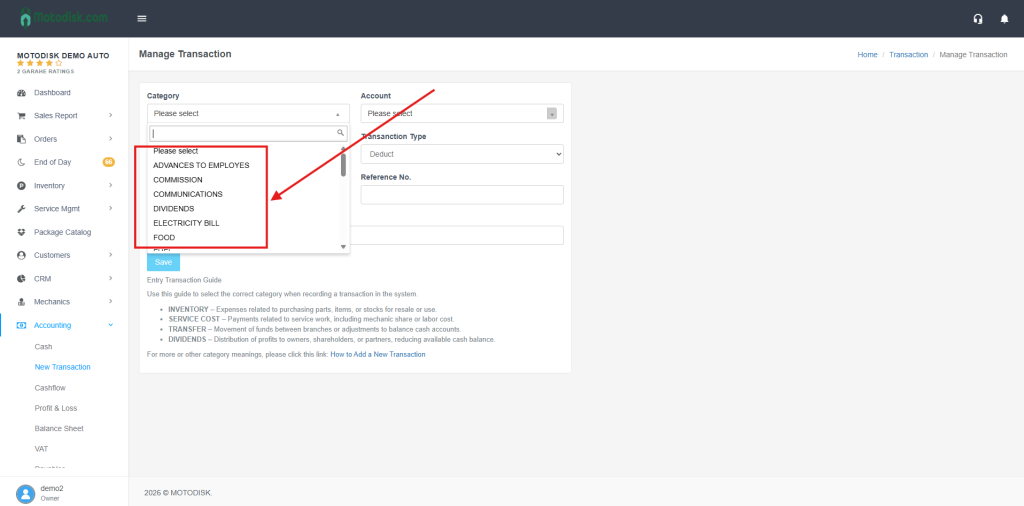
3. Select a Category
✅Advances to employees – Cash advances to the employees
✅COMMISSION – Payment given to staff or agents based on sales or completed jobs.
✅COMMUNICATIONS – Expenses for phone load, calls, SMS, or messaging used for business operations.
✅ELECTRICITY– Payment for electricity used in the shop (lights, tools, machines).
✅FUEL – Gasoline or diesel expenses for service vehicles or business-related travel.
✅INTERNET BILL – Payment for internet services used for the shop’s operations and systems.
✅INVENTORY – Expenses related to purchasing parts, items, or stocks for resale or use.
✅LOAN INTEREST – Interest paid on business loans or borrowed money.
✅LOGISTICS – Expenses for delivery, shipping, or transport of parts and items.
✅MARKETING -Advertising and promotion expenses (online ads, tarpaulins, flyers).
✅OTHER EXPENSES – Miscellaneous expenses not included in other categories.
✅OTHER INCOME – Income received that is not part of regular sales or services.
✅OTHER LOSS – Losses from damages, theft, errors, or unexpected incidents.
✅PAYABLES – Payments made to suppliers or creditors for previously recorded payables.
✅PERMIT & LICENSES – Fees for business permits, licenses, and government registrations.
✅RENTAL – Payment for shop space, equipment rental, or leased assets.
✅SALARIES – Regular wages or fixed monthly pay of employees.
✅SERVICE COST – Payments related to service work, including mechanic share or labor cost.
✅SHOP IMPROVEMENTS – Expenses for renovations, repairs, or upgrades of the shop.
✅SSS, PAG-IBIG, PHILHEALTH CONTRIBUTION – Government-mandated employee benefit contributions.
✅SUPPLIES – Office and shop consumables like oil, rags, cleaners, and small tools.
✅TRANSFER – Movement of funds between branches or adjustments to balance cash accounts.
✅WATER BILL – Payment for water usage in the shop.
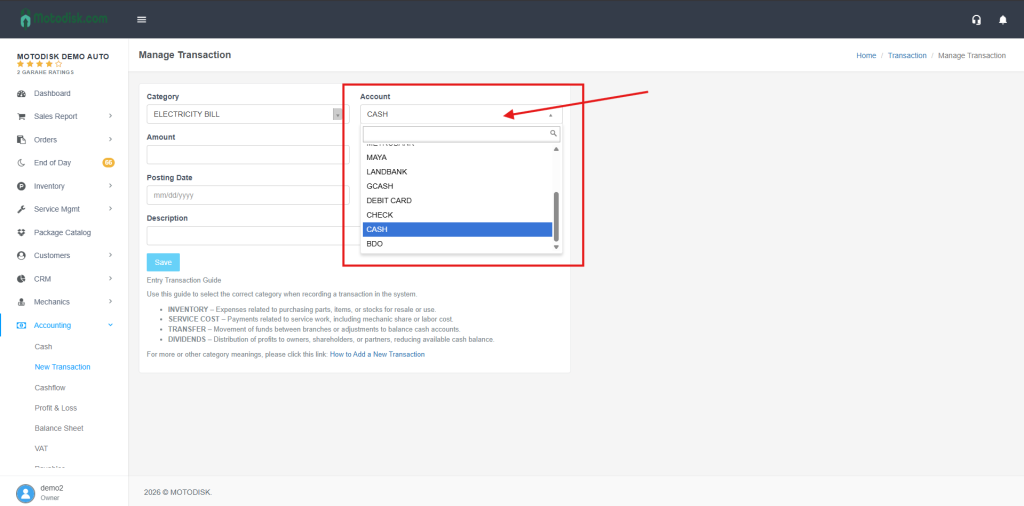
4, Select a Account
5. Enter the Amount
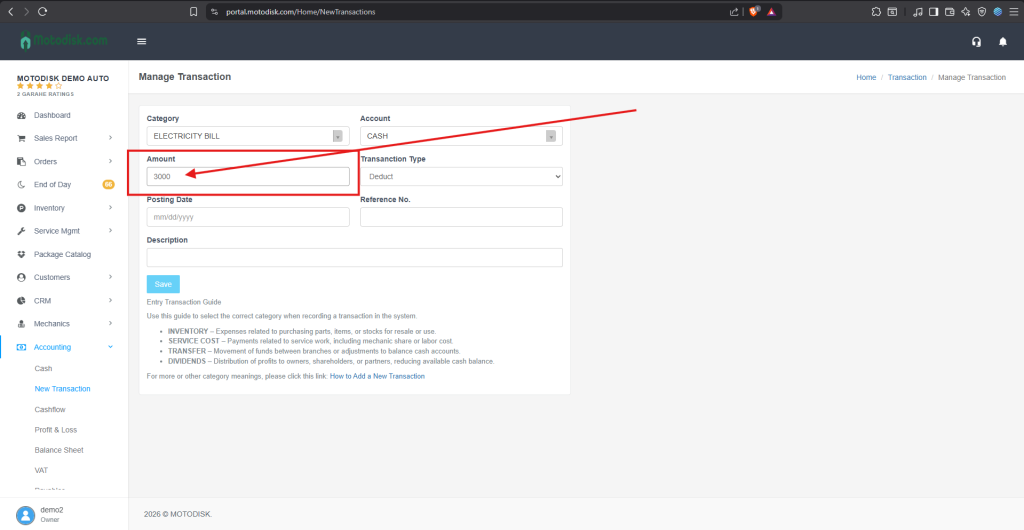
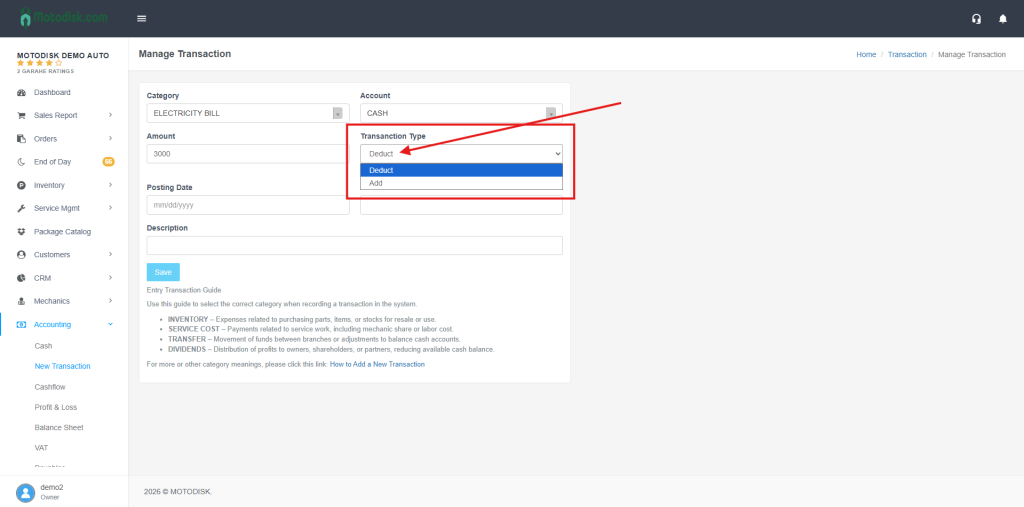
6. Select the transaction type (Add or Deduct).
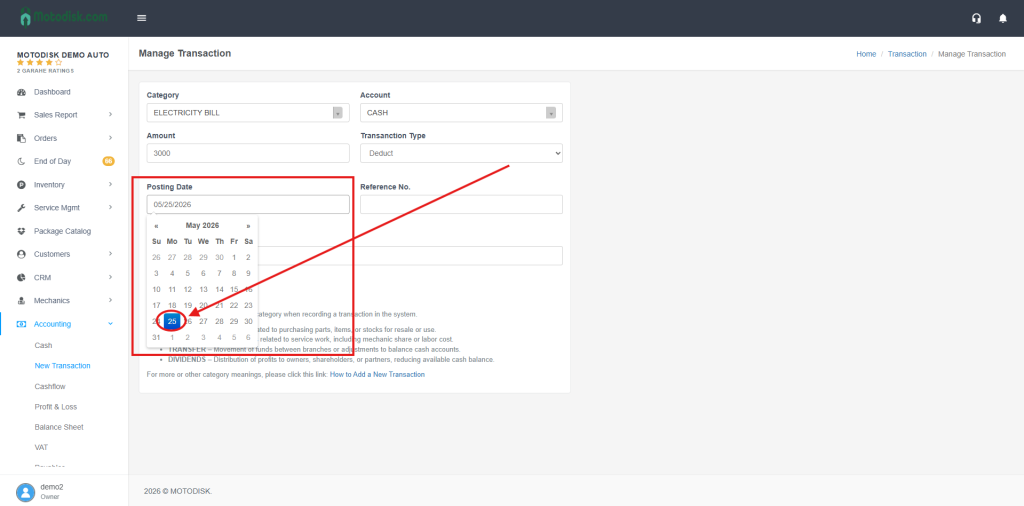
7. Select a Posting Date
8. Enter a description or reason for adding the new transaction.
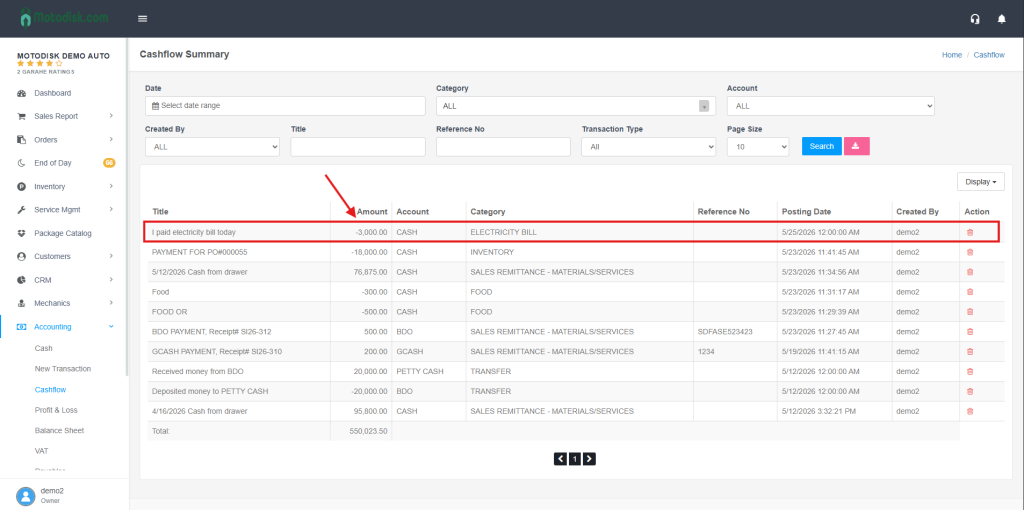
9. After clicking Save, the amount will be deducted from your CASH cash account.
Tips for Managing Transaction
✅Choose the right category
Pick the category that best matches the transaction (e.g., SALARIES, INVENTORY, ELECTRICITY BILL).
✅Select the correct account
Make sure the correct cash account (GCASH, cash, bank) is selected.
✅Use Add or Deduct correctly
- Add = money coming in
- Deduct = money going out
✅Enter the correct date
Use the actual date when the transaction happened.
✅Write a clear description
Add a short note explaining the transaction (example: “Fuel for service vehicle”).
✅Record transactions right away
Enter expenses or income as soon as they happen.
✅Business only
Record only business-related transactions.
✅Check before saving
Review the category, amount, account, and Add/Deduct before clicking Save.