
Guide to viewing and tracking product movements (sales, receiving, returns, pullouts).
1. Accessing the Movements Page
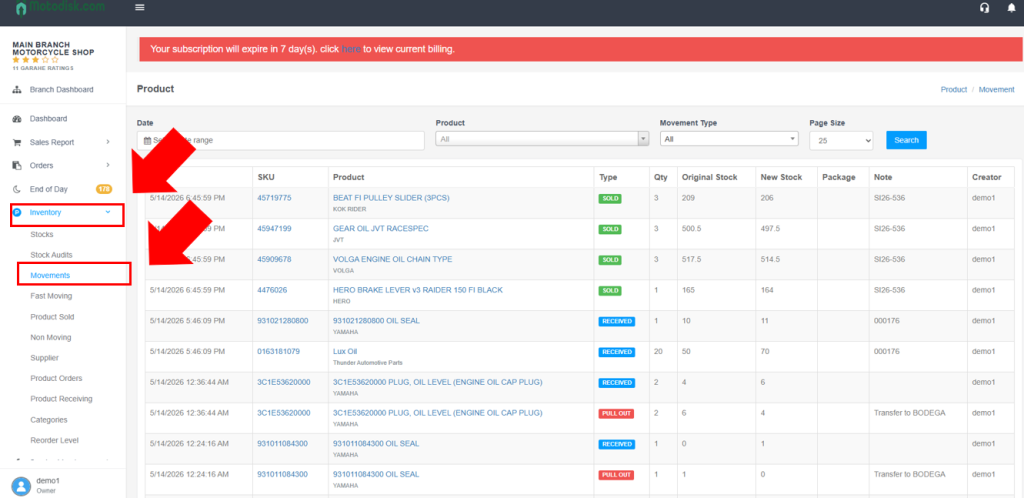
- In the left sidebar, find “MOTORSHOP MAIN”.
- Click “Inventory” (package icon) to expand the menu.
- Click “Movements” (highlighted in blue when active).
2. Understanding the Page Layout
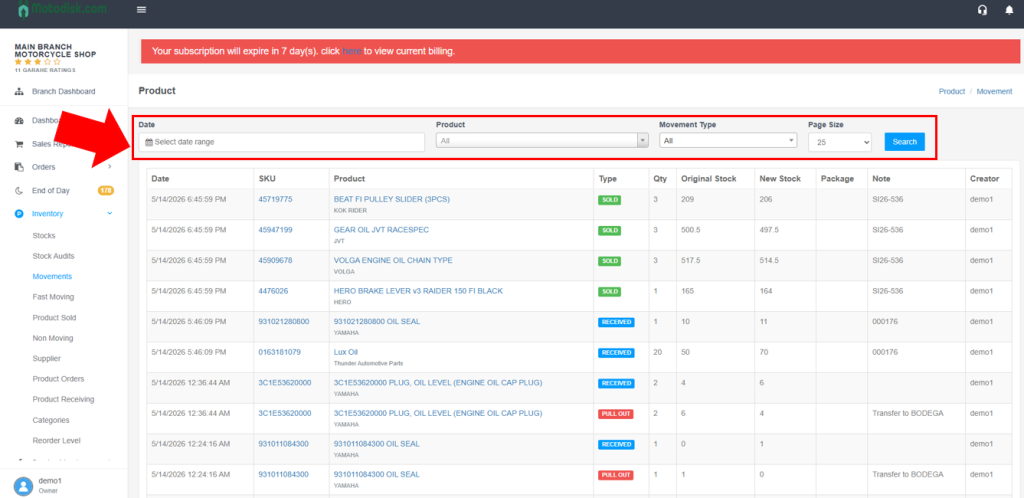
The Movements page has:
- Filter Section (top): Date, Product, Movement Type
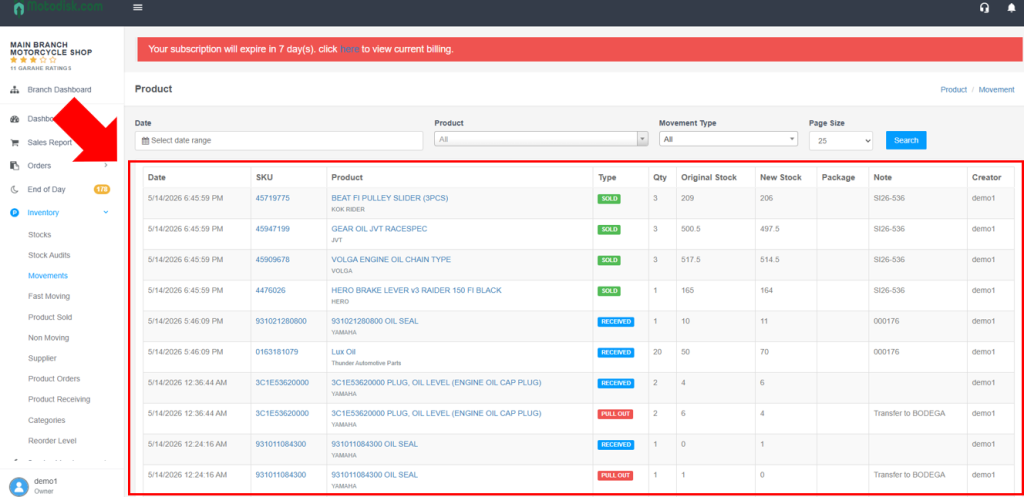
- Data Table (main area): Movement records
3. Using the Filters
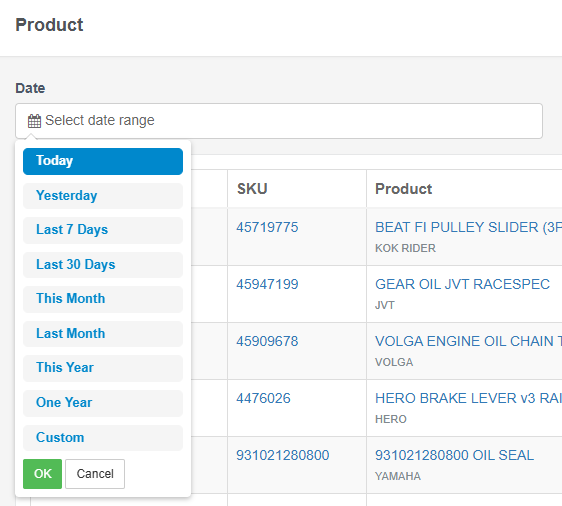
Date Filter
- Click the calendar icon next to “Date”.
- Quick options: Today, Yesterday, Last 7 Days, Last 30 Days, This Month, Last Month, One Year
- Or select “Custom” to pick a start and end date
- Click “OK”, then “Search” to apply
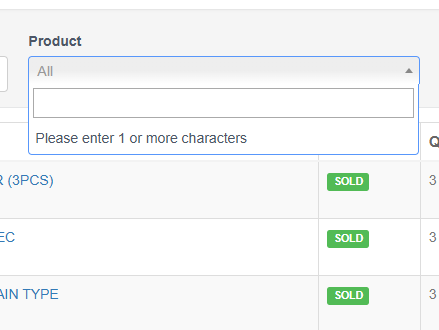
Product Filter
- Click the “Product” dropdown
- Type at least one character to search
- Select a product from the list (format: “PRODUCT NAME | BRAND | SKU”)
- Or leave as “All” to show all products
Movement Type Filter
- Click the “Movement Type” dropdown
- Options:
- All: Shows all movement types
- SOLD: Products sold to customers
- RECEIVED: Products received from suppliers
- RETURNED: Products returned by customers
- PULL OUT: Products removed from inventory (damaged, transferred, etc.)
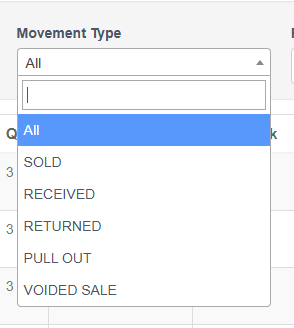
Select a type, then click “Search”
4. Understanding the Movements Table
The table shows these columns:
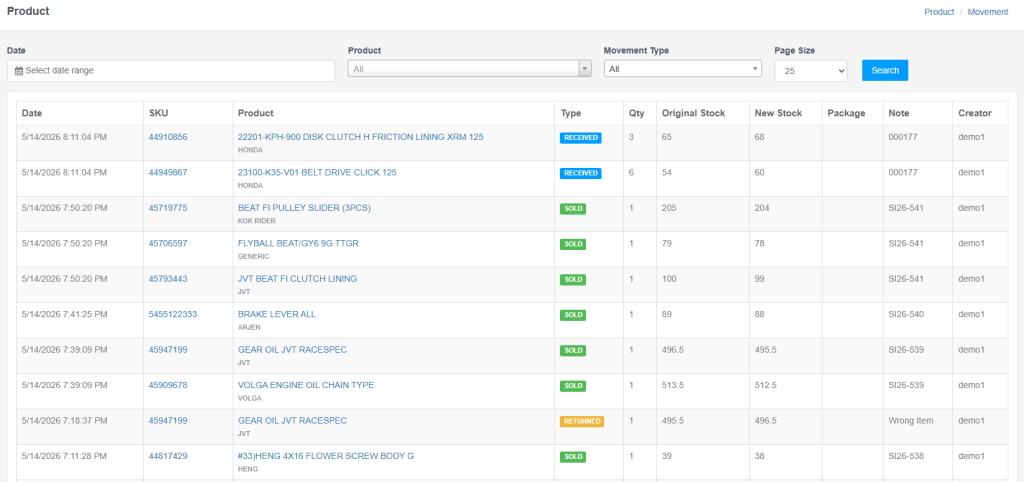
Column Descriptions:
Date
- Timestamp of the movement (e.g., “12/9/2025 10:57:44 AM”)
SKU
- Stock Keeping Unit (unique product identifier)
- Clickable link (blue text)
Product
- Full product name/description
- Clickable link (blue text)
Brand
- Product brand (e.g., HONDA, YAMAHA, Replacement)
Type
- Movement type badge:
- SOLD (green badge): Product sold
- RECEIVED (blue badge): Product received
- RETURNED (orange/yellow badge): Product returned
- PULL OUT (red badge): Product removed
Qty
- Quantity involved in the movement
Original Stock
- Stock level before the movement
New Stock
- Stock level after the movement
Package
- Package name (if applicable, e.g., “FULL PMS”)
- Often empty for individual product movements
Note
- Additional information:
- Sales Invoice numbers (e.g., “SI25-31531”)
- Receipt numbers (e.g., “001052”)
- Return reasons (e.g., “Wrong Item”, “Defective or Damaged Item”)
- Pull-out notes (e.g., “test”)

Video Tutorial
Tips for Effective Tracking
- Use date ranges: Narrow down to specific periods
- Combine filters: Use Date + Product + Movement Type together
- Check stock changes: Compare Original Stock and New Stock to see impact
- Review notes: The Note column often contains invoice numbers, receipt numbers, or reasons
- Track by SKU: Click SKU links to view product details
- Monitor trends: Filter by type to see patterns (e.g., frequent returns)
Understanding Stock Calculations
- For SOLD movements: New Stock = Original Stock – Qty
- For RECEIVED movements: New Stock = Original Stock + Qty
- For RETURNED movements: New Stock = Original Stock + Qty
- For PULL OUT movements: New Stock = Original Stock – Qty
Troubleshooting
- No data showing?
- Check date range
- Verify filters aren’t too restrictive
- Try “All” for Movement Type and Product
- Can’t find a specific product?
- Use the Product search (type at least 1 character)
- Check spelling
- Try searching by SKU if known
- Missing movements?
- Verify the date range covers the period
- Ensure movements were recorded in the system
This guide covers navigating and reading Inventory Movements. Use the filters to track sales, receipts, returns, and pullouts.