Step 1:Go to https://portal.motodisk.com
Step 2:Enter your credentials to log in.
Step 3:From the sidebar, go to Orders > Ongoing.
ADD PRODUCT TO CART
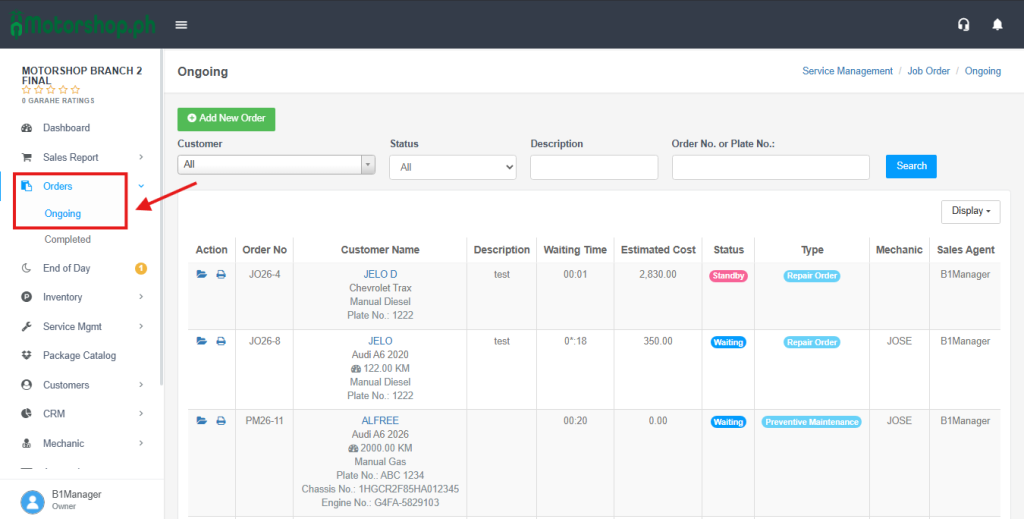
Step 4: Select Job Order in the list or search the Description and Order No, or Plate No. of the Job Order.

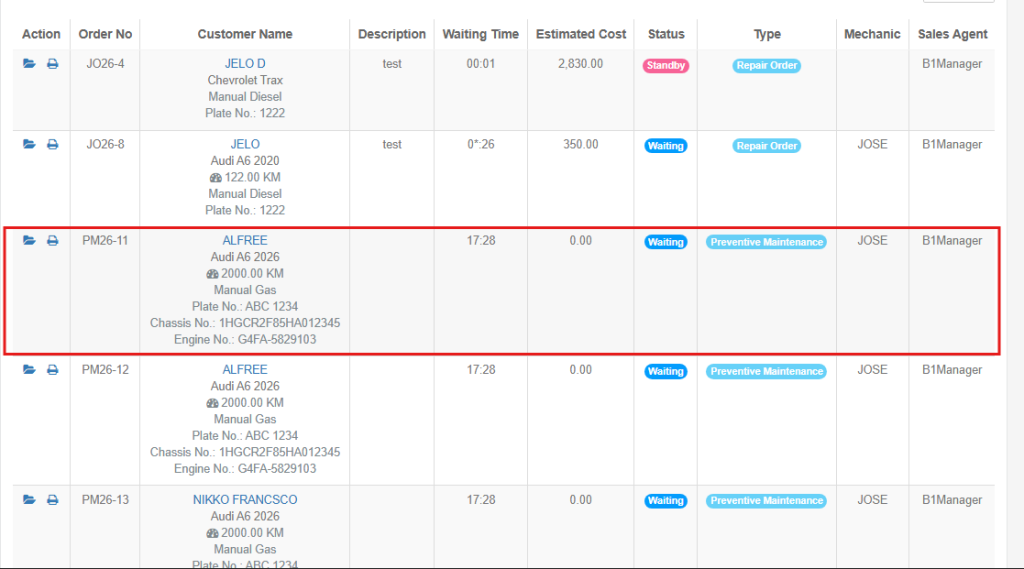
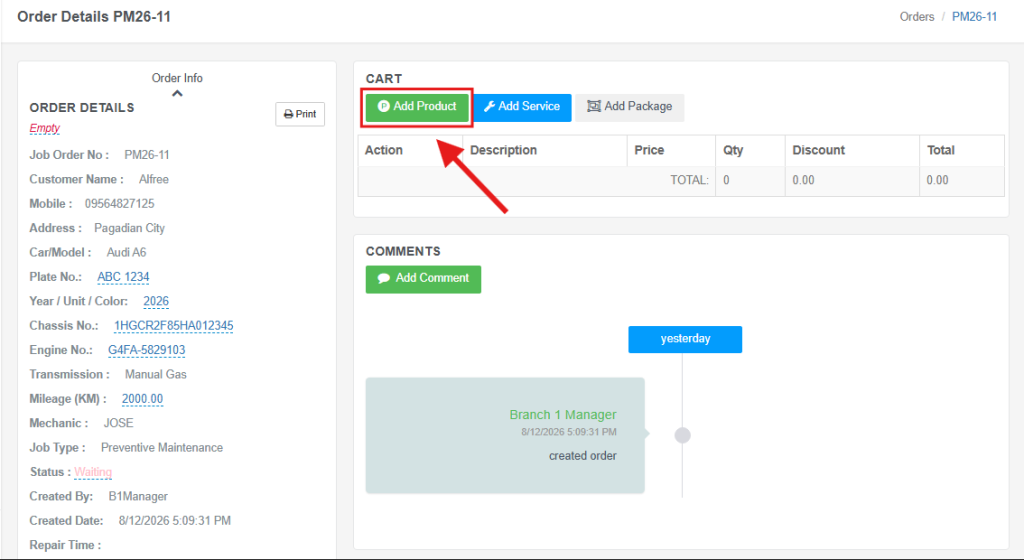
Step 5: After selecting the Job Order click the Folder icon.

Step 6: Click the Add Product.
Step 7:The category Match Type, Search Field, and Price Level depends on your preferences. Search Keyword of the product then, SAVE.
Additional Information:
Under Match Type:
Match – The system finds an exact or very close match to the product data.
Fuzzy – The system finds a product even when the search is slightly different from the product data.
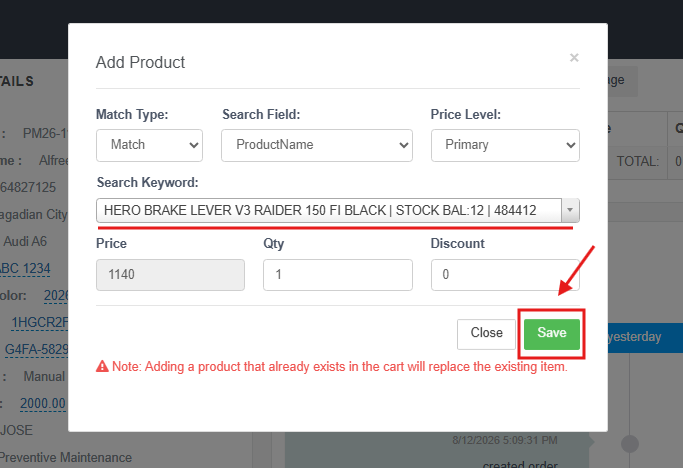
REMINDER!: Read the NOTE before adding the product.
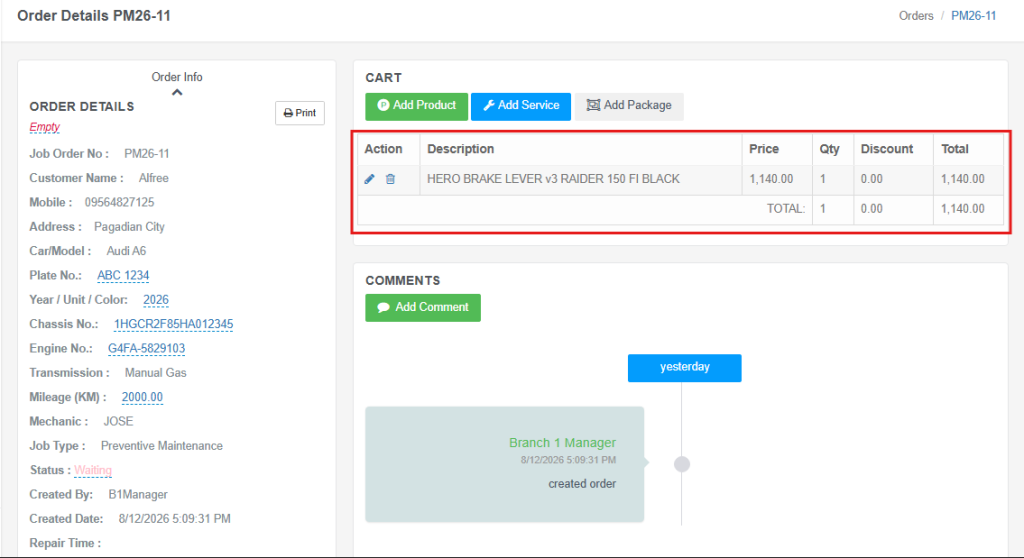
ADDED PRODUCT:
ADD SERVICES TO CART
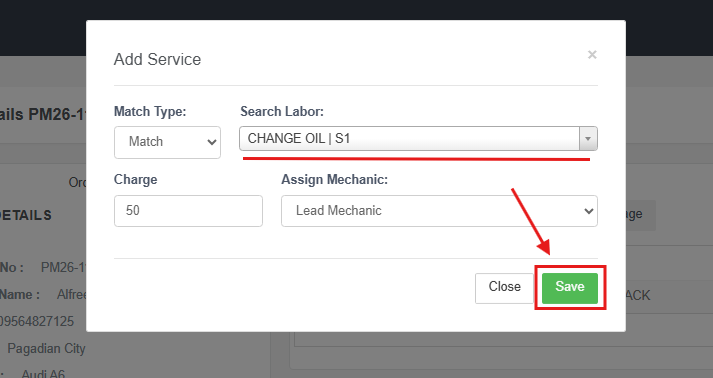
Step 8:: Select your preferred Match Type, search for the services to add to the cart, assign a mechanic, then click SAVE.
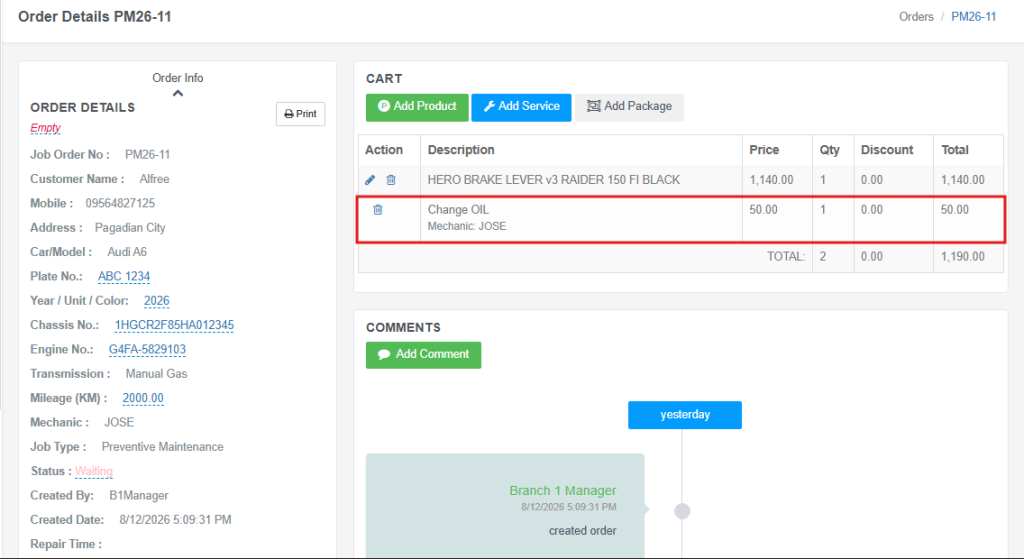
ADDED SERVICES:
ADD PACKAGE TO CART
Step 9: Search the Package and preferred quantity. You could also replace the product in the package then, click SAVE.
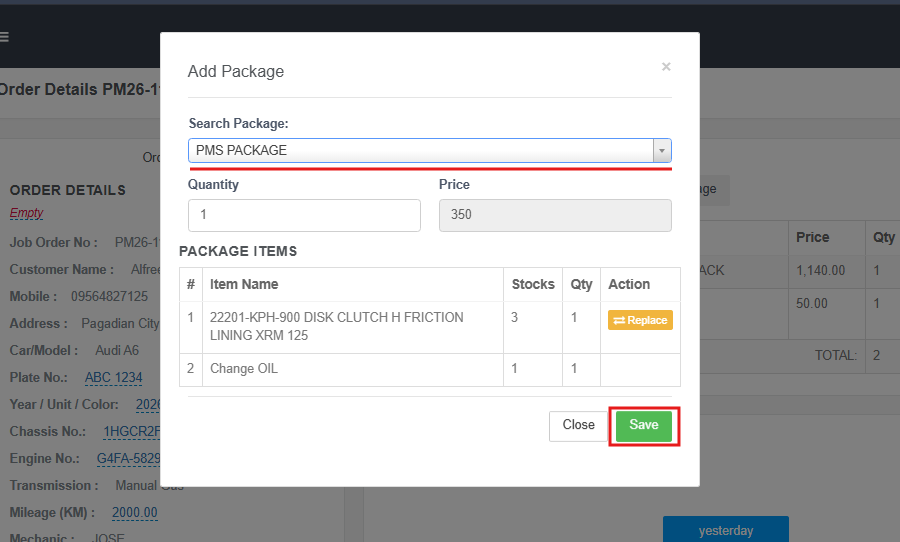
ADDED PACKAGE:
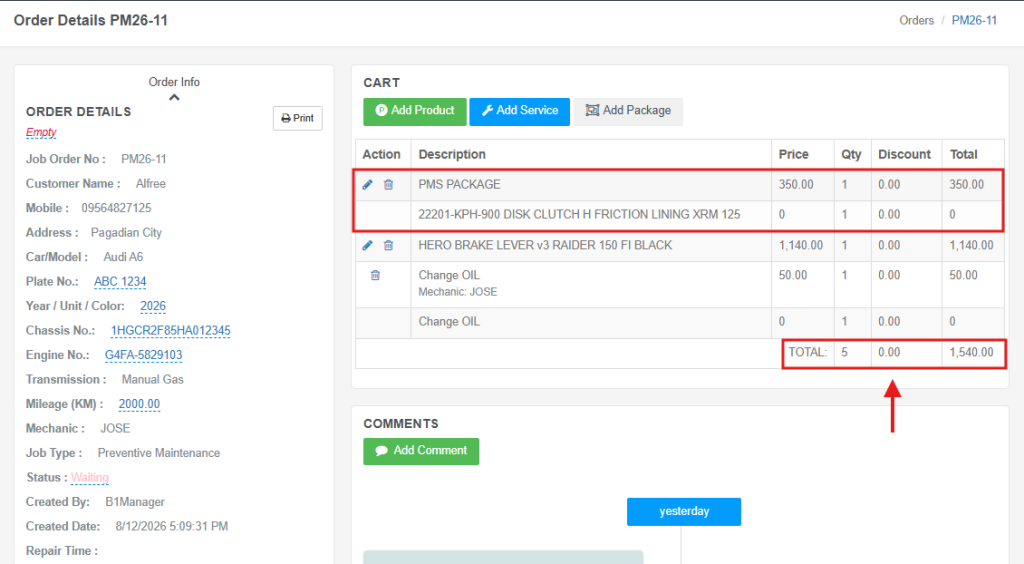
You can also see the total amount for Products, Services, and Packages in the Cart.
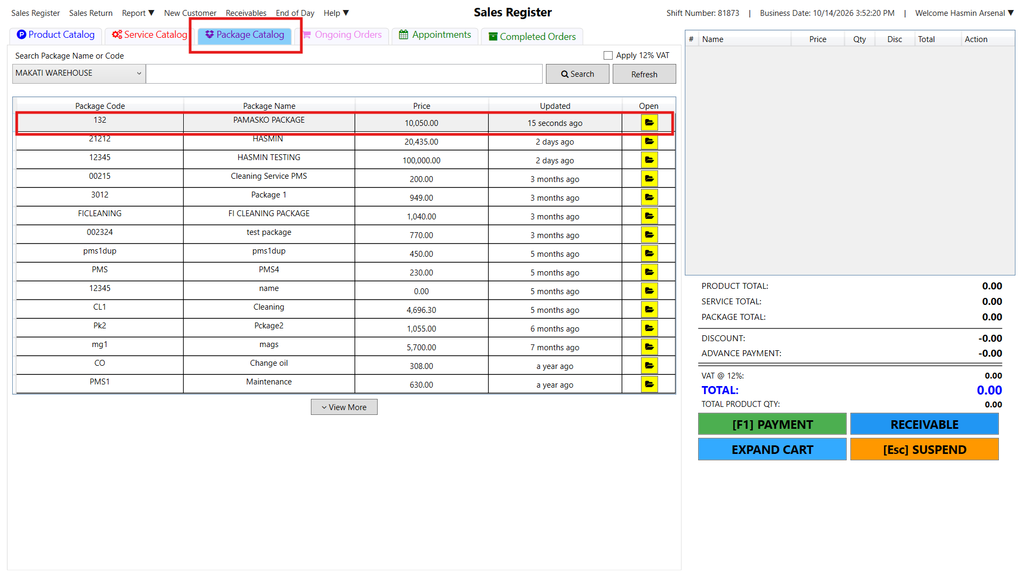
STEP 1: Go to https://portal.motodisk.com
STEP 2: Enter your credentials to log in.
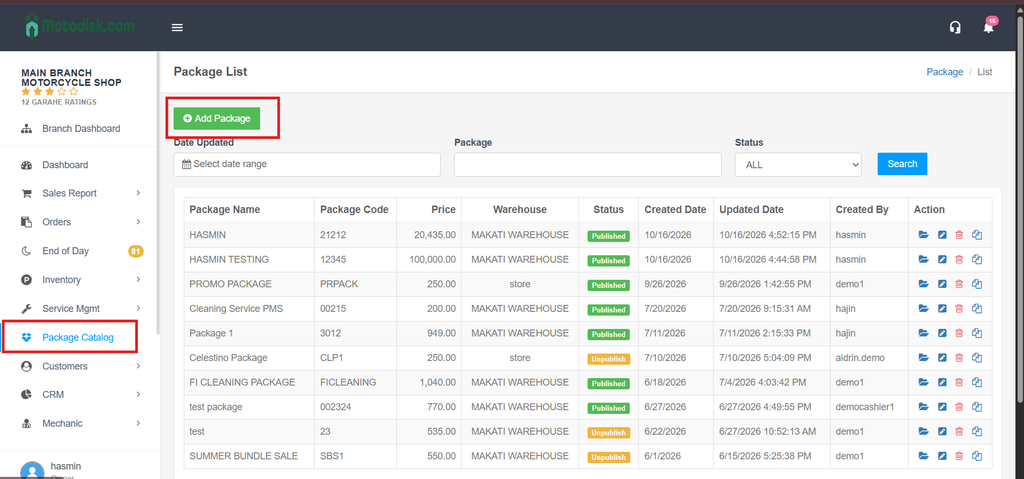
STEP 3: From the sidebar, go to Package Catalog
STEP 4: Click Add Package
STEP 5: Input the Required Information then click SAVE.
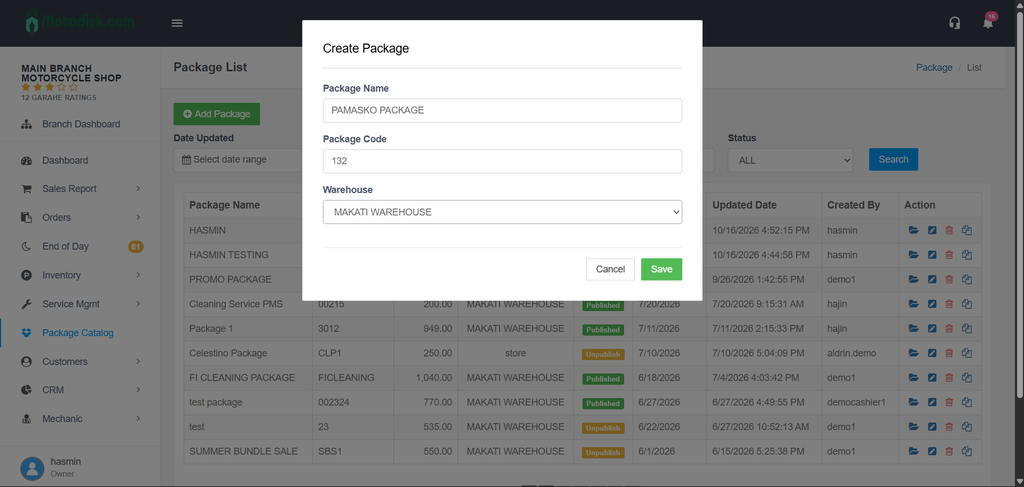
STEP 6: You will now redirected to the Promo Package Interface.
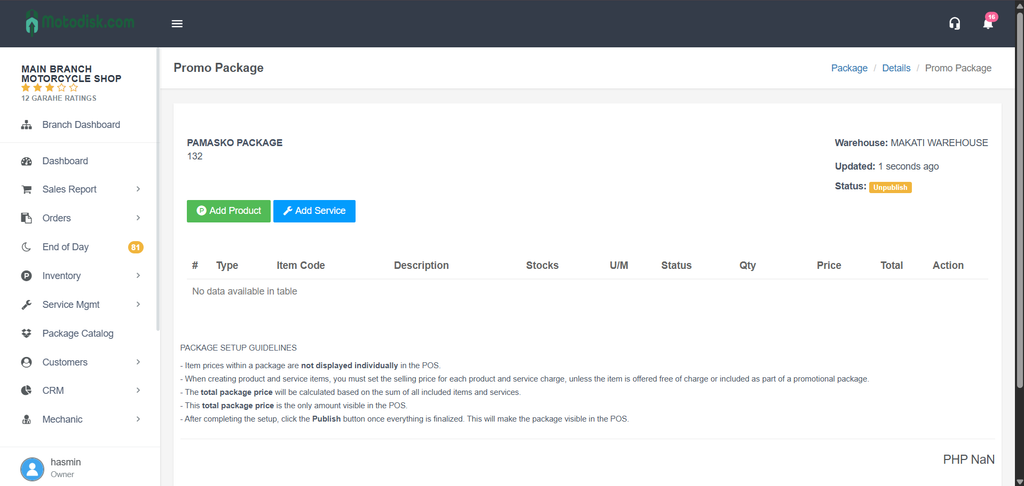
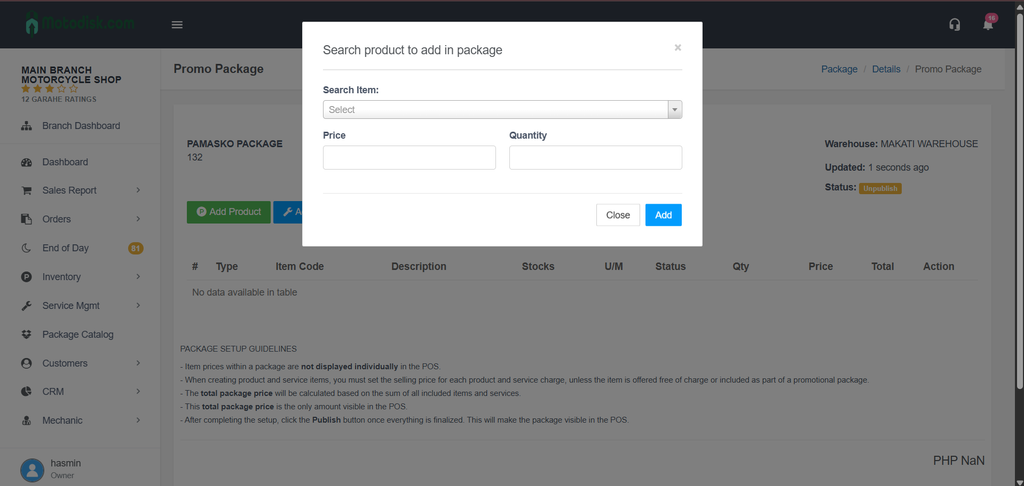
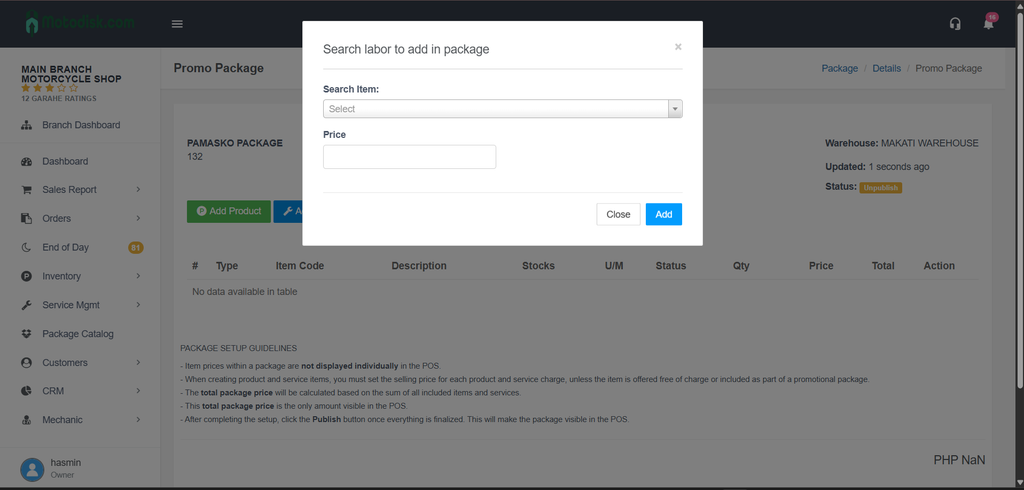
STEP 7: From the Promo Package Interface, Click Add Product to add Products inside your package and Click Add Service to add Services inside your package then click ADD.
ADD PRODUCT INTERFACE
ADD SERVICES INTERFACE
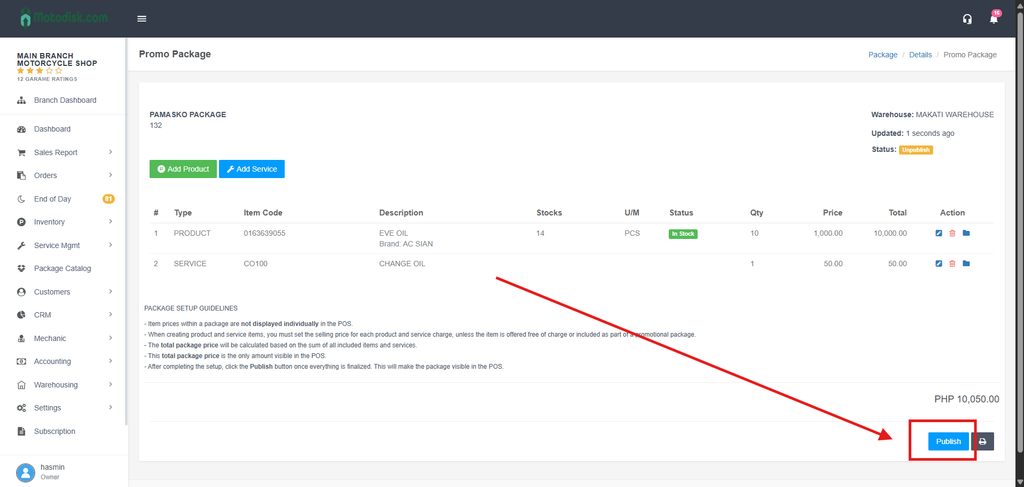
STEP 8: Click PUBLISH to make your package visible to the POS.
STEP 9: Open your POS system and go to the Package Catalog to check if your published package is reflected there.