
- Go to https://portal.motodisk.com and log in.
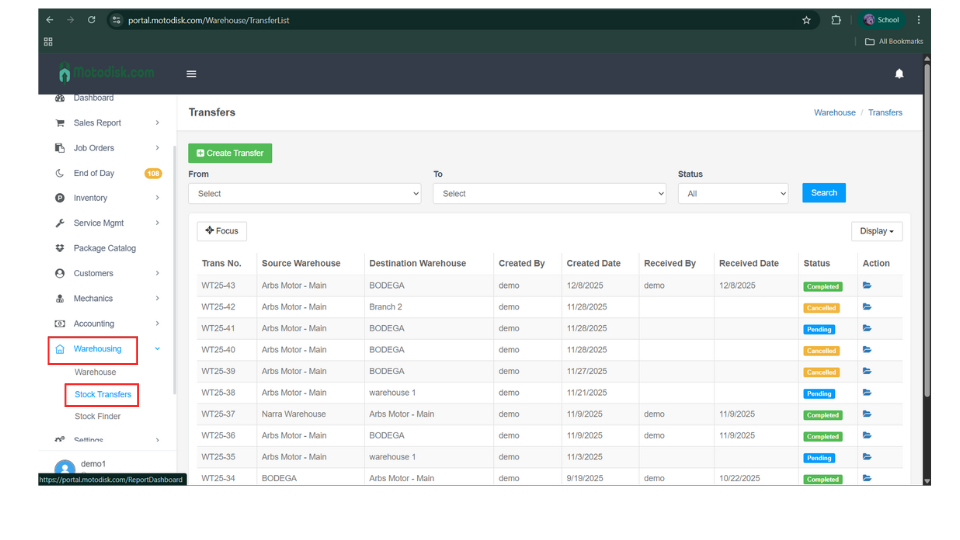
- In the side bar, select Warehousing > Stack Transfers
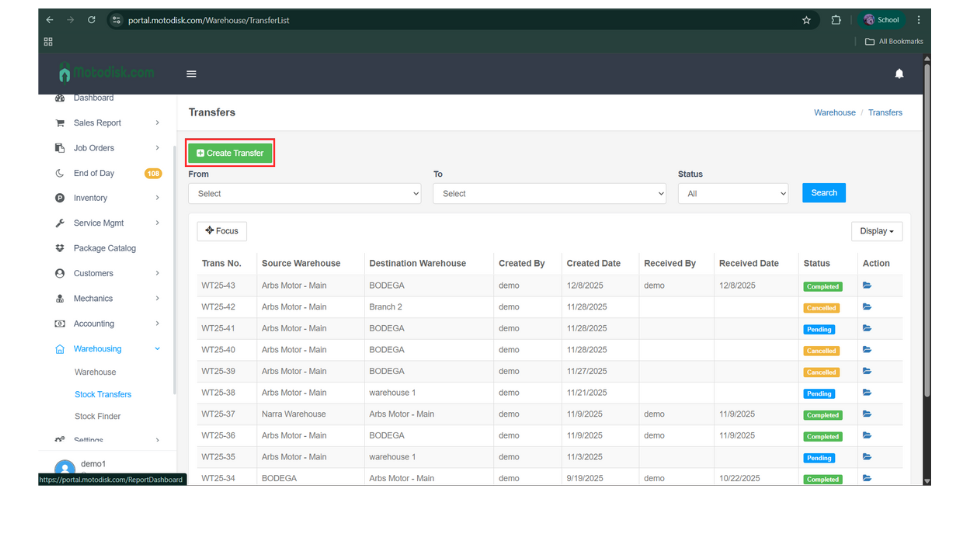
4. After clicking Stock Transfers, click Create Transfer at the top.
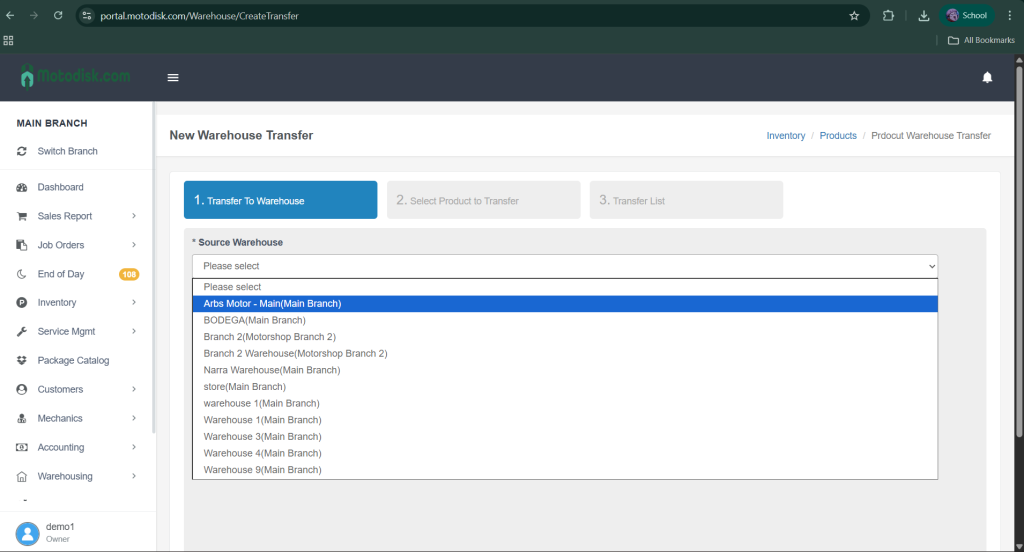
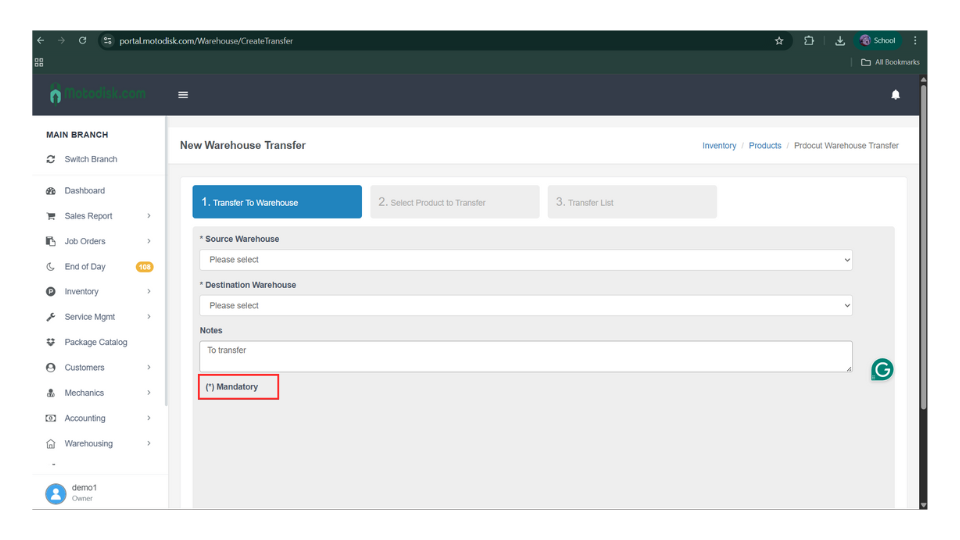
5. After clicking Create Transfer, first select a source warehouse.
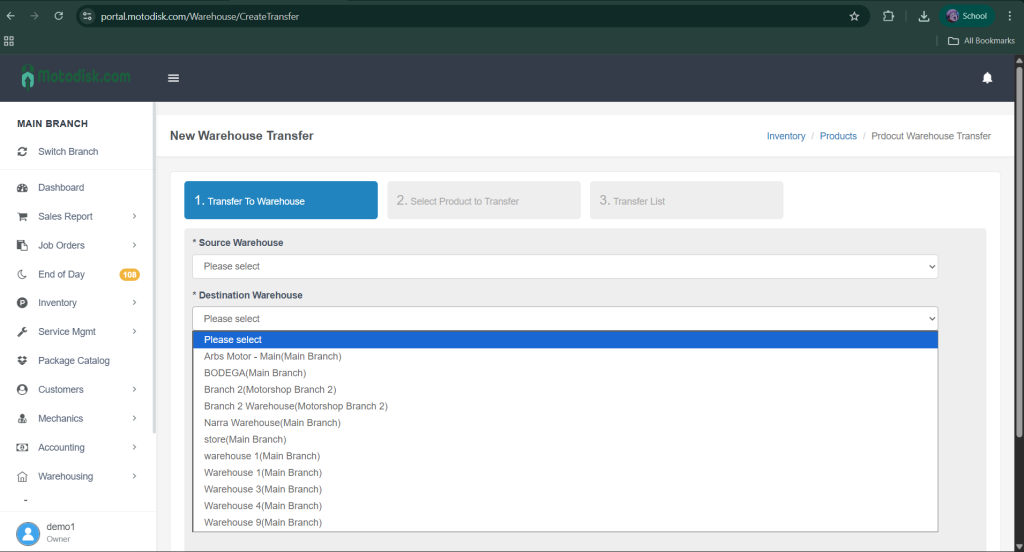
6. After selecting a source warehouse, select the destination warehouse.
7. After selecting the source and destination warehouses, enter the notes/reason for transfer since it is required.
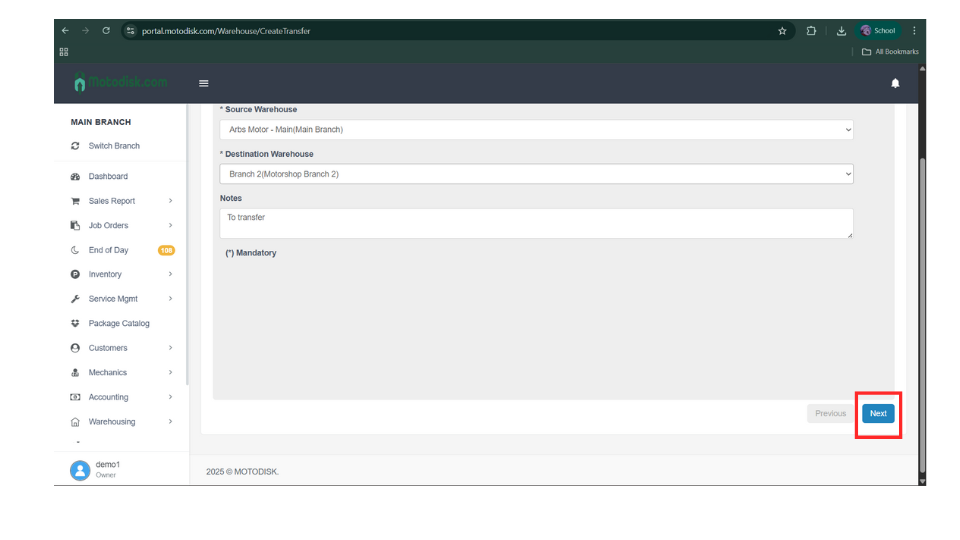
8.Click the Next button at the bottom.
Note: Transfers cannot be made to the same warehouse; the source and destination must be different.
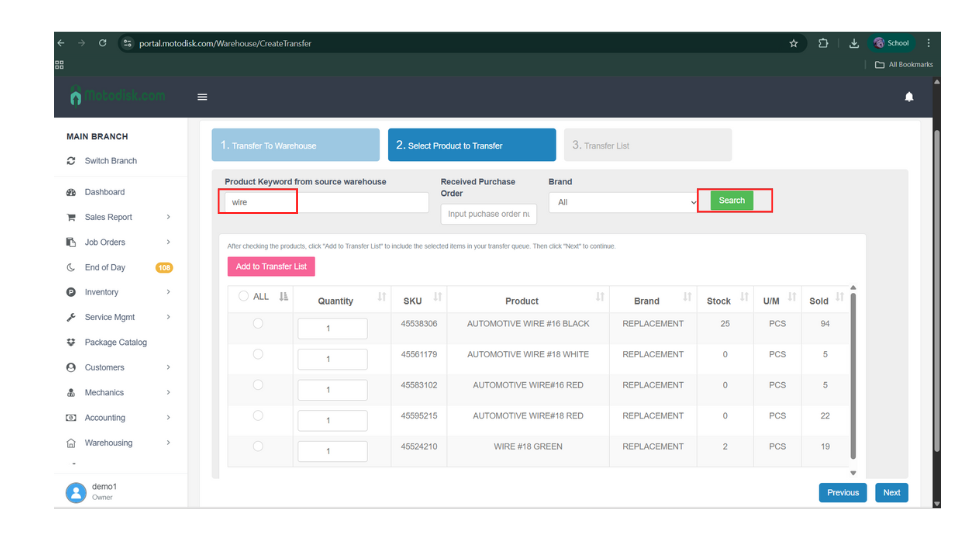
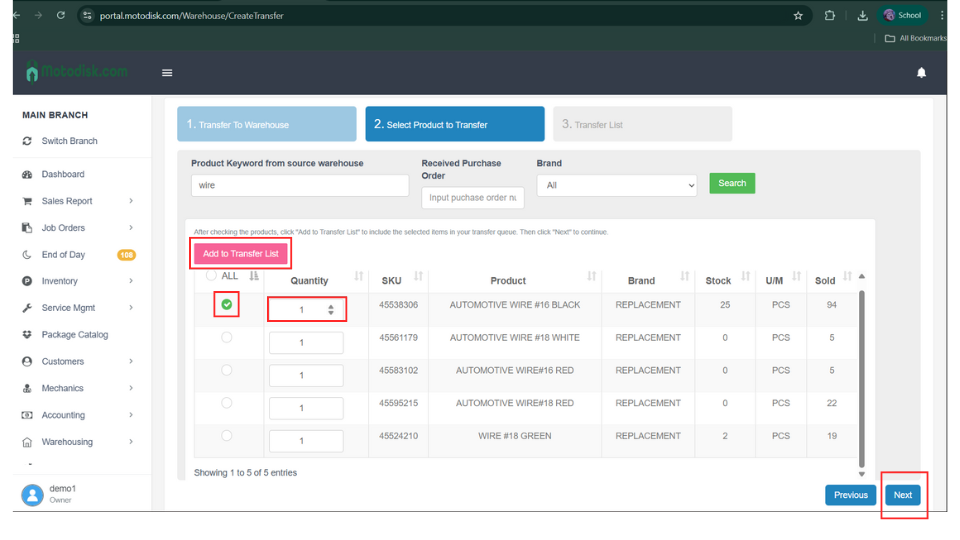
9. First, type the product keyword from the source warehouse you want to transfer and the purchase order, then click the Search button to display the results.
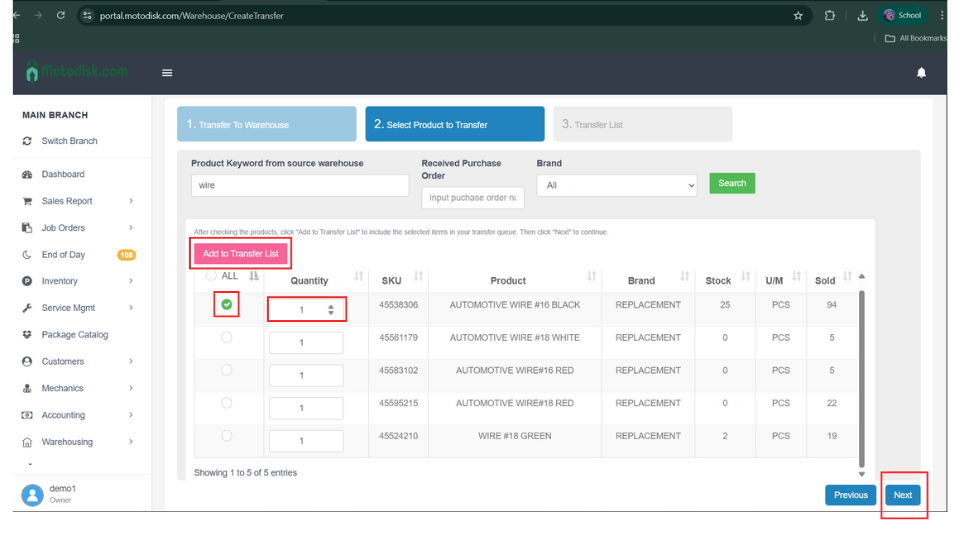
10 . First, select a product by checking it, enter the quantity you want to transfer to the destination warehouse, click Add to Transfer List, and then click Next.
Note: You cannot proceed if the product you selected has 0 stock.
11. Now, confirm the products and quantities you want to transfer to the destination warehouse. You can edit the quantity or delete items if needed. After confirming, click Finish.
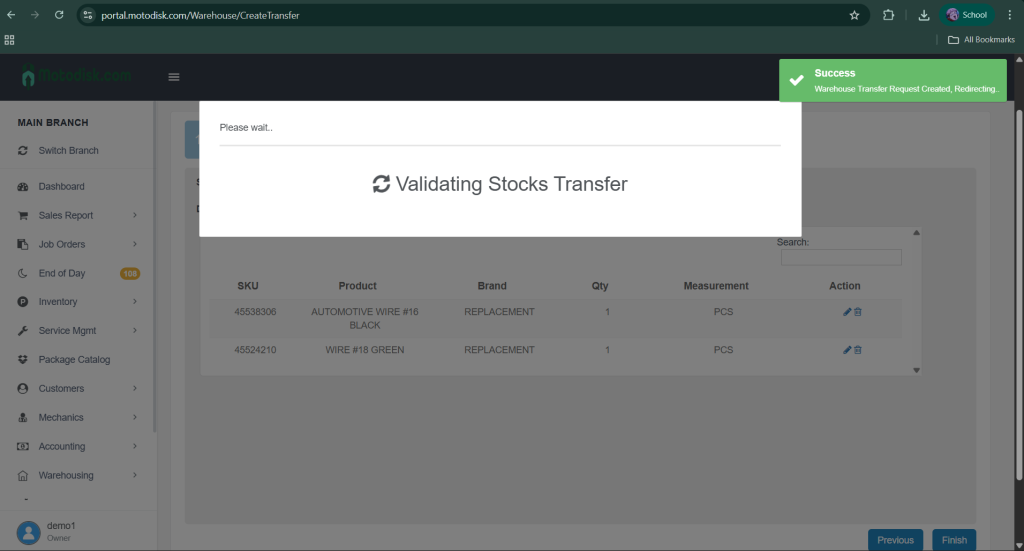
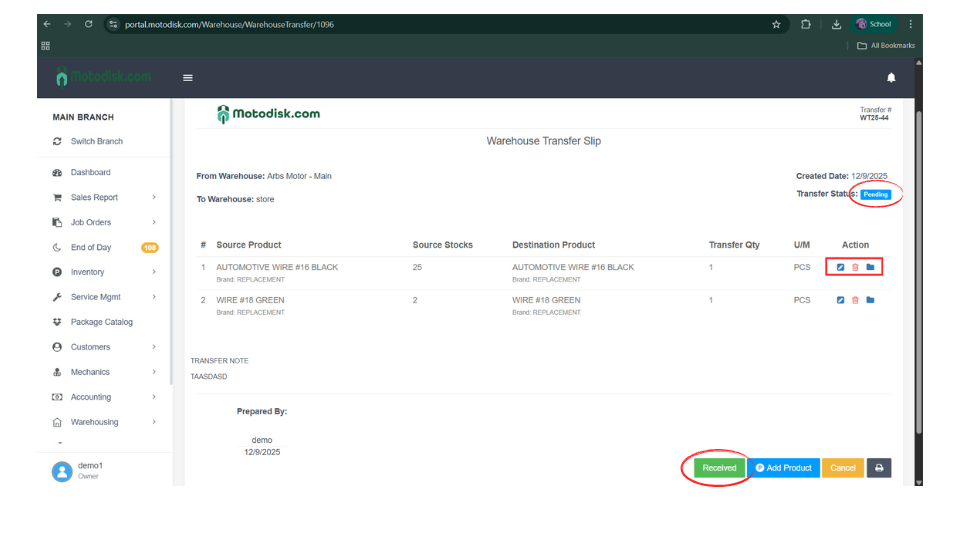
12. After validating, review the transfer again. You can edit or delete items in the Action column on the right. Since the status is still Pending, click Received to complete the product transfer.
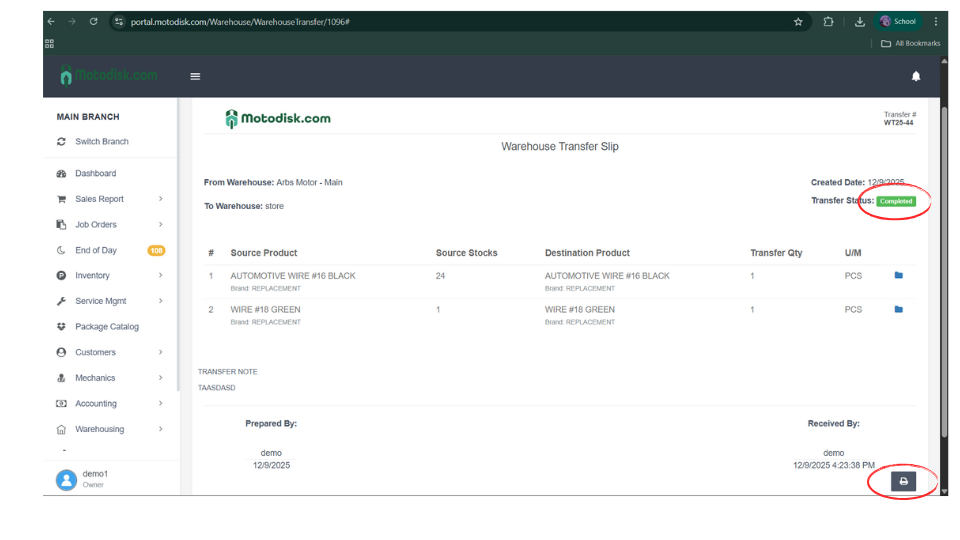
13. Once the transfer status is Completed, you can also print the transfer details.
Here’s the video guide.