
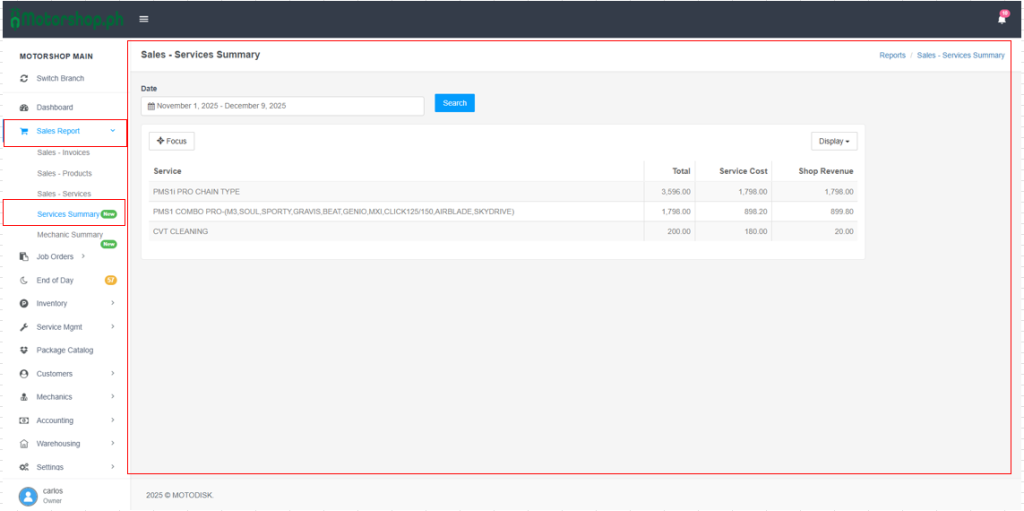
Access the Service Summary page from the left sidebar: click “Sales Report” (shopping cart icon), then select “Service Summary” from the submenu.
Step-by-Step Navigation Instructions
- Go to https://portal.motodisk.com and log in
- In the left sidebar, find “MOTORSHOP MAIN“
click “Sales Report” (shopping cart icon), then select “Service Summary” from the submenu.
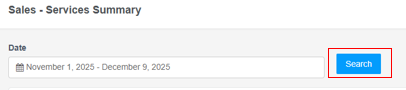
Filter by date
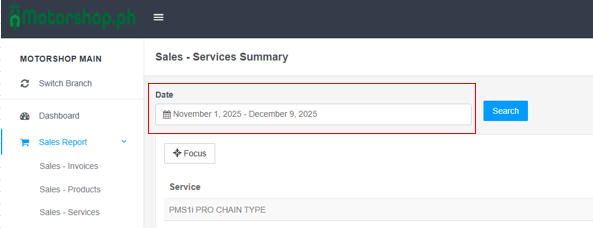
- Click the Date field (calendar icon).
- Choose a quick range (Today, Yesterday, Last 7 Days, Last 30 Days, This Month, Last Month, One Year) or use Custom to pick start/end dates.
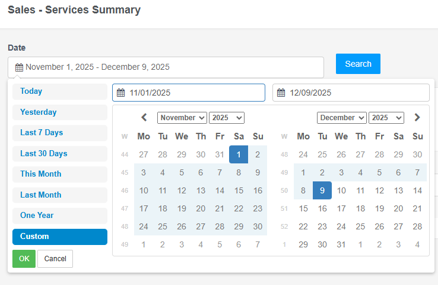
- Click OK, then Search to refresh.
Read the summary table
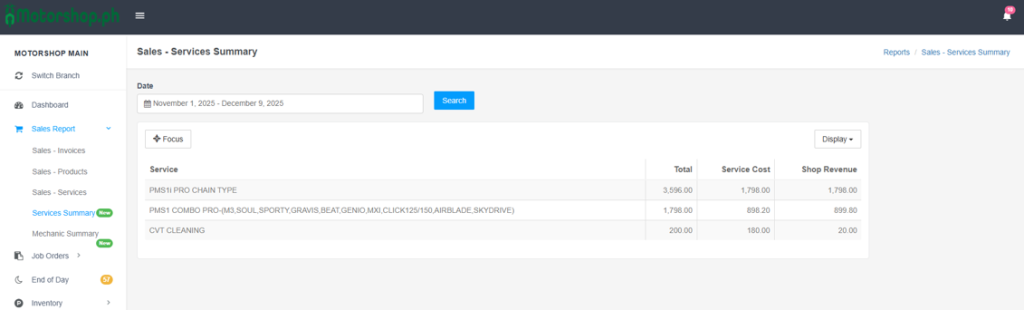
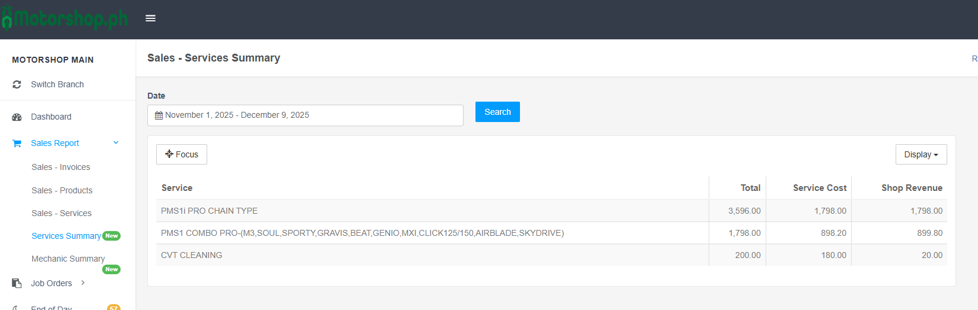
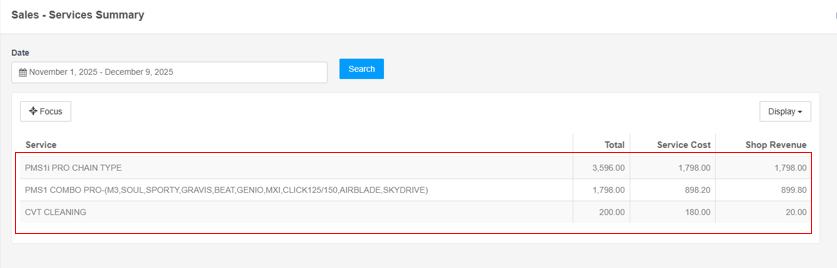
- Columns: Service, Total, Service Cost, Shop Revenue.
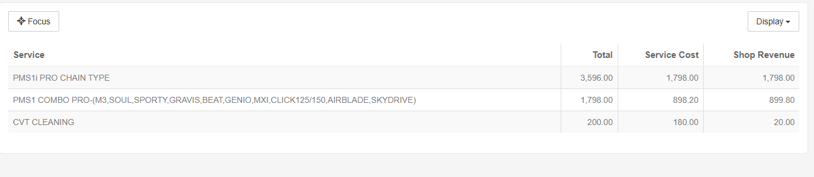
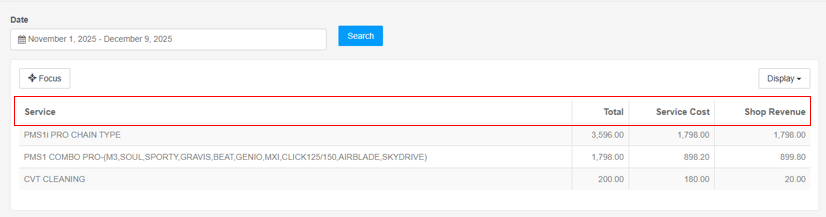
- Rows show each service with aggregated totals for the selected date range.
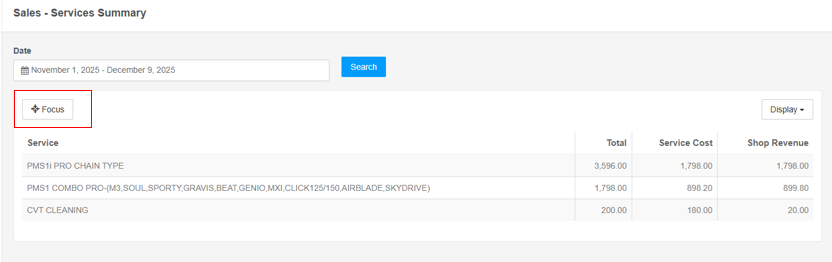
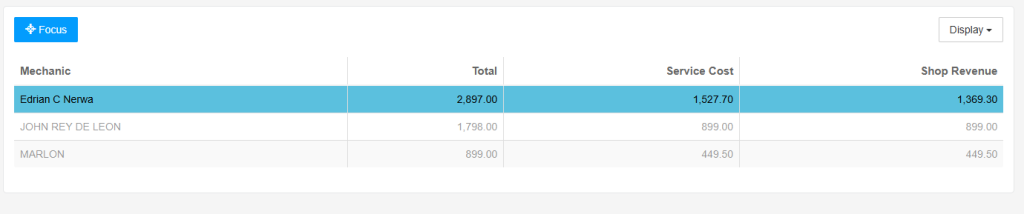
- Click Focus to highlight a row indicates the current selection.
Show/hide columns
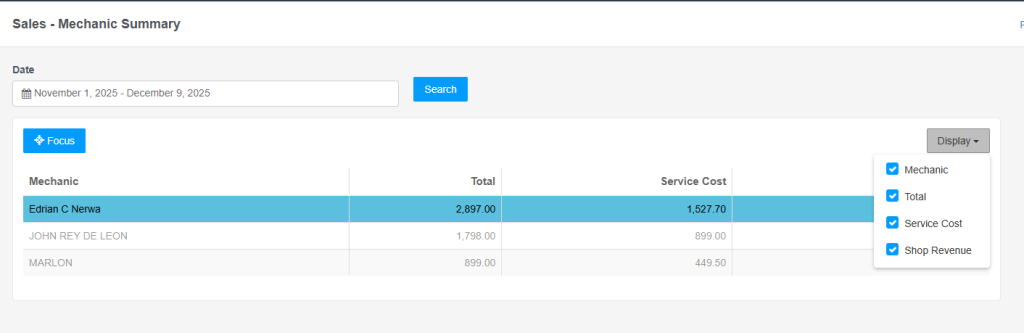
Click Display (top-right of the table) to toggle columns (Service, Total, Service Cost, Shop Revenue).

Video Tutorial
Tips
- Always click Search after adjusting the date range.
- Use Display to simplify the view if you only need certain figures (e.g., hide Service Cost if you only need revenue).