
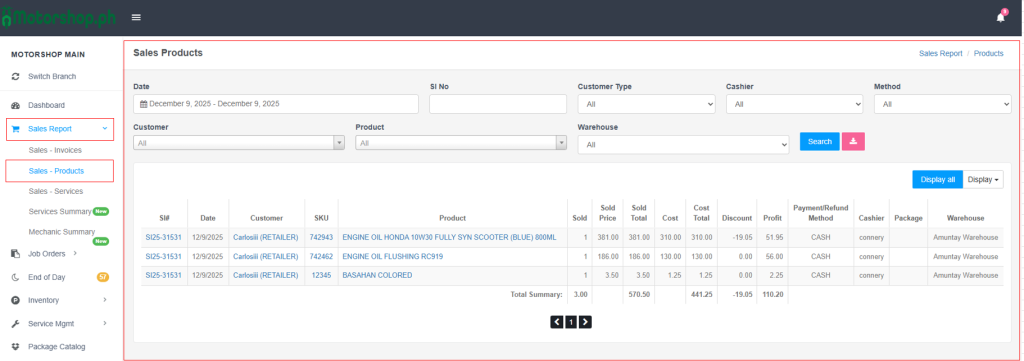
Access the Sales Products page from the left sidebar: click “Sales Report” (shopping cart icon), then select “Sales – Products” from the submenu.
Step-by-Step Navigation Instructions
- Accessing the Sales Products Page
- In the left sidebar, find “MOTORSHOP MAIN”.
- Click “Sales Report” (shopping cart icon) to expand the menu.
- Click “Sales – Products” (highlighted in blue when active).
2. Using the Filter Section
Use the filters at the top to narrow results:
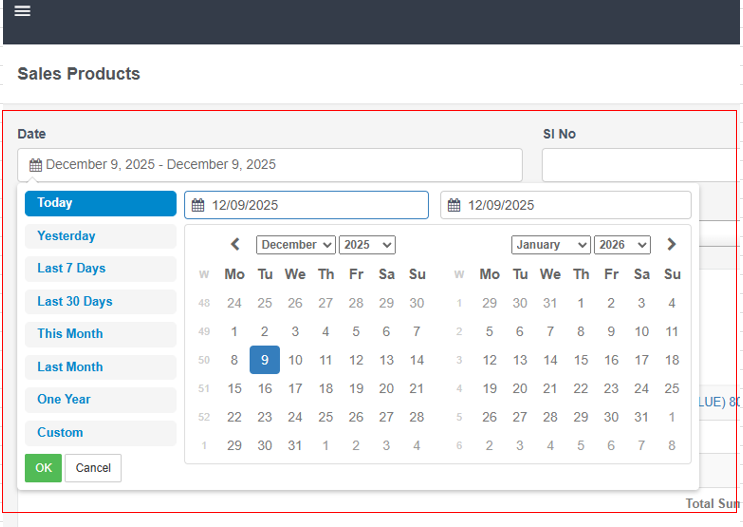
- Date: Click the calendar icon to open the date picker. Choose:
- Quick options: Today, Yesterday, Last 7 Days, Last 30 Days, This Month, Last Month, One Year
- Or select “Custom” for a specific range
- Click “OK” to apply
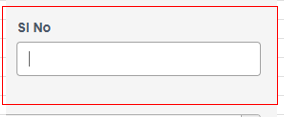
SI No: Enter a specific Sales Invoice number.

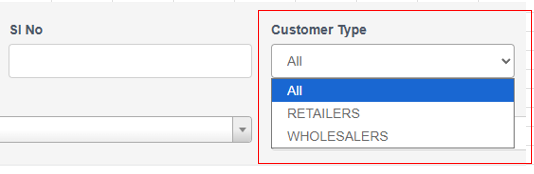
Customer Type: Select from the dropdown:
- All
- RETAILERS
- WHOLESALERS
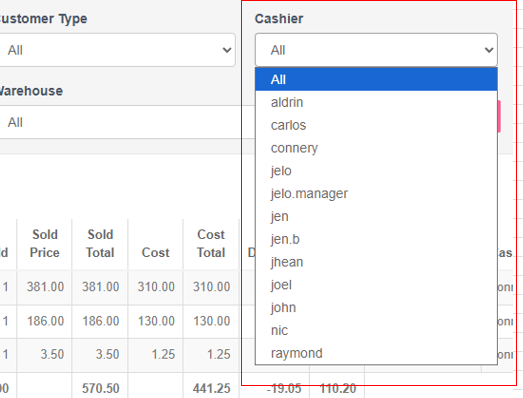
Cashier: Select a cashier from the dropdown (e.g), or leave as “All”.

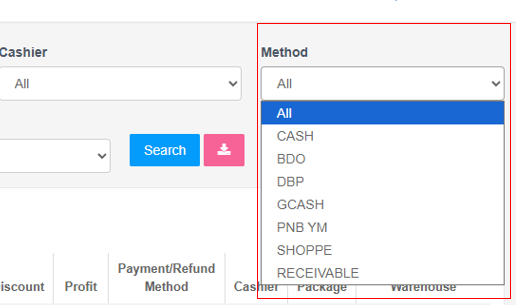
Method: Select a payment method from the dropdown:
- All
- CASH
- BDO
- DBP
- GCASH
- PNB YM
- SHOPPE
- RECEIVABLE
- (and other payment methods)

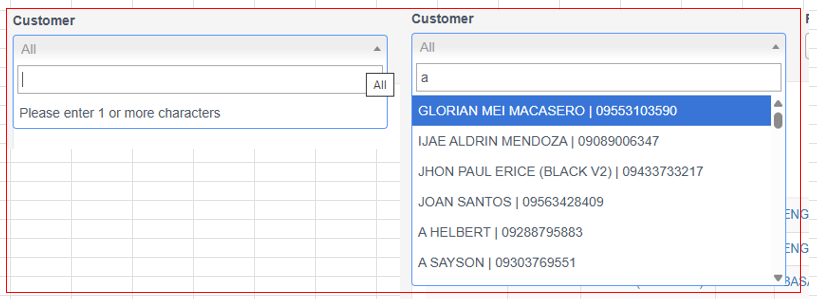
Customer:
- Select “All” to include all customers
- Or type at least 1 character in the search field to filter by customer name
- Select a customer from the filtered list (displays as “CUSTOMER NAME | PHONE NUMBER”)

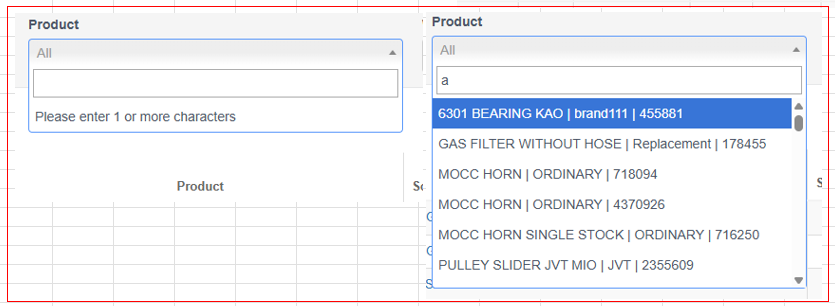
Product:
- Select “All” to include all products (e.g)
- Or type in the search field to filter by product name
- Select a product from the filtered list (displays as “PRODUCT NAME | BRAND | ID NUMBER”)

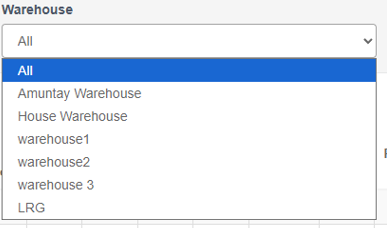
Warehouse: Select a warehouse from the dropdown (e.g):

Action Buttons
- Search Button (Blue): Click to apply all selected filters and refresh the table.
- Export Button (Pink with Download Icon): Click to export the filtered results to a CSV file.

3. Understanding the Sales Products Table
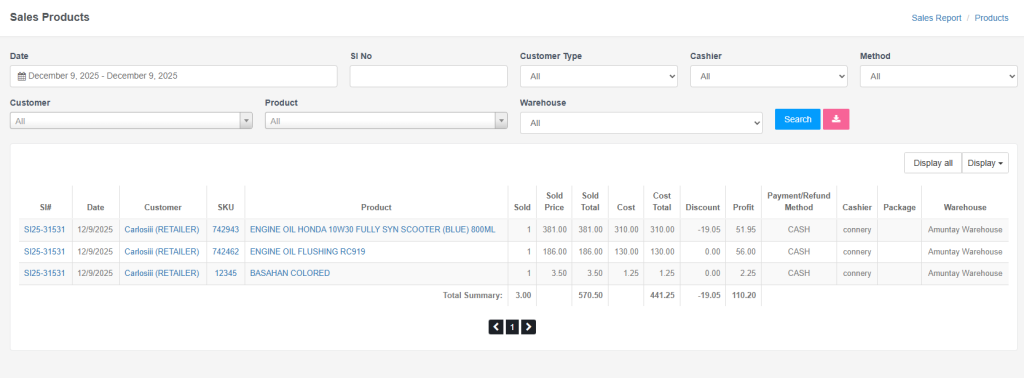
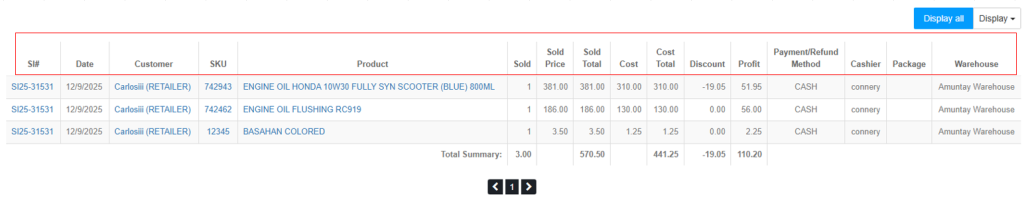
The table shows product-level sales data:
Column Headers:
- SI#: Sales Invoice number
- Date: Transaction date
- Customer: Customer name and type (e.g., RETAILER, WHOLESALER)
- SKU: Product SKU code
- Product: Product name
- Sold: Quantity sold
- Sold Price: Unit selling price
- Sold Total: Total revenue (Sold × Sold Price)
- Cost: Unit cost
- Cost Total: Total cost (Sold × Cost)
- Discount: Discount amount (shown as negative if applicable)
- Profit: Profit per item (Sold Total – Cost Total – Discount)
- Payment/Refund Method: Payment method used (e.g., CASH)
- Cashier: Cashier who processed the transaction
- Package: Package information (if applicable)
- Warehouse: Warehouse where the product was sourced
5. Display Options
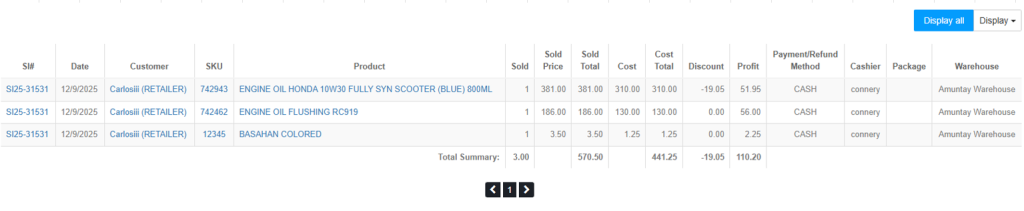
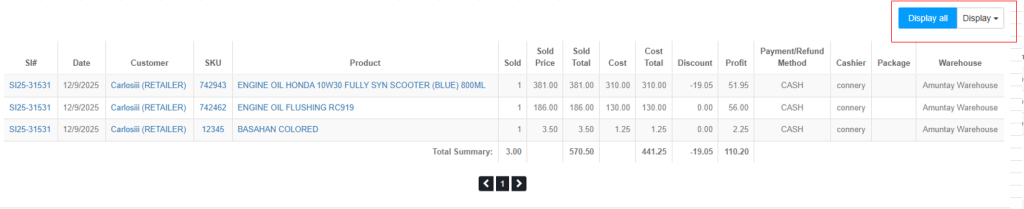
Above the table, you’ll find:
- “Display all” button: Shows all available columns
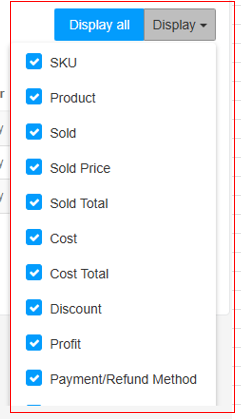
- “Display” dropdown: Allows you to customize which columns to show
6. Exporting Data to CSV
- Click the pink Export button (with download icon) to export the currently filtered data to a CSV file.
- The export includes all visible columns and the filtered results.
- The file can be opened in Excel or other spreadsheet applications.


Video Tutorial
Tips for Effective Filtering:
- Combine multiple filters for precise results (e.g., date range + specific product + warehouse).
- Use the Customer and Product search fields by typing at least 1 character to filter the dropdown options.
- Export filtered data to CSV for further analysis in Excel.
- The Total Summary row shows aggregated values for all displayed rows on the current page.
Note: All filters work together. Click “Search” after adjusting filters to refresh the results.