
Guide to identifying products that haven’t sold within a specified period.
1. Accessing the Non-Moving Products Page
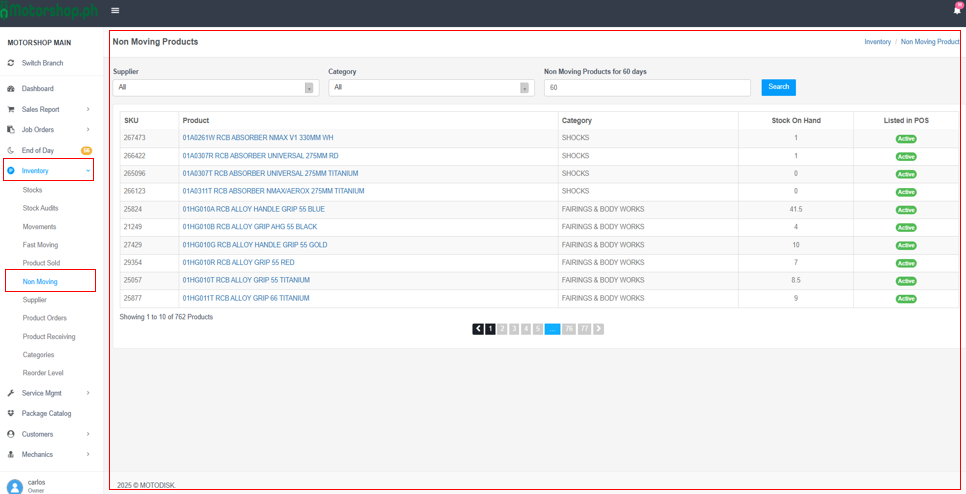
- In the left sidebar, find “MOTORSHOP MAIN”.
- Click “Inventory” (package icon) to expand the menu.
- Click “Non Moving” (highlighted in blue when active).
2. Understanding the Page Layout
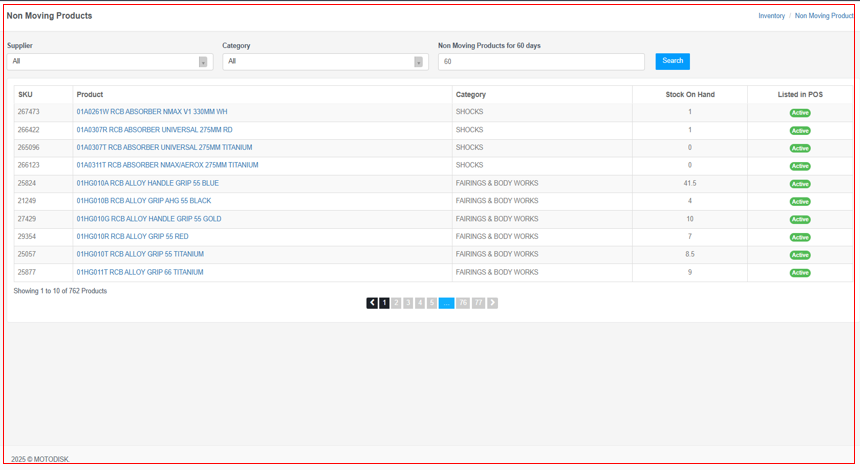
The Non-Moving Products page includes:
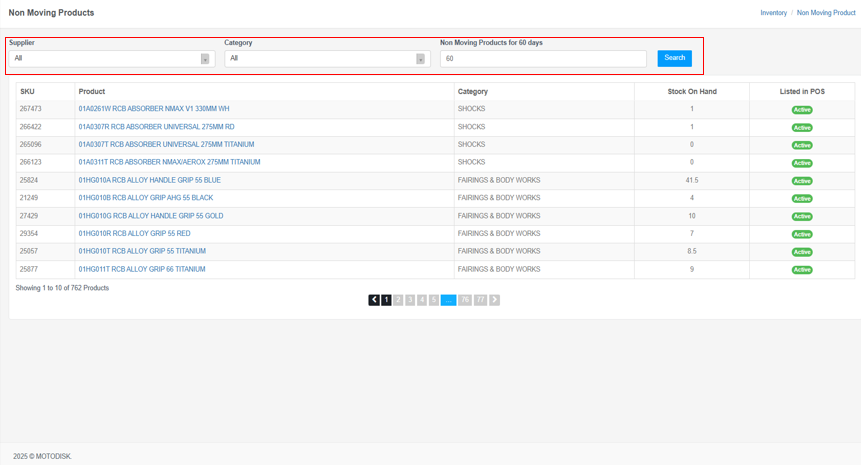
- Filter Section (top): Criteria to refine results
- Data Table (main area): List of non-moving products
- Pagination (bottom): Navigate through pages
3. Using the Filters
Supplier Filter
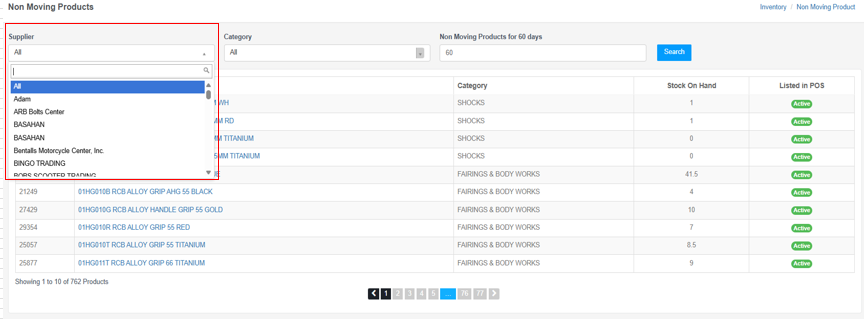
- Click the “Supplier” dropdown.
- Options:
- All (default): Shows products from all suppliers
- Specific suppliers (e.g., Adam, ARB Bolts Center, BASAHAN, Bentalls Motorcycle Center, Inc., BINGO TRADING, BOBS SCOOTER TRADING)
- Use the search bar in the dropdown to find suppliers quickly.
- Select a supplier or leave as “All”.
Category Filter
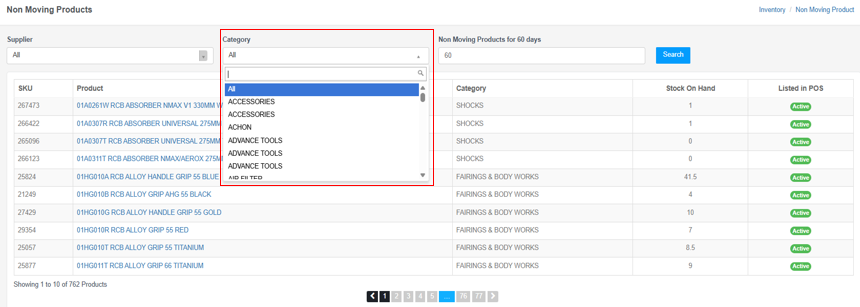
- Click the “Category” dropdown.
- Options:
- All (default): Shows products from all categories
- Specific categories (e.g., ACCESSORIES, ACHON, ADVANCE TOOLS, AID FILTED, SHOCKS, FAIRINGS & BODY WORKS)
- Use the search bar in the dropdown to find categories quickly.
- Select a category or leave as “All”.
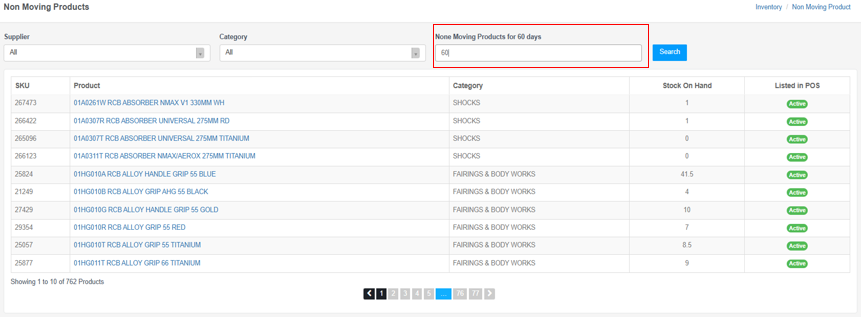
Non Moving Products for X Days
- Enter the number of days (default: 60).
- Shows products that haven’t sold in that many days or more.
- Examples:
- 60 days: Products not sold in the last 60 days
- 90 days: Products not sold in the last 90 days
- 30 days: Products not sold in the last 30 days
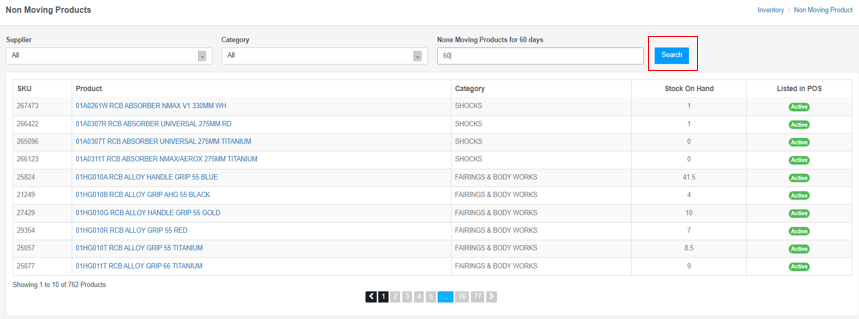
Applying Filters
- After setting filters, click the blue “Search” button to refresh results.
4. Understanding the Non-Moving Products Table
The table shows these columns:
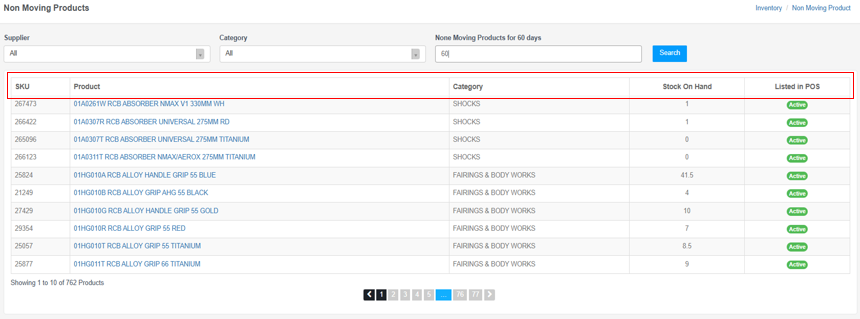
Column Descriptions:
SKU
- Stock Keeping Unit (unique product identifier)
- Example: 267473, 266422, 21249
Product
- Full product name/description
- Example: “01HG010B RCB ALLOY GRIP AHG 55 BLACK”
Category
- Product category
- Examples: SHOCKS, FAIRINGS & BODY WORKS, ACCESSORIES
Stock On Hand
- Current available quantity
- Can be whole numbers (e.g., 1, 0, 4, 10) or decimals (e.g., 41.5, 8.5)
- 0 = Out of stock
- > 0 = Has inventory but hasn’t sold
Listed in POS
- Status in the Point of Sale system
- Active (green badge): Product is listed and available for sale
- If not active, the product may be disabled or removed from POS
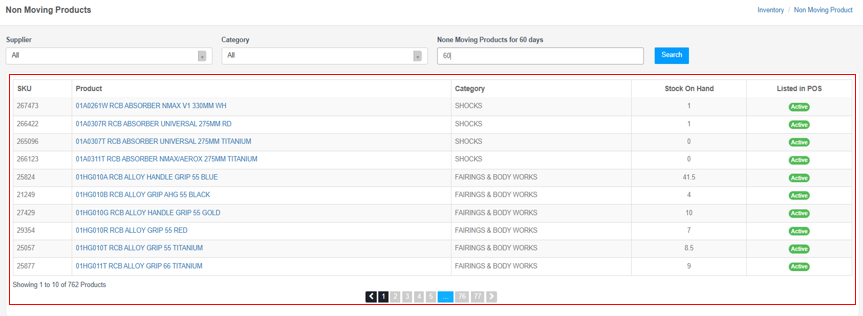
5. Reading Non-Moving Product Data
Example 1: Non-Moving Product with Stock
- SKU: 25824
- Product: 01HG010A RCB ALLOY HANDLE GRIP 55 BLUE
- Category: FAIRINGS & BODY WORKS
- Stock On Hand: 41.5
- Listed in POS: Active
Interpretation: Has 41.5 units in stock, is active in POS, but hasn’t sold in the last 60 days. Consider promotions, pricing, or marketing.
Example 2: Non-Moving Product with Zero Stock
- SKU: 265096
- Product: 01A0307T RCB ABSORBER UNIVERSAL 275MM TITANIUM
- Category: SHOCKS
- Stock On Hand: 0
- Listed in POS: Active
Interpretation: Out of stock and hasn’t sold in 60 days. May be obsolete or low demand. Review if restocking is needed.
Example 3: Non-Moving Product with Low Stock
- SKU: 21249
- Product: 01HG010B RCB ALLOY GRIP AHG 55 BLACK
- Category: FAIRINGS & BODY WORKS
- Stock On Hand: 4
- Listed in POS: Active
Interpretation: Low stock (4 units) and hasn’t sold in 60 days. Consider clearance or discontinuing.
Video Tutorial
Tips for Effective Analysis
- Adjust the time period: Start with 60 days, then try 30 or 90 to see different patterns.
- Filter by category: Focus on specific categories to identify trends.
- Check stock levels: Products with high stock but no sales may need action.
- Review POS status: Ensure products are Active in POS; inactive products won’t sell.
- Compare with fast-moving products: Use the Fast Moving report to contrast with non-moving items.
- Consider seasonality: Some products may be seasonal; adjust the time period accordingly.
- Filter by supplier: Identify suppliers whose products aren’t moving.