
Step-by-Step Guide to Using Stock Audits
Sidebar: Inventory → Stock Audits.
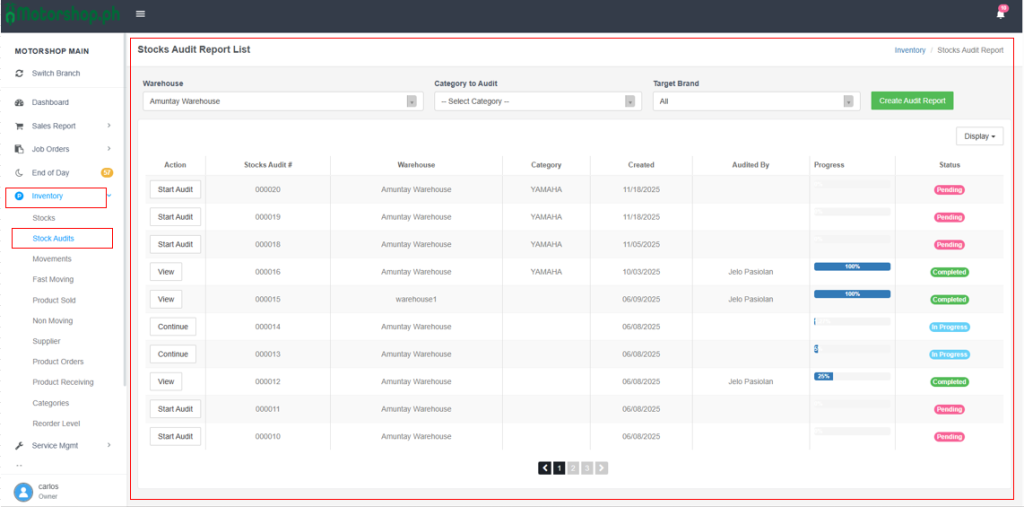
Stock Audit Report List (main page)
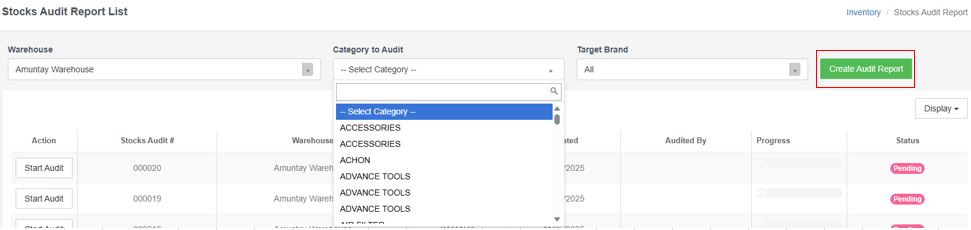
- Filters (top):
- Warehouse: pick the warehouse.
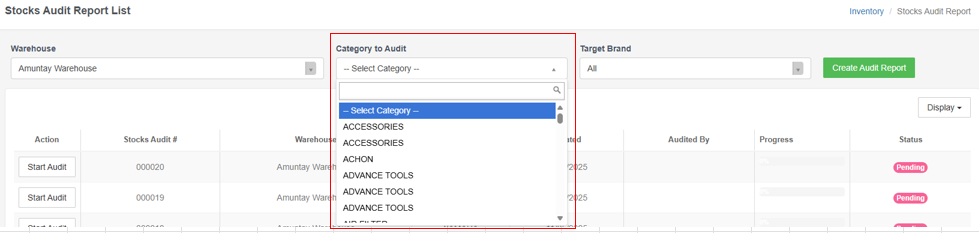
- Category to Audit: choose a category (required to start a new audit; if missing you’ll see “Category is required”).
- Target Brand: filter by brand or leave All.
- Create Audit Report: starts a new audit for the selected Warehouse/Category/Brand.
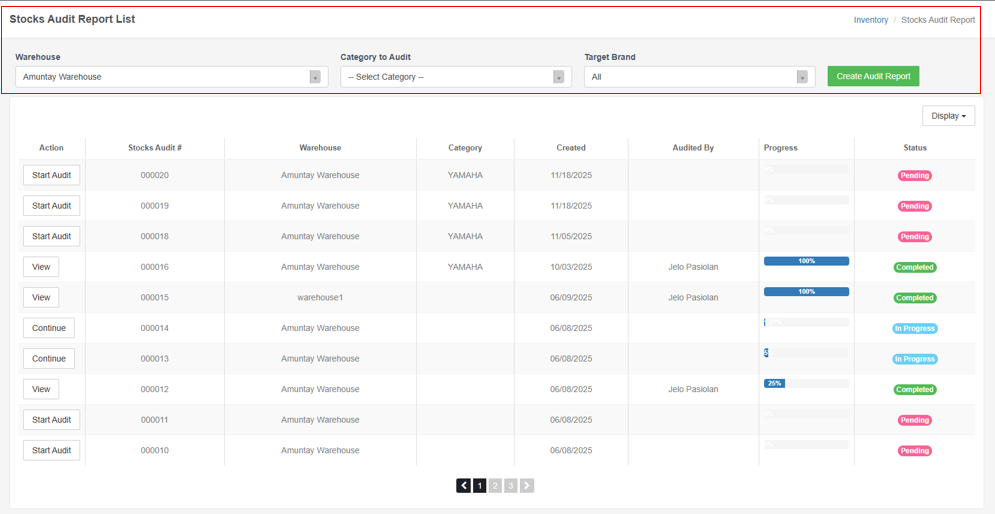
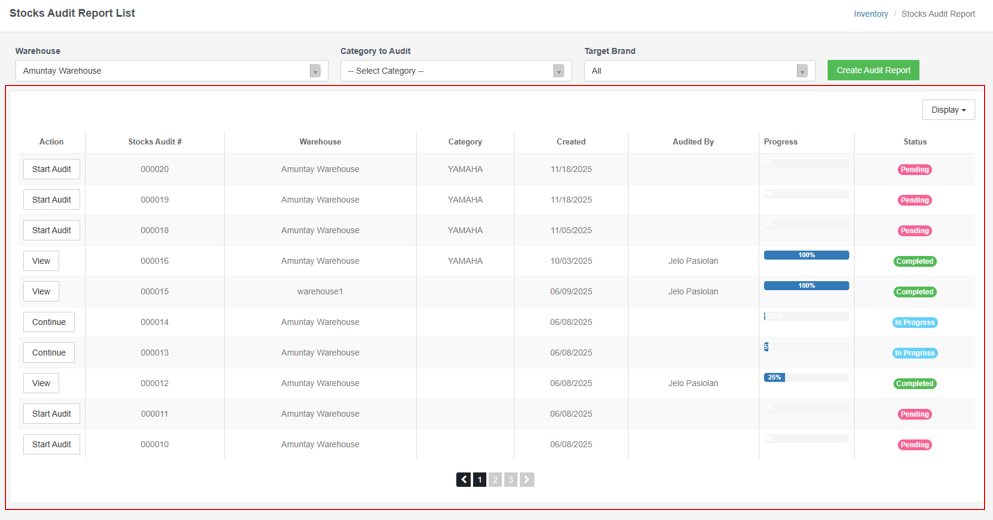
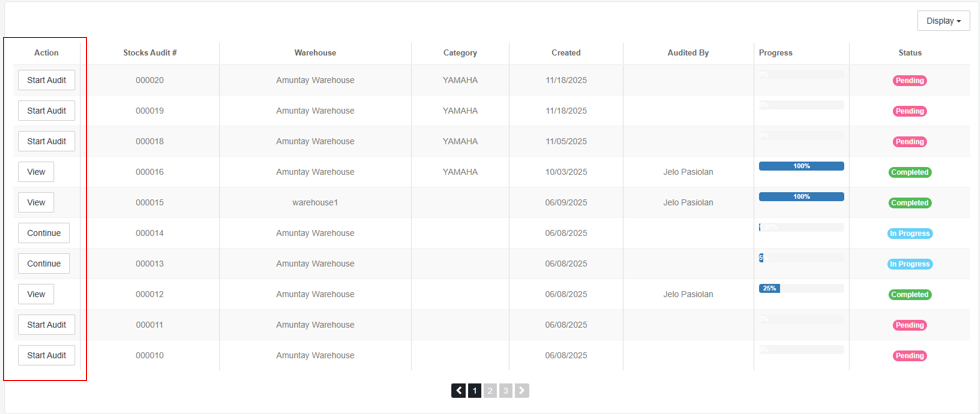
Table columns:
- Action: Start Audit, Continue, or View (depending on status).
- Stocks Audit #: audit ID.
- Warehouse / Category / Created / Audited By / Progress / Status.
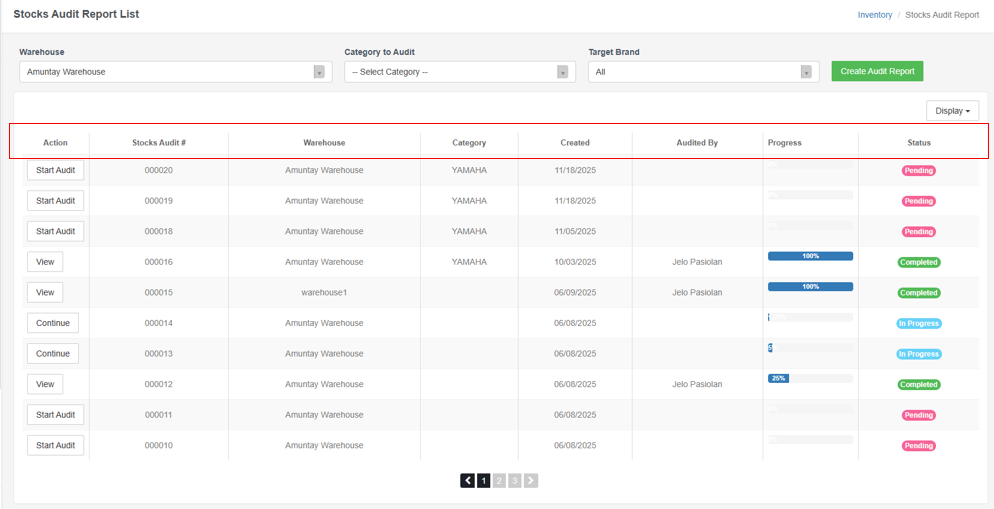
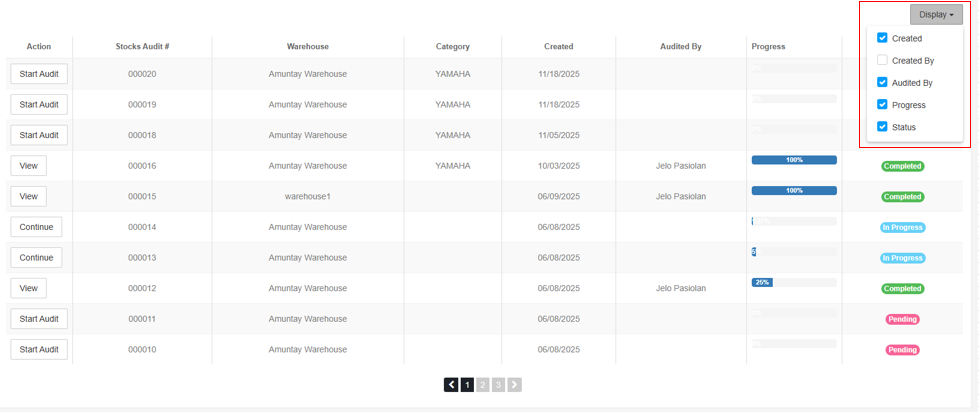
Display dropdown (top-right of table): show/hide columns (Created, Created By, Audited By, Progress, Status).
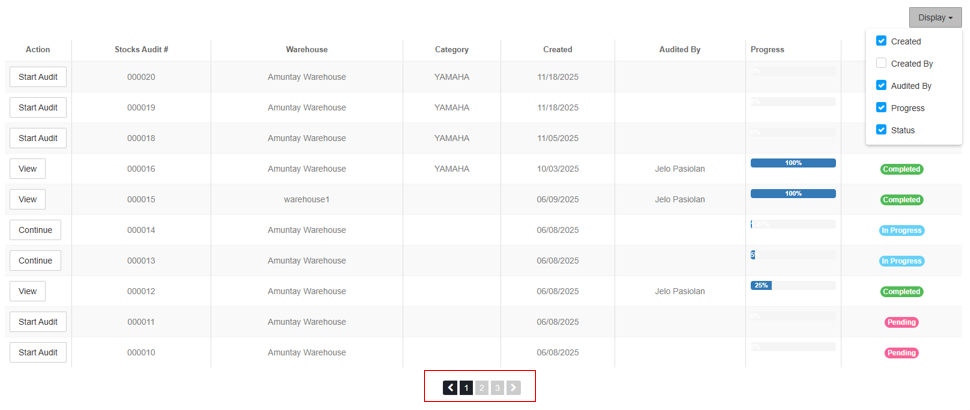
Pagination: use page numbers/arrows to navigate.
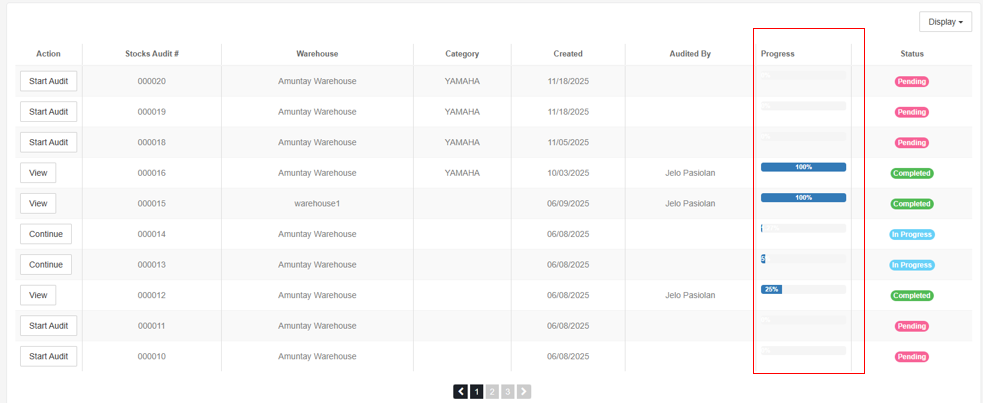
Status/Progress examples:
- Pending, In Progress, Completed; Progress bar shows %.
Creating / Continuing an Audit
1) Set Warehouse, Category to Audit (required), and optionally Target Brand.
2) Click Create Audit Report (or Start Audit on an existing row).
If an audit already exists for that Category/Warehouse/Brand, use Continue; to view a finished audit, click View.
Audit Detail Page (Check)
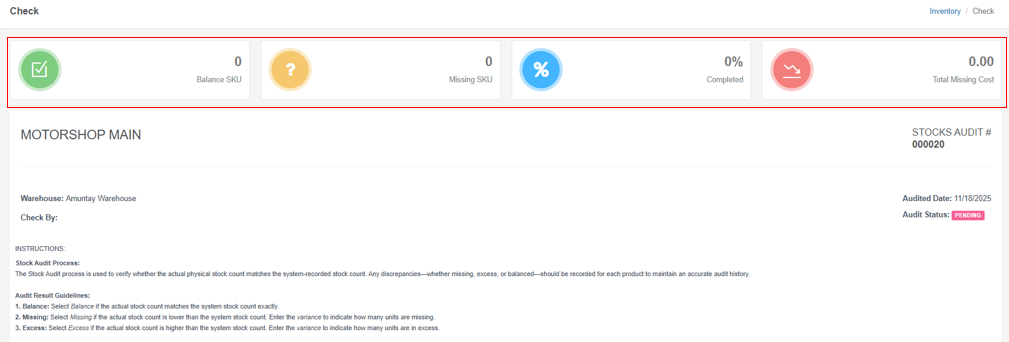
Top summary shows Balance SKU, Missing SKU, % Completed, Total Missing Cost, plus Audit #, date, and status.
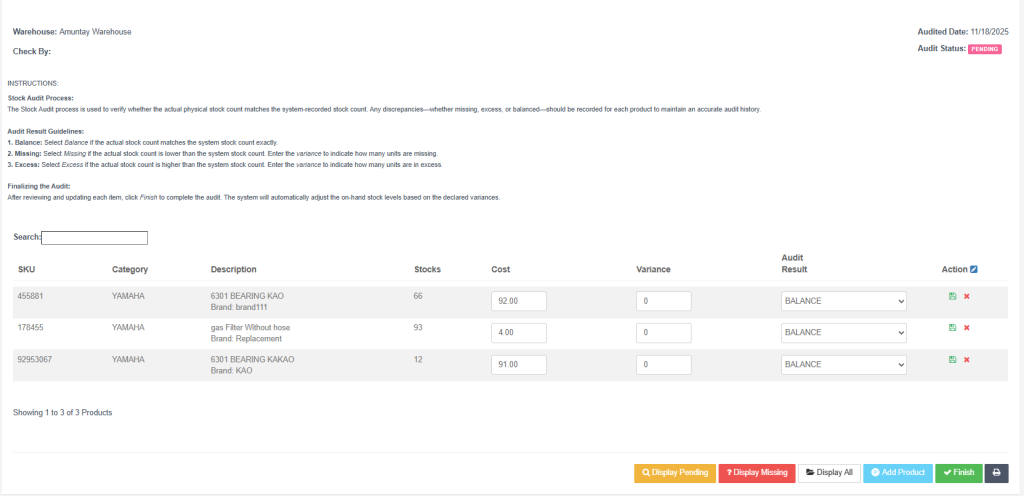
Grid columns:
- SKU / Category / Description / Stocks / Cost / Variance / Audit Result / Action
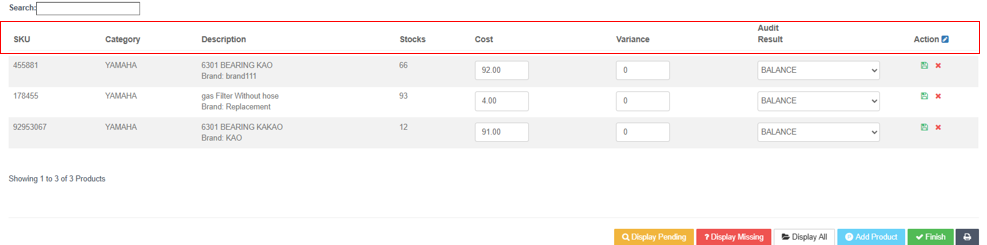
- Audit Result options: BALANCE, MISSING, EXCESS
- Variance: enter a number when MISSING or EXCESS.
- Action icons:
- 🖫 Save (green)
- ❌ Cancel (red)

Notes may show “Previously BALANCE/MISSING” for history.
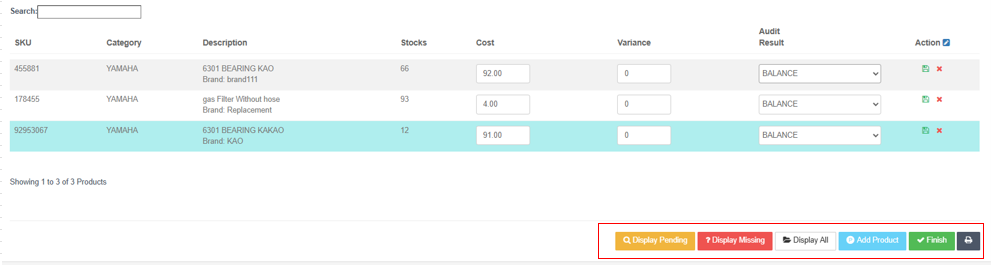
Bulk filters (bottom buttons):
- Display Pending (yellow): show items not yet saved.
- Display Missing (red): show items marked Missing.
- Display All (white): show all.
- Add Product (blue): search by SKU and add to audit.
- Finish (green): finalize the audit (system will adjust on-hand stock based on declared variances).
- Print (gray): print the audit report/preview.
Video Tutorial
Typical Workflow
1) Open/Start: Choose Warehouse/Category (and Brand), then Start Audit or Continue.
2) Review each item:
- If counts match: set BALANCE (Variance 0).
- If short: set MISSING, enter variance quantity.
- If over: set EXCESS, enter variance quantity.
- Click Save (green disk) per row.
3) Filter to check work:
Use Display Pending to catch unsaved rows.4) Add any missing SKU: Add Product, search by SKU, then audit it.5) Finish: click Finish to finalize and post adjustments.6) Print/Export: use Print if you need a hard copy/preview.
Tips & Gotchas
- You must select a Category to Audit before creating a new report; otherwise, you’ll get a “Category is required” alert.
- Save each row after setting Audit Result/Variance; Pending items won’t be posted until saved.
- Use the Display dropdown on the list page to show who created/audited or hide columns for a cleaner view.
- Progress and Status help you track what’s Pending vs. In Progress vs. Completed.
- After finishing, the audit becomes read-only (View). For ongoing work, use Continue.