
Step 1: Go to https://portal.motodisk.com.
Step 2: Enter your credentials to log in.
Step 3: From the sidebar, go to Inventory > Barcode printing, then click the Pencil icon.
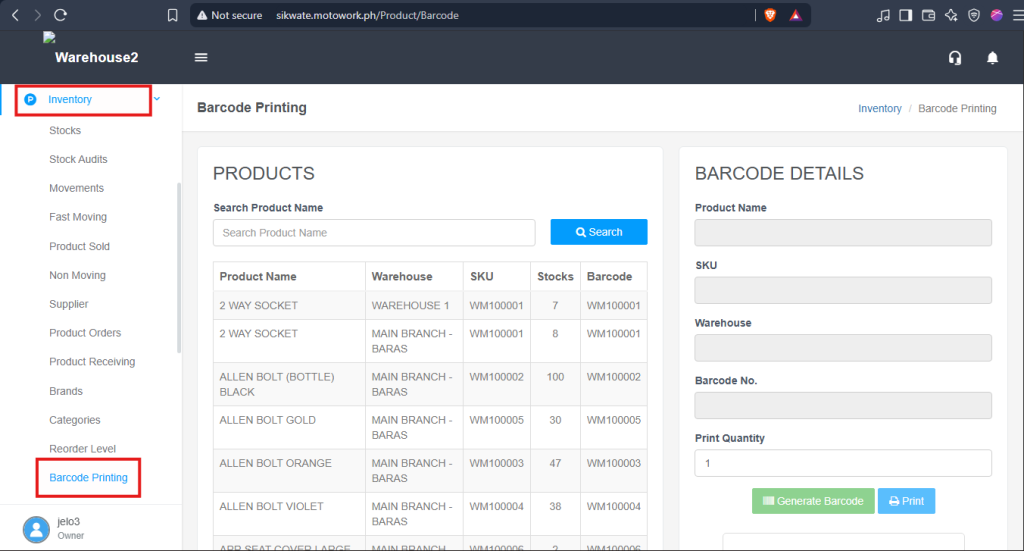
Step 4: Search the product item.
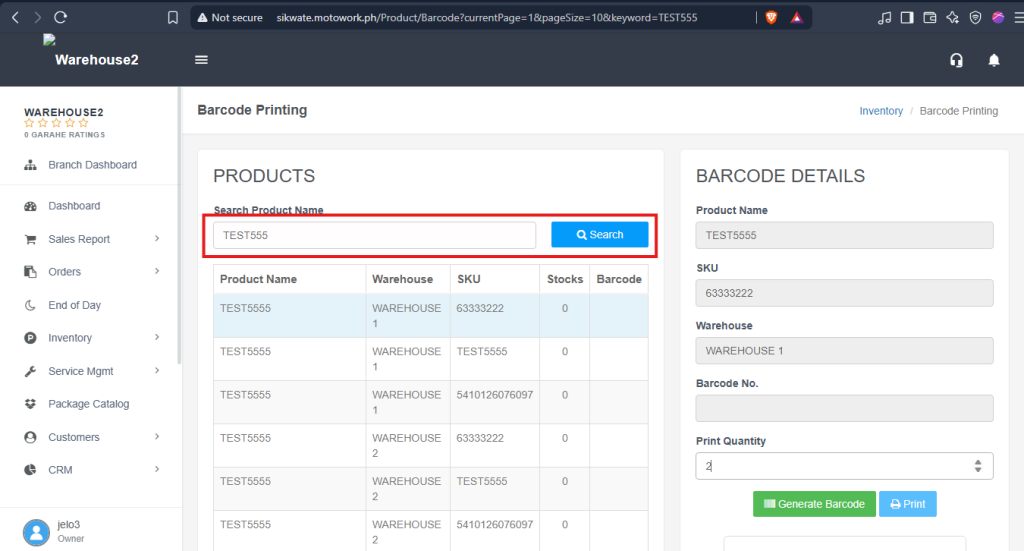
Step 5: Check SKU number and Warehouse. Click “Generate Barcode“.
NOTE:
Print Quantity – It depends on your preference
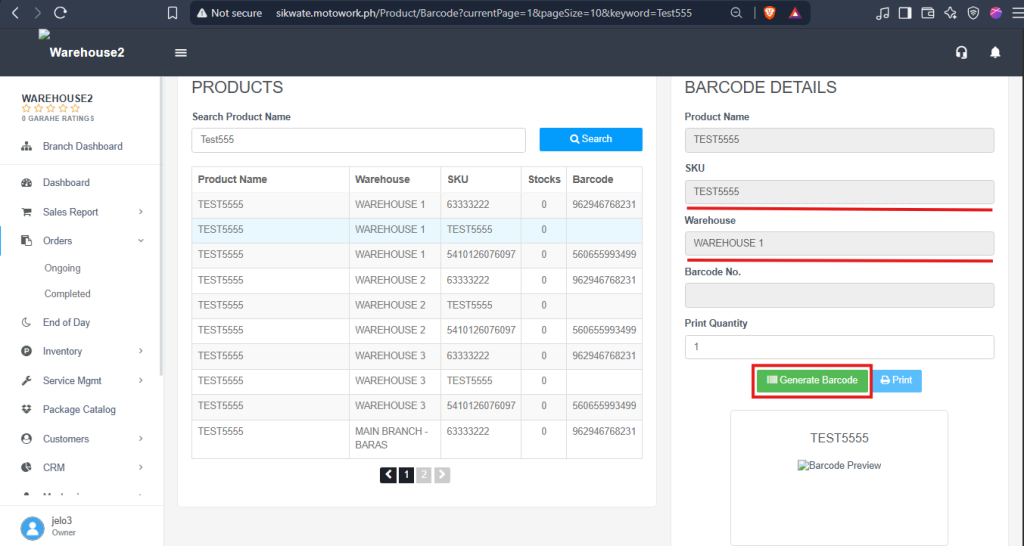
Step 6: Click Print button to view the generated barcode.
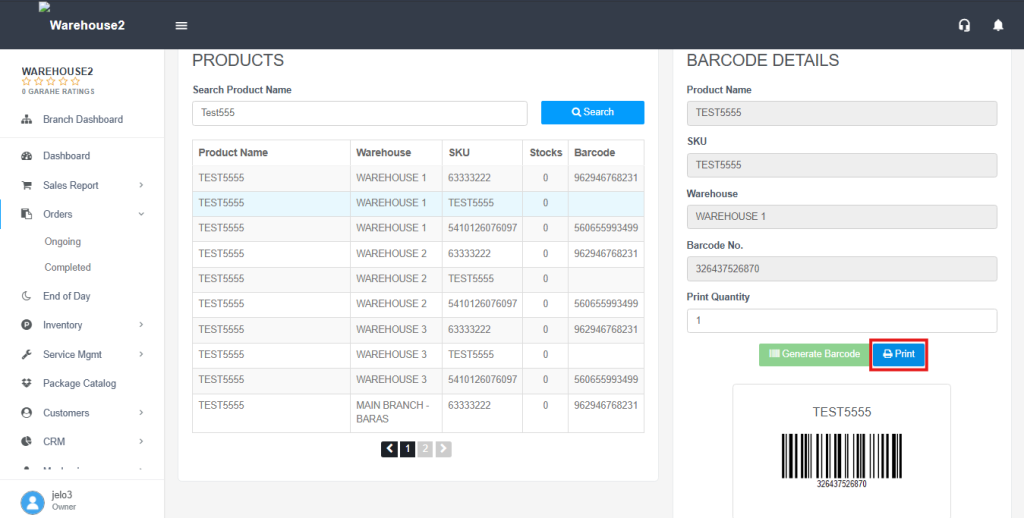
Step 7: Click Print.
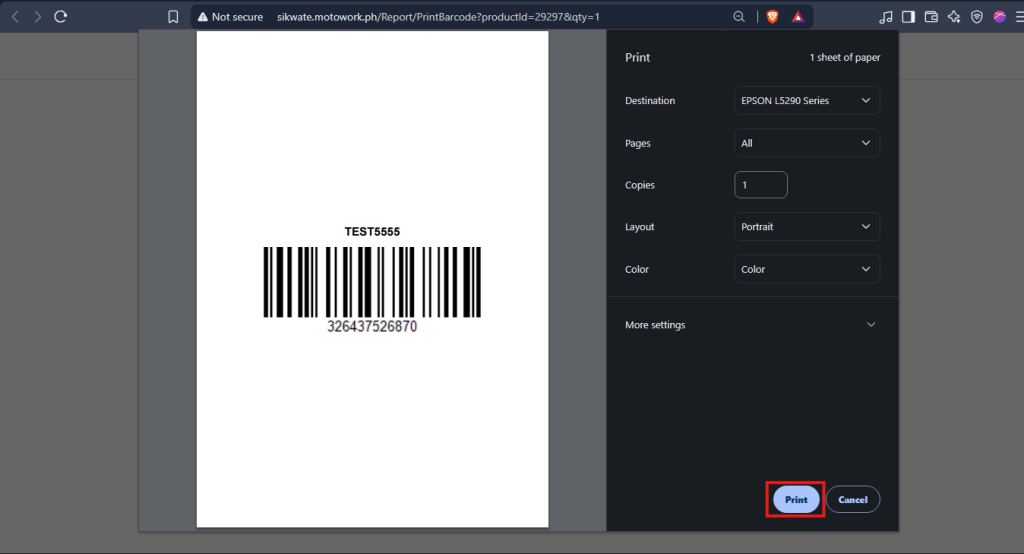
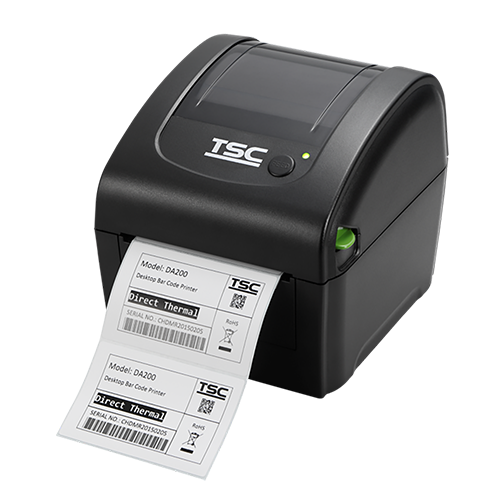
Step 8: The Barcode Printer will print the Barcode.
POS SIDE
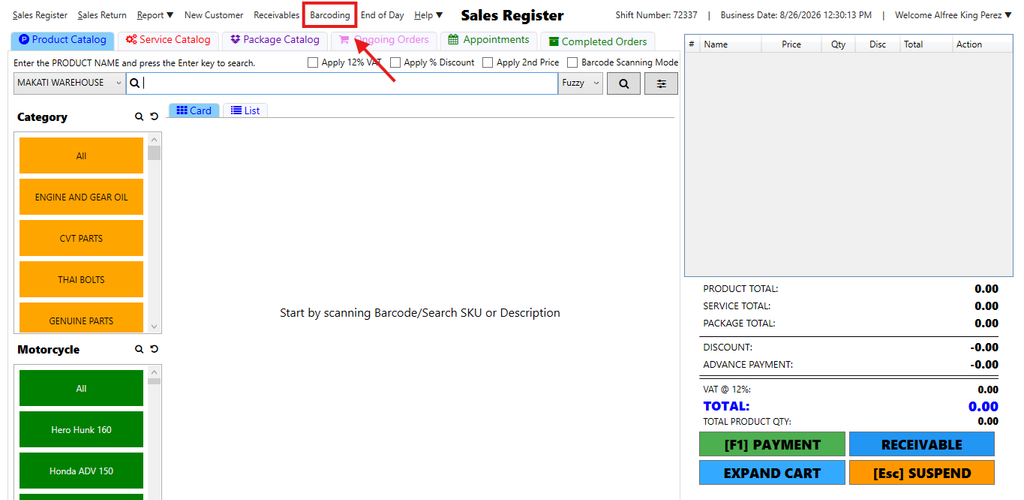
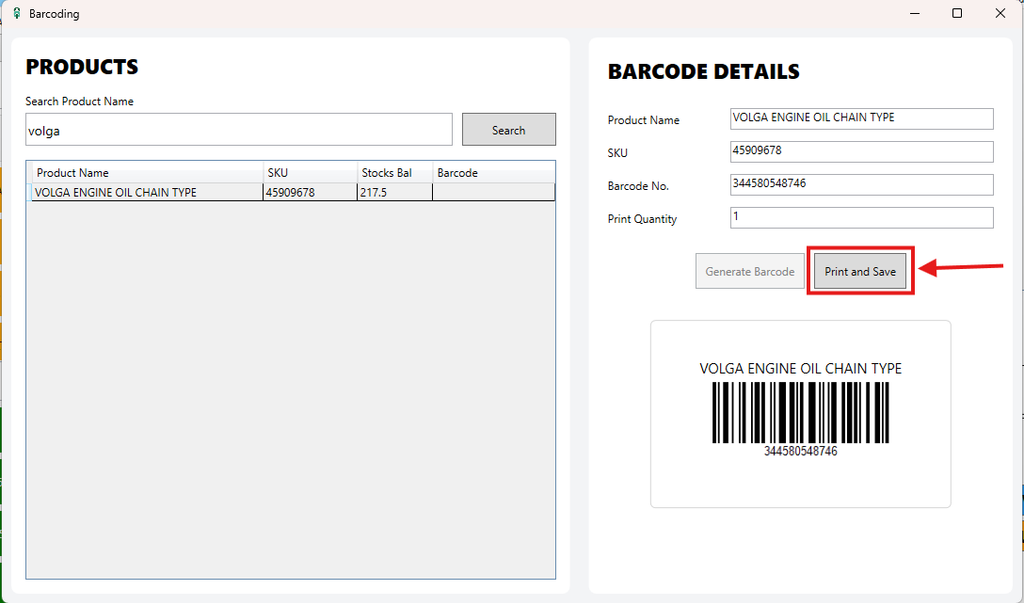
Step 1: Login in POS and Click Barcoding.
Step 2: Search the Product Name and Click Generate Barcode.
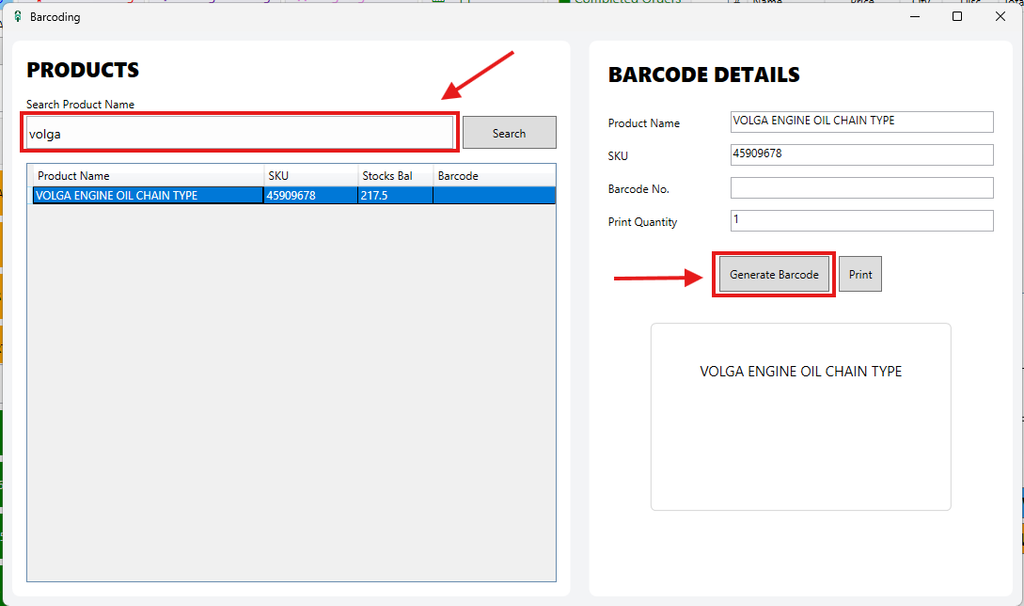
Step 3: Print and Save the Generated Barcode
ADDITIONAL INFORMATION:
To print the generated barcode, the store will need a thermal printer. If the store does not currently have one, MotoDisk has thermal printers available for purchase.