
Navigate and Update prices for multiple items in your inventory quickly and efficiently.
In the Back Office, go to the sidebar navigation panel, click on Inventory, and then select Stocks.
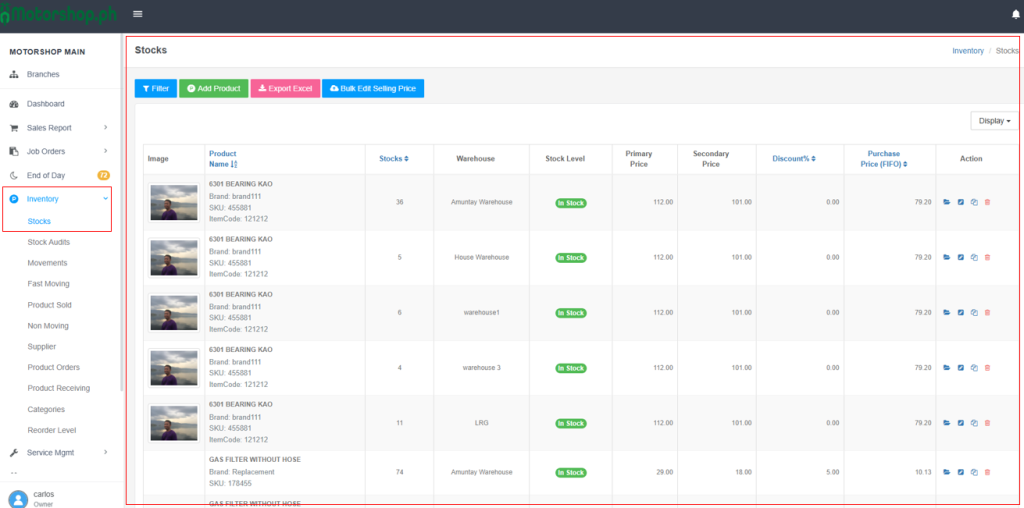
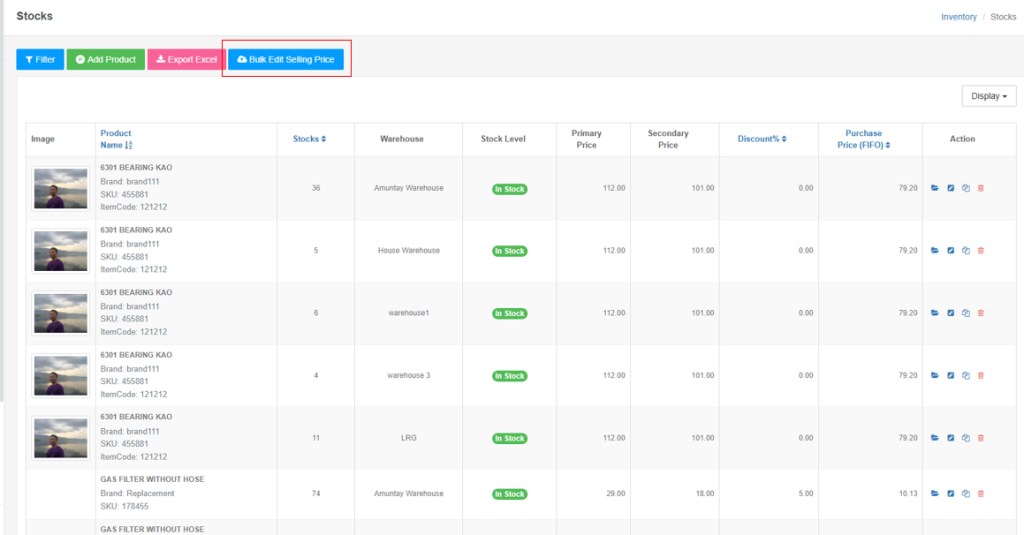
In the Stocks Section please click the button named “Bulk Edit Selling Price” to show the bulk action for editing your inventory prices
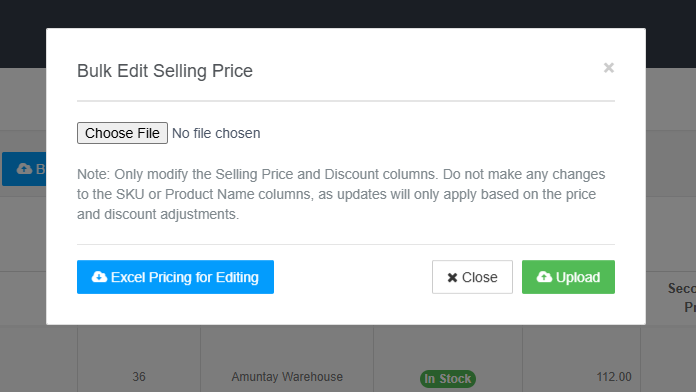
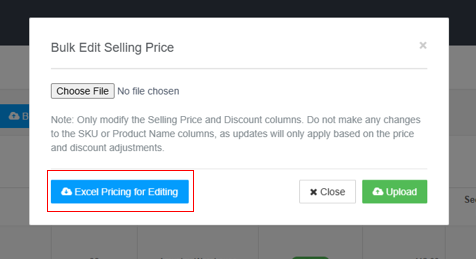
Click the “Excel Pricing For Editing” to download all the inventory information from all warehouses into .xlsx (excel file)
once the file has been downloaded, open the excel file to update the inventory prices
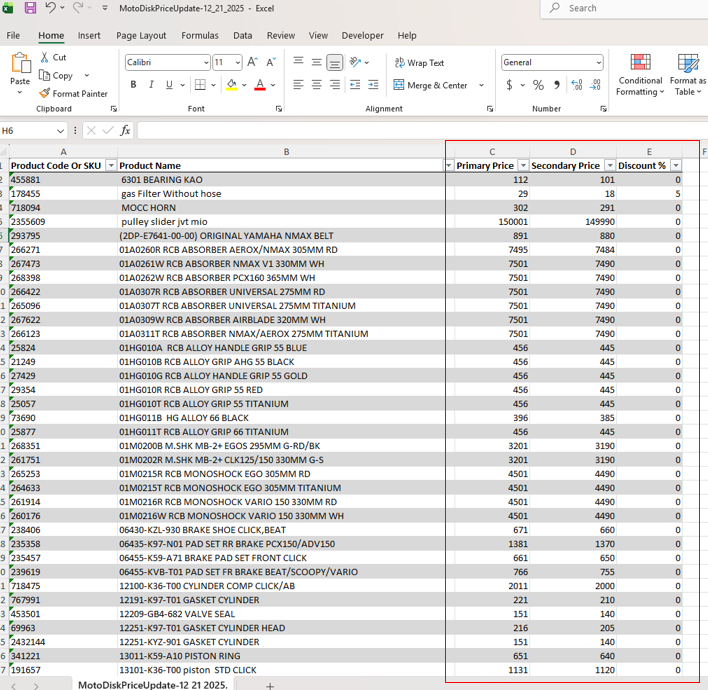
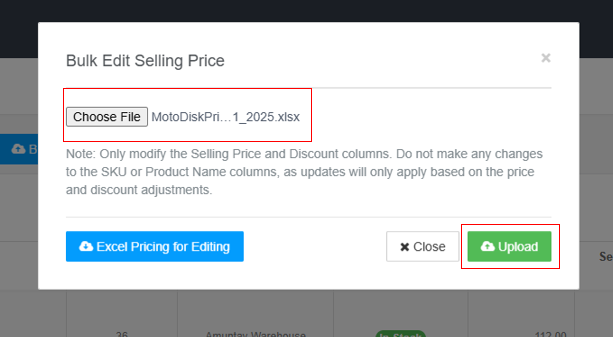
Note: Only modify the Selling Price and Discount columns. Do not make any changes to the SKU or Product Name columns, as updates will only apply based on the price and discount adjustments.
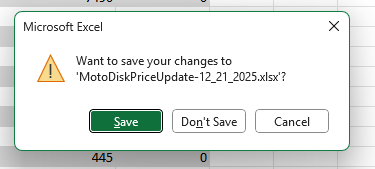
After Updating your prices, save the .xlsx file using crtl+s key in the keyboard or Click the save button when closing the .xlsx file
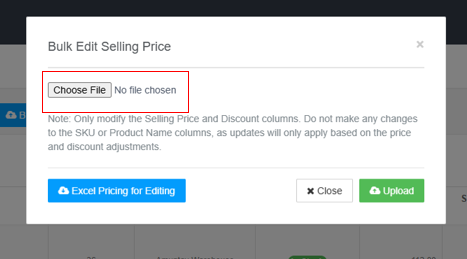
In the Back Office, under the Inventory → Stocks section, click Choose File to locate and select the .xlsx file containing the updated prices
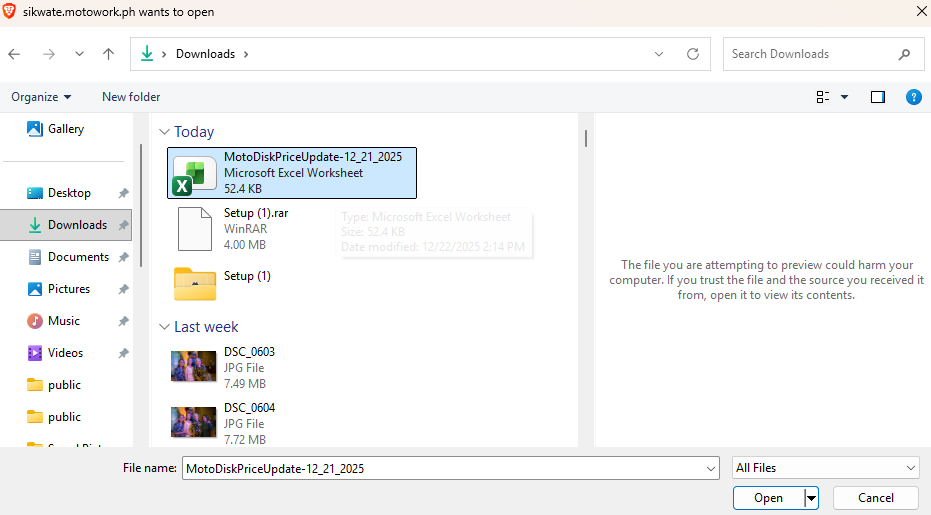
Click Open to set the file
Once it is set and displayed in the “Choose file” section click the “Upload” button
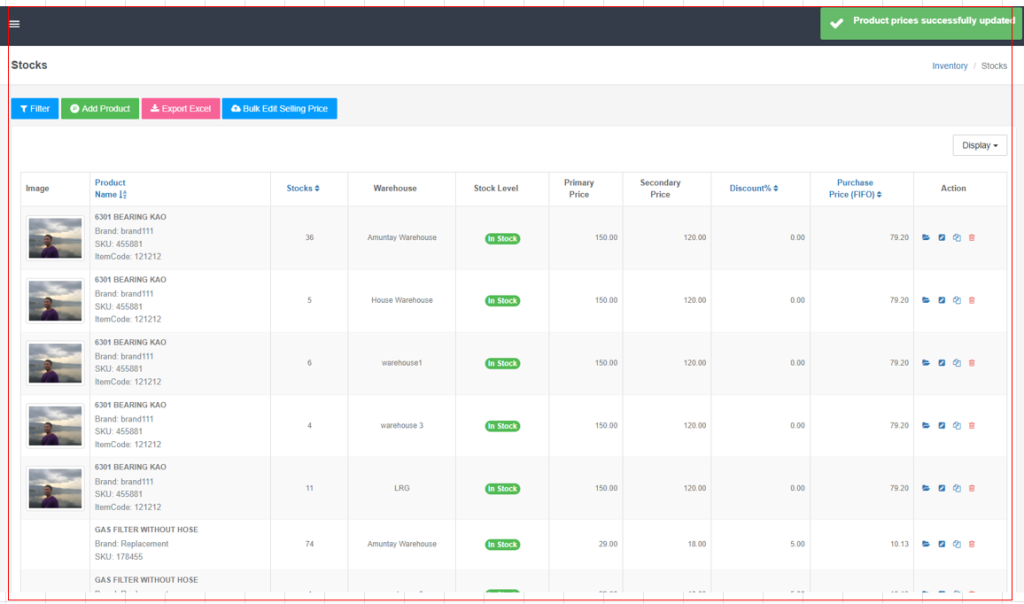
and see the updated price in the table
Video Tutorial