
Step 1: Log in to the POS (Front Office) system.
Step 2: Click Completed Orders.
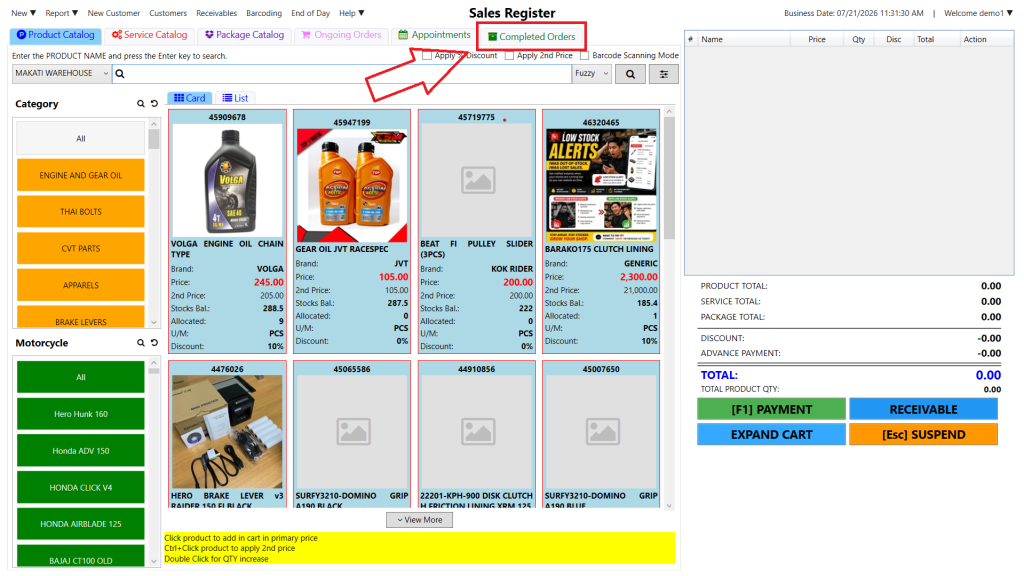
Step 3: Select the specific Job Order or Customer.
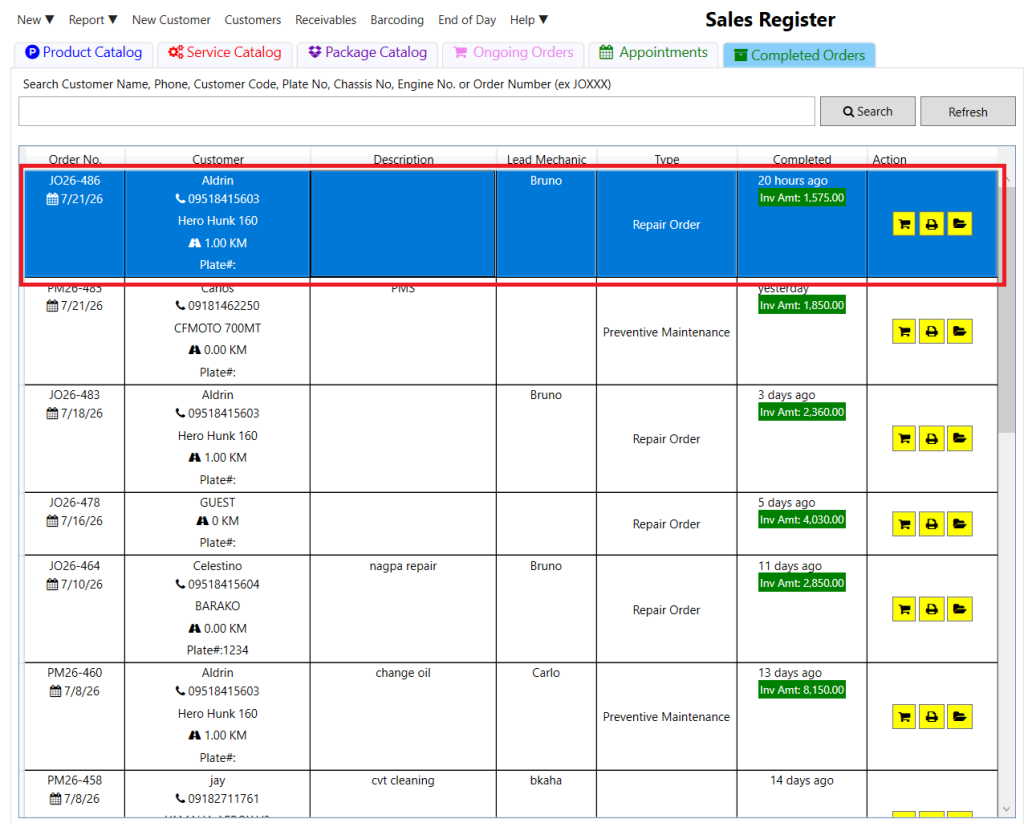
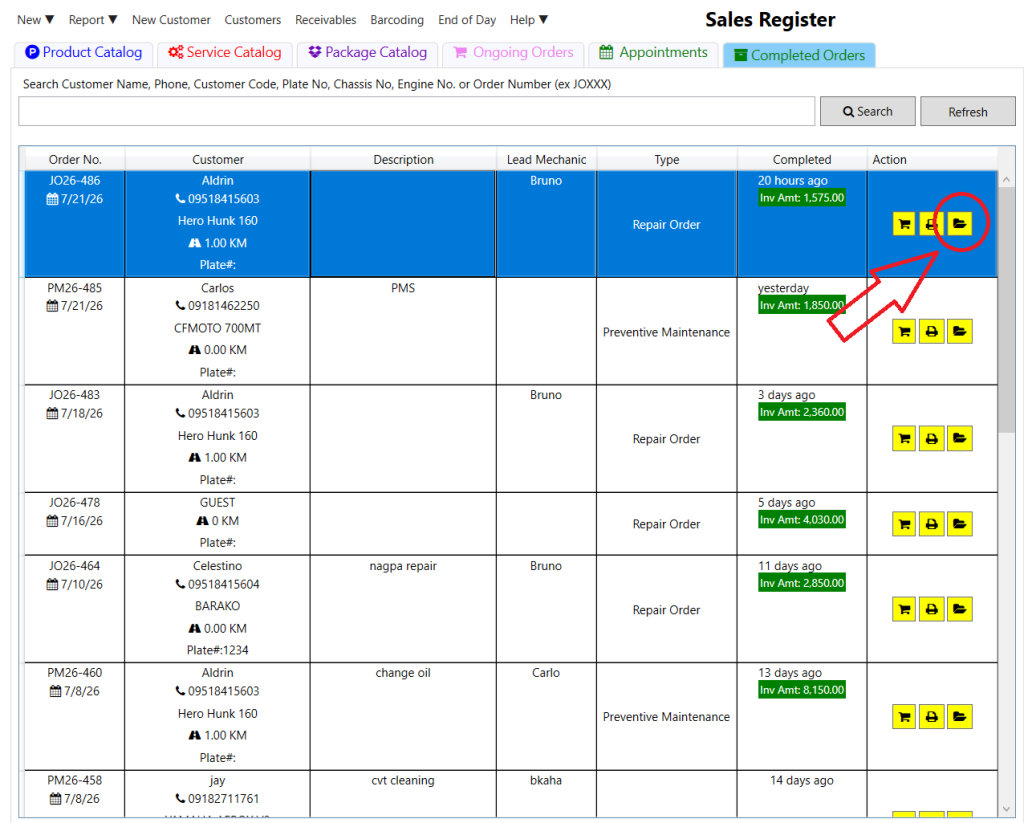
Step 4: Click the Folder Icon.
Step 5: Click the Backjob button at the top.
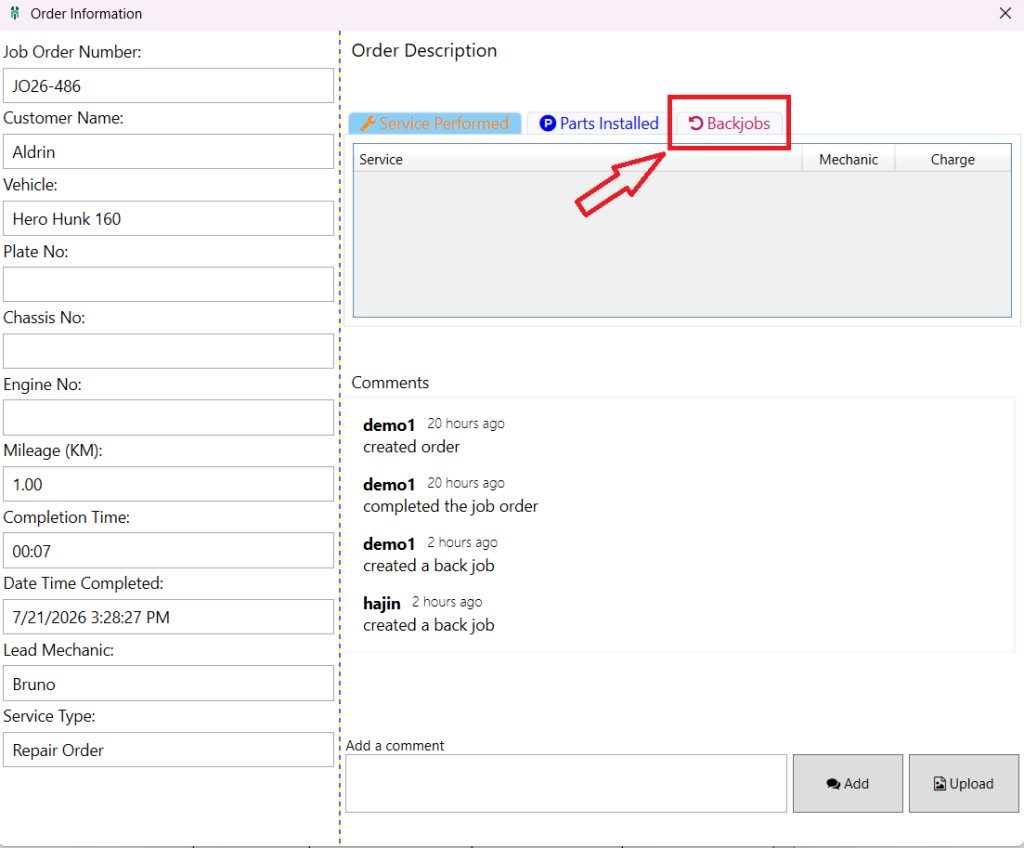
Step 6: Enter the Job Details, select a Mechanic, then click the + (Plus) button to add the Job.
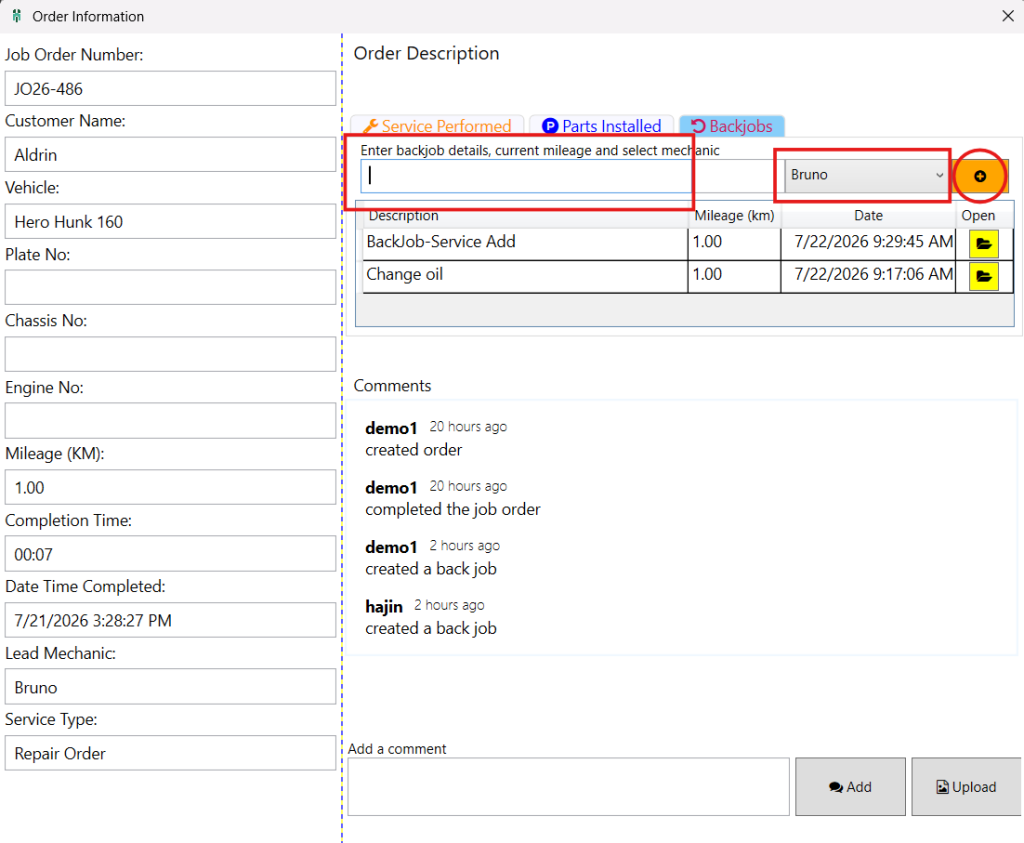
Step 7: Go to Ongoing Orders. The Backjob entry will appear at the bottom of the ongoing orders list.
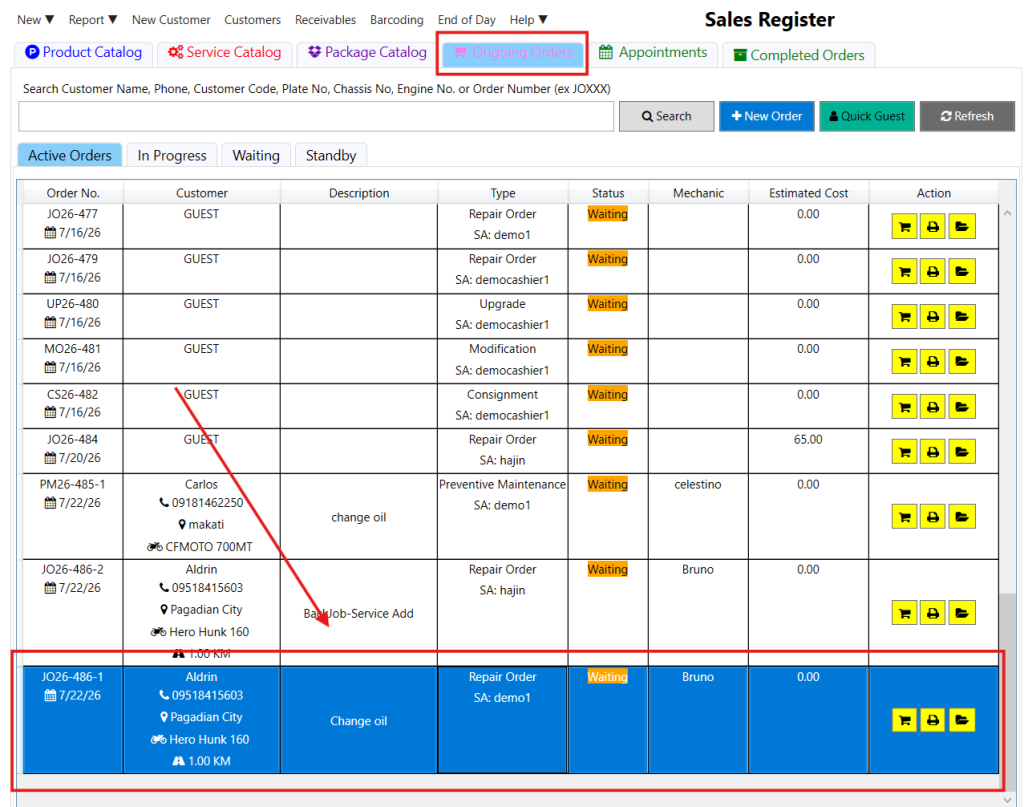
Click the Cart button in the Action column to add Products or Services.

Note: The Job Order Number includes a suffix (example: -1, -2, -3) to indicate the number of Backjobs created for that job order.