
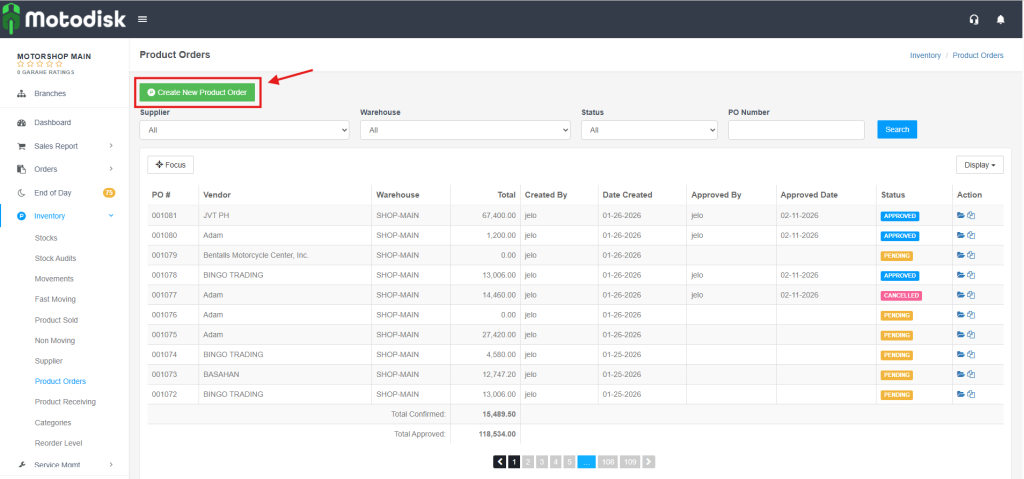
Step 1: First, click New Product Order.
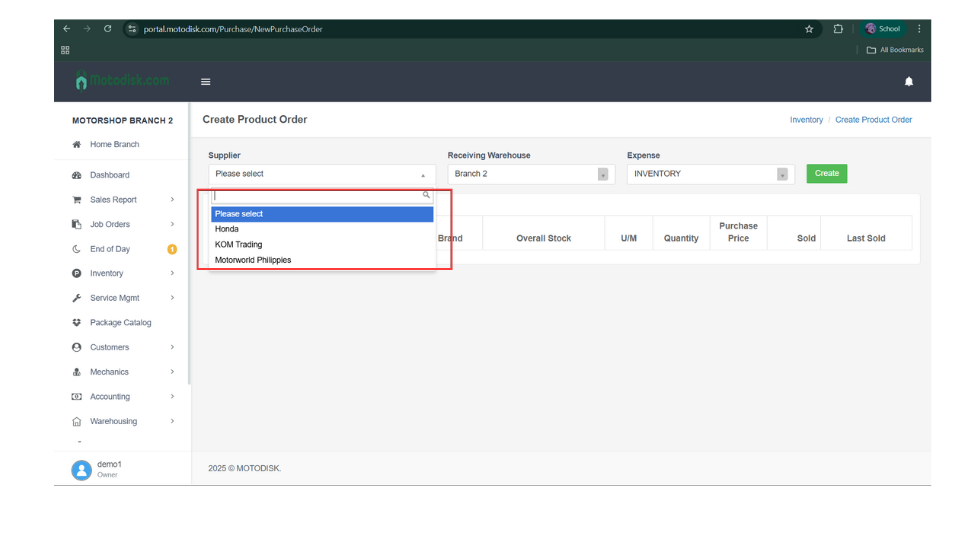
Step 2: Select a Supplier
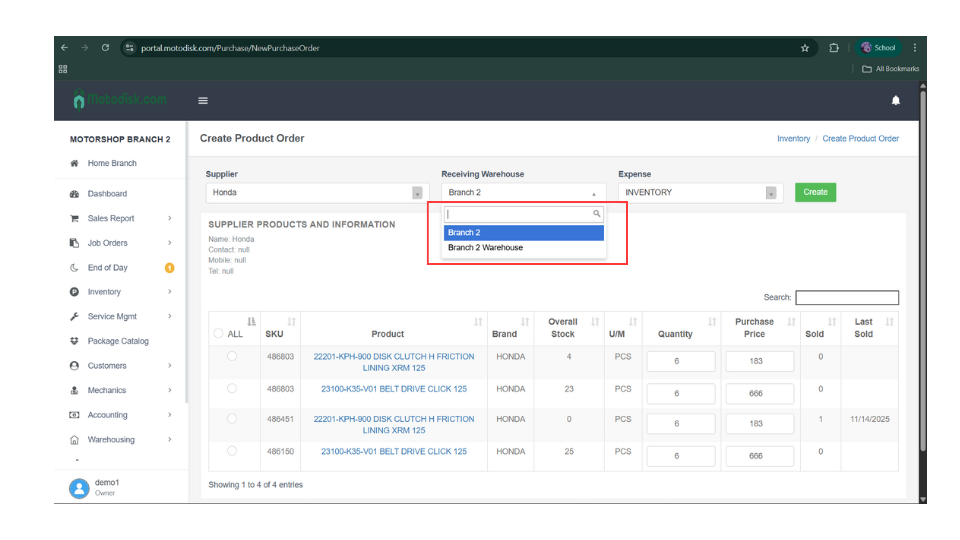
Step 3: Select a Receiving Warehouse
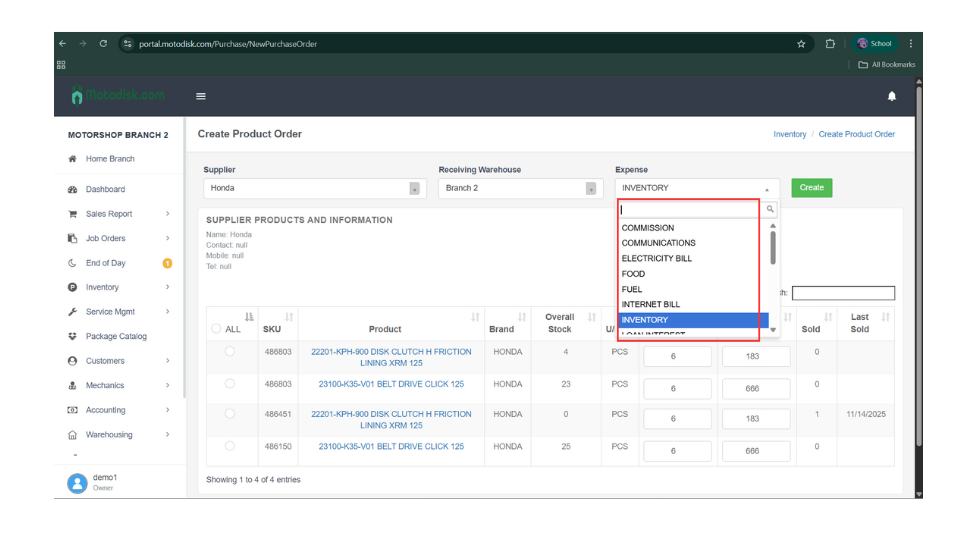
Step 4: Select an expense
Step 5: Select a product and click the circle button to choose it, a check mark will appear.
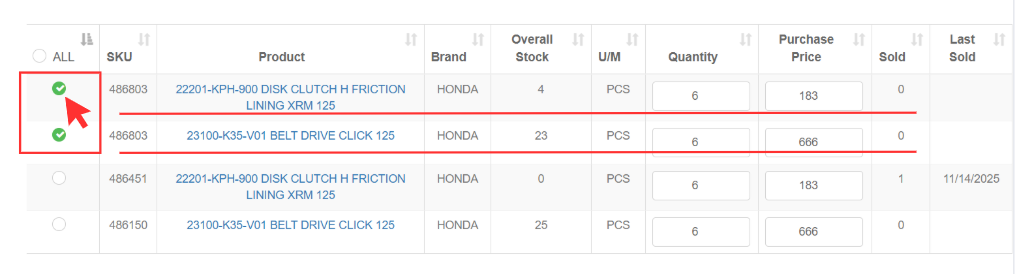
Step 6: Click the Submit button

Step 7: Click the Add more Product if you want to add more.
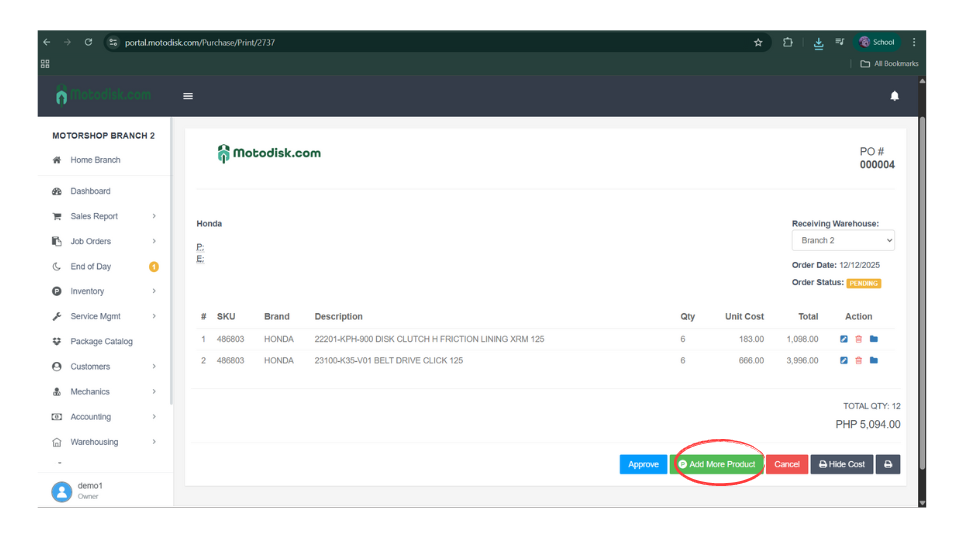
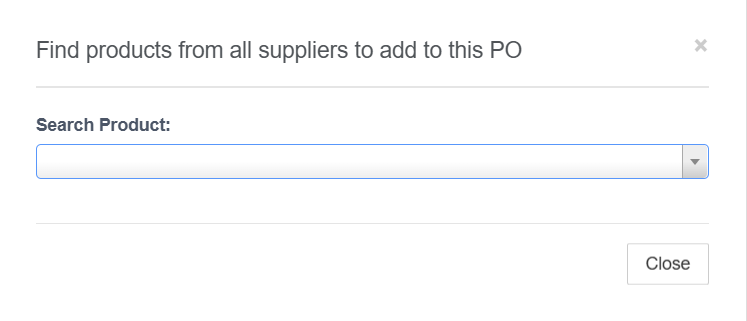
Step 8: Search a Product
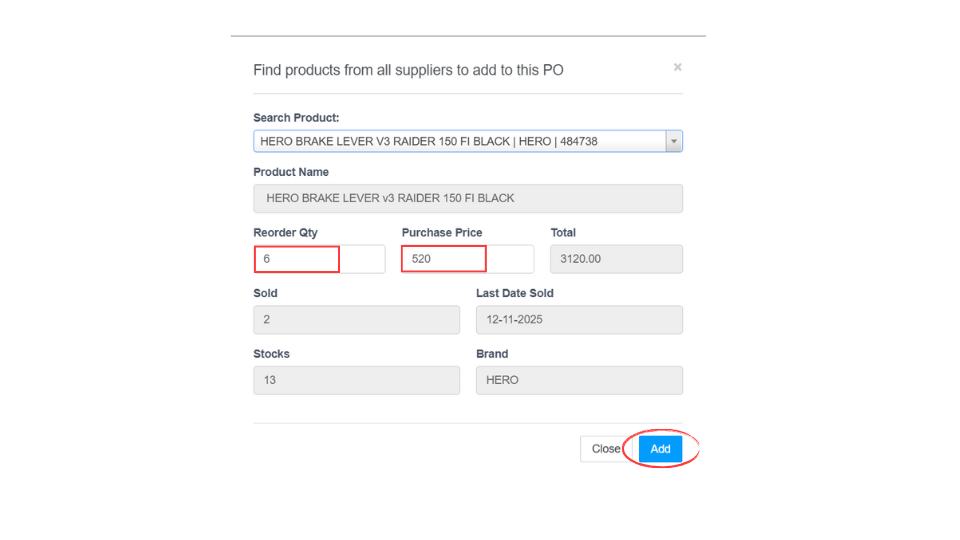
After searching a Product this will be the output
Step 9: You can edit the Reorder Qty and Purchase Price, then click the Add button.
After clicking the Add button, you will be brought back here.
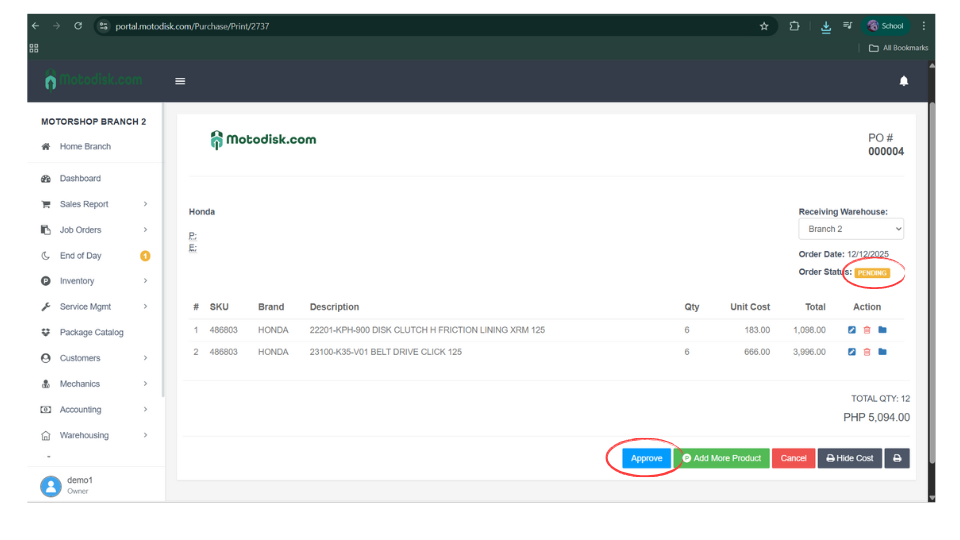
Step 10:. Click the Approve button so the status will no longer be pending.
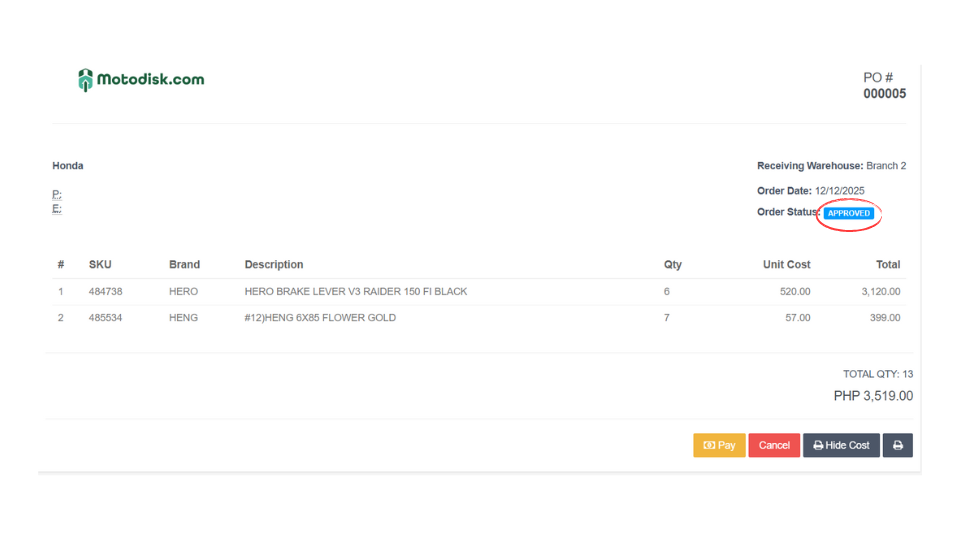
After clicking the Approve button, the status will be marked as Approved.
Here’s the video guide