
- Go to https://portal.motodisk.com and log in
- In the side bar, select Inventory > Product Orders
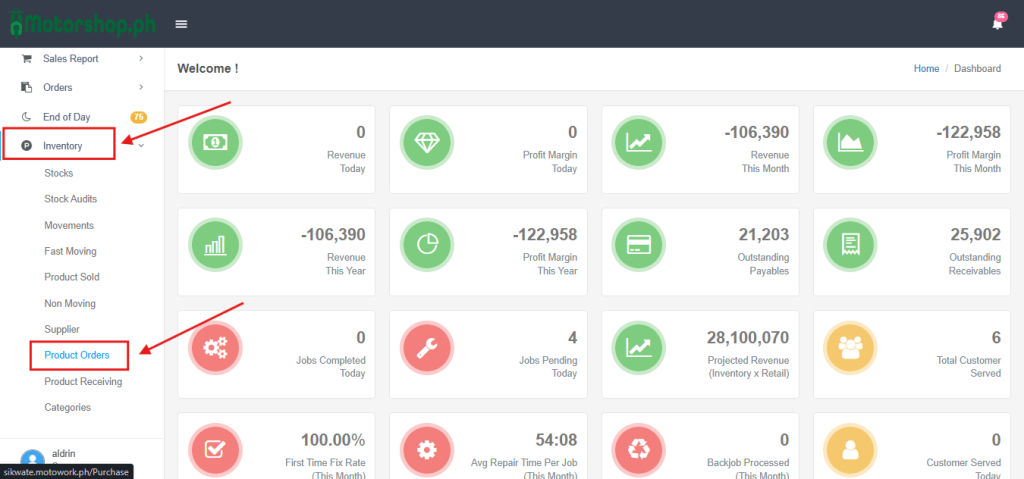
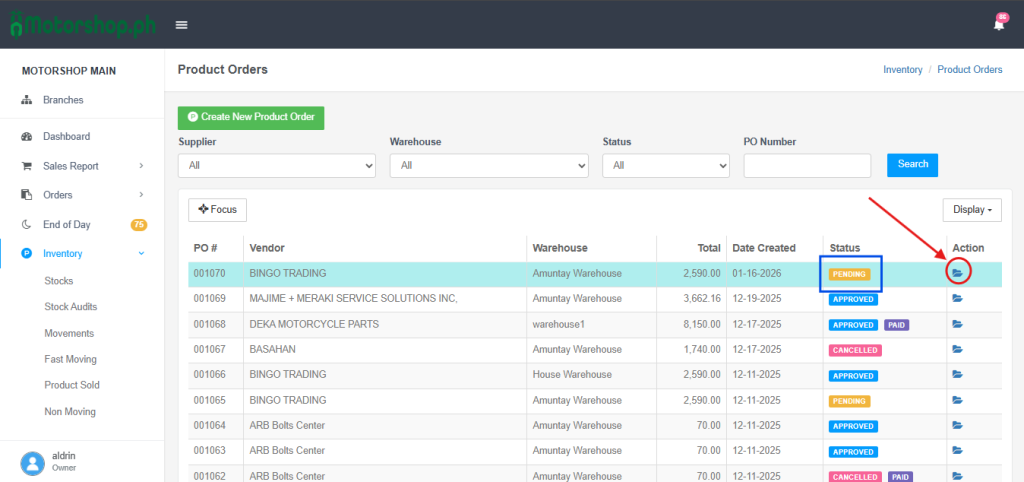
3. Select the product that’s still in Pending Status and Click the Folder Icon
note: In order to add more product, the status must be still in pending
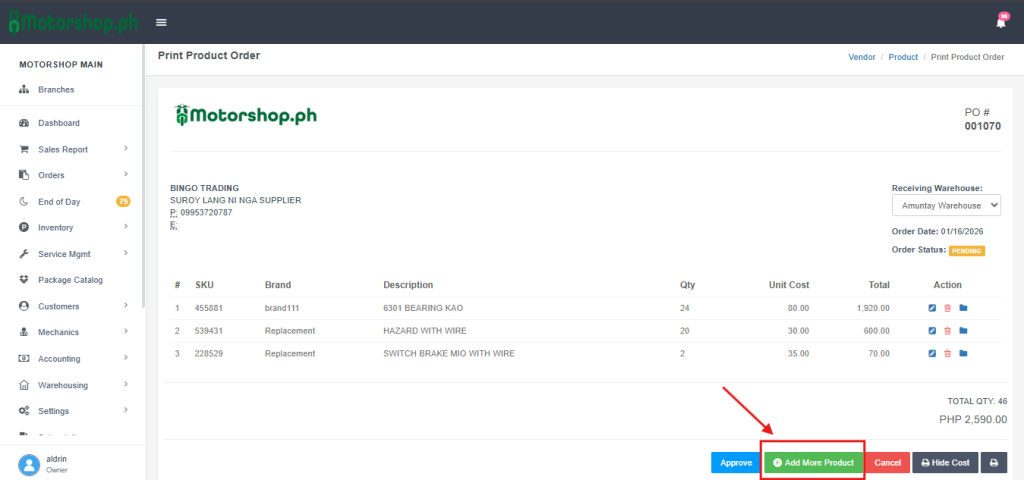
4. Click Add more Product Button.
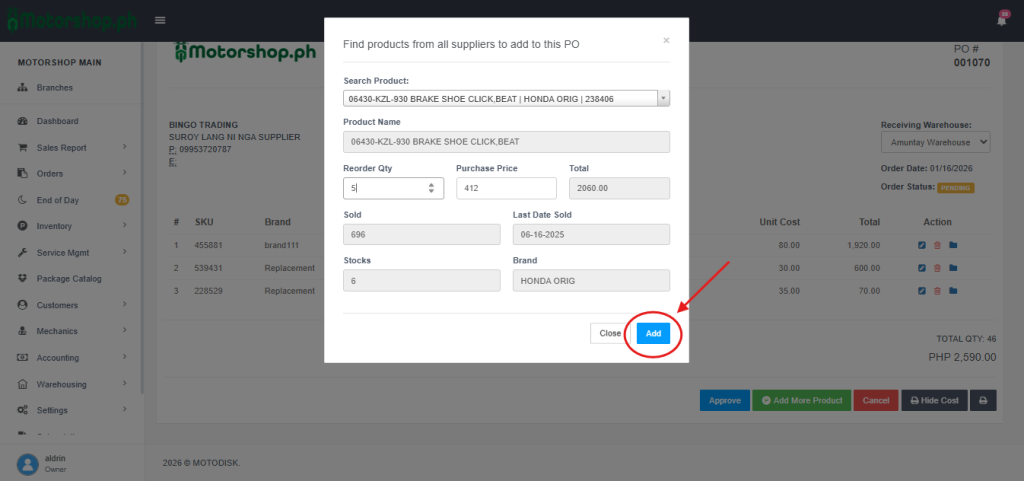
5. Find products from all suppliers to add to this PO.
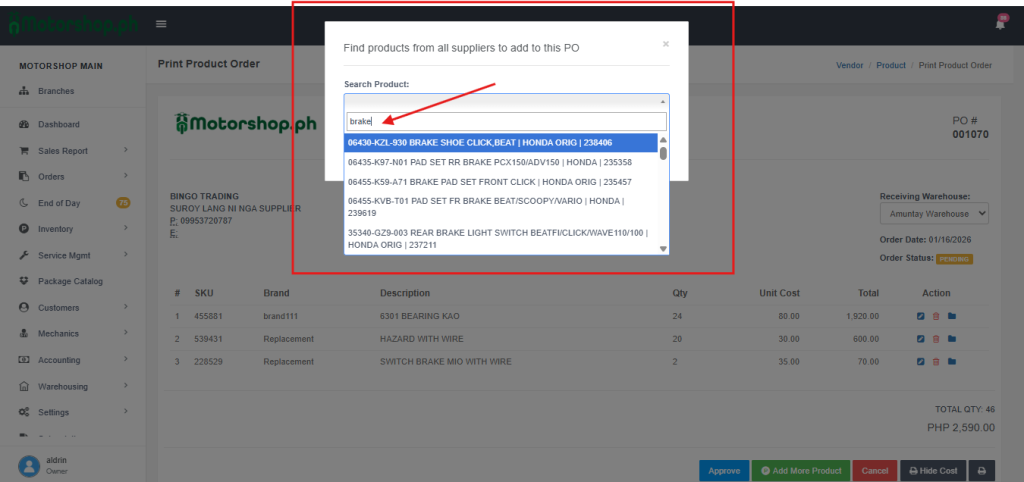
6. Click Add button.
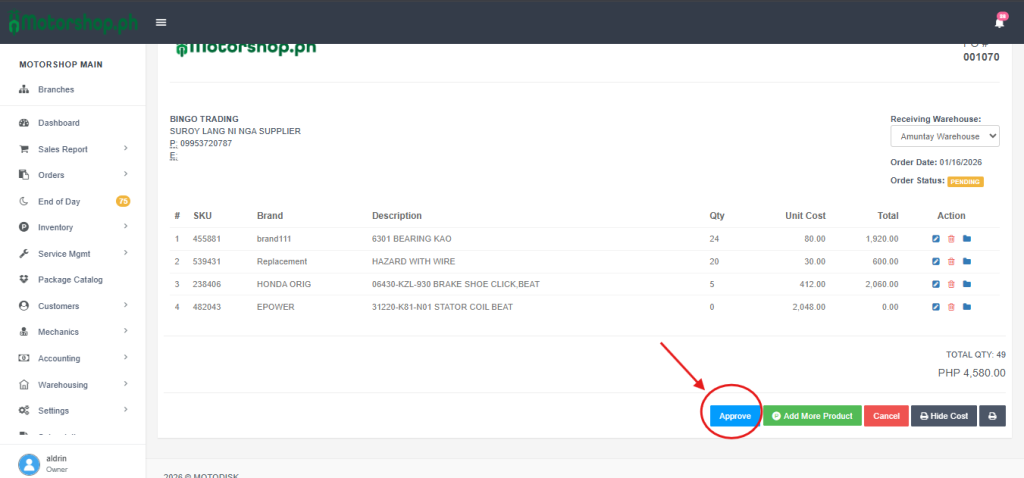
7. Click Approve
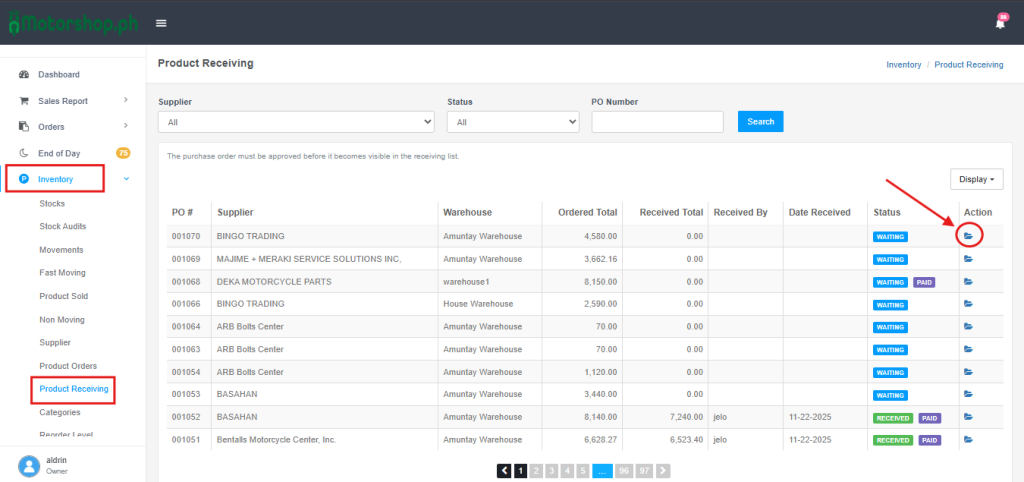
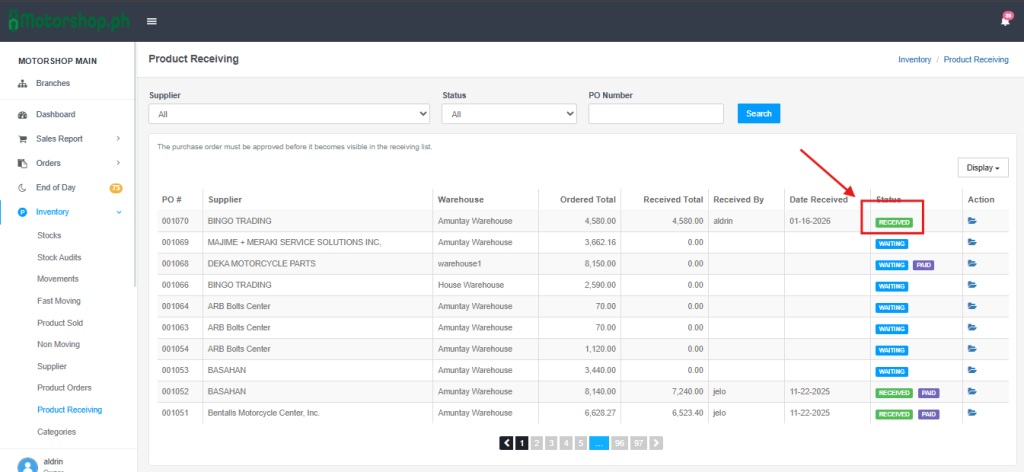
8. Go to Inverntory>Product Recieving find the recent approved PO then click the folder icon.
9. Click Recieve.
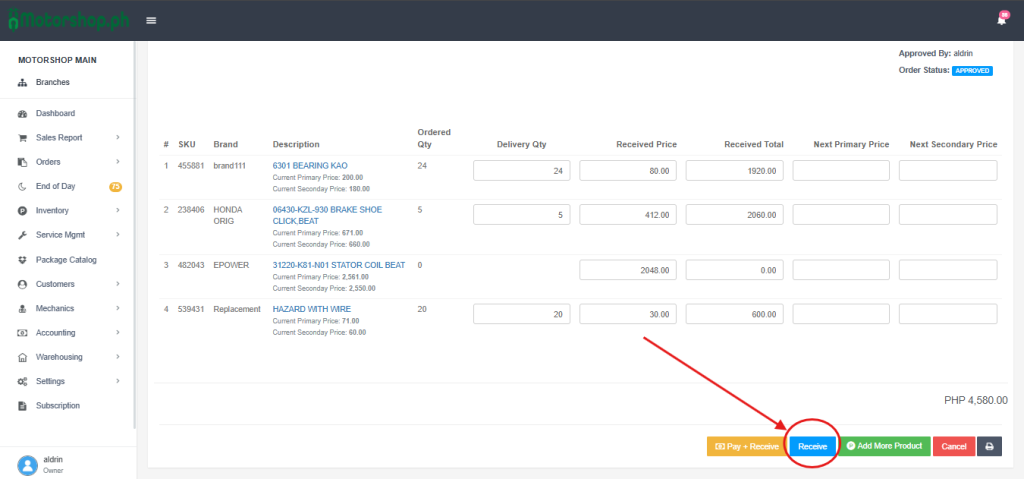
10. the status will update into RECIEVED.
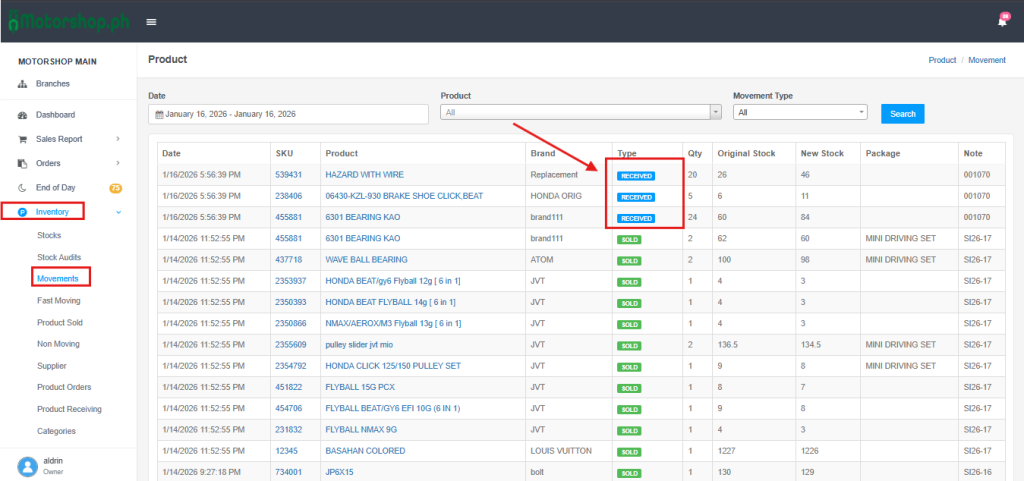
11. Go to Inventory> Movements to see the recent movements of the product.
Here’s the video Guide: