
Step 1:Go to https://portal.motodisk.com and log in
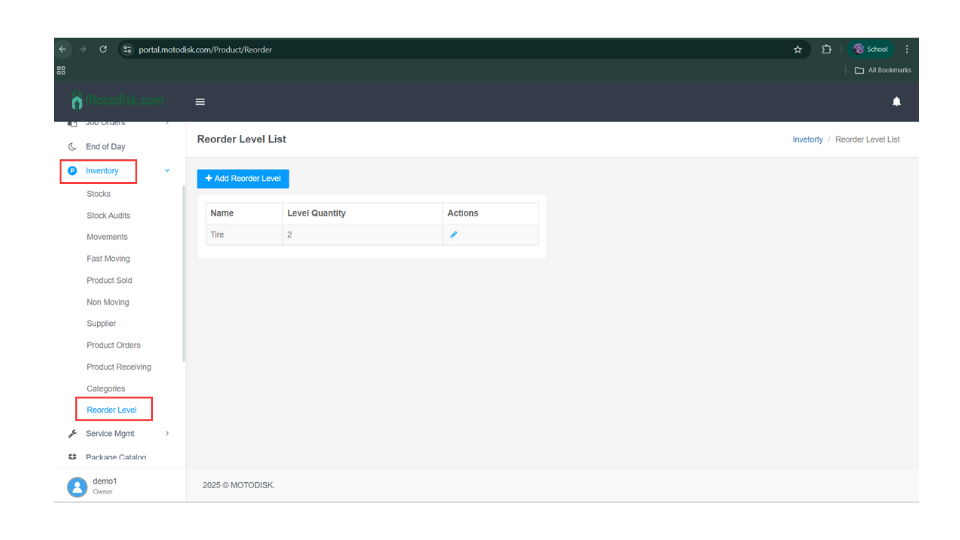
Step 2:In the side bar, select Inventory > Reorder Level
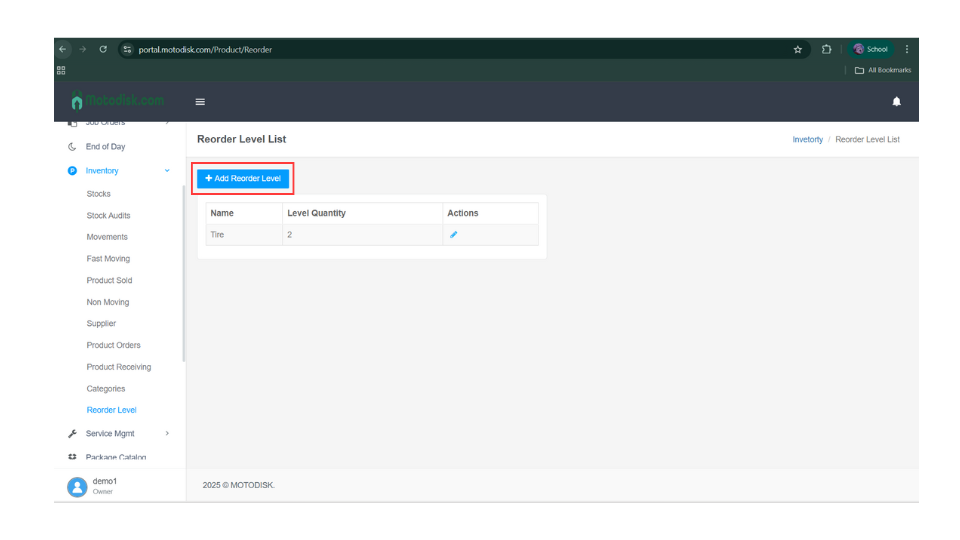
Step 3:Click the Add Reorder Level
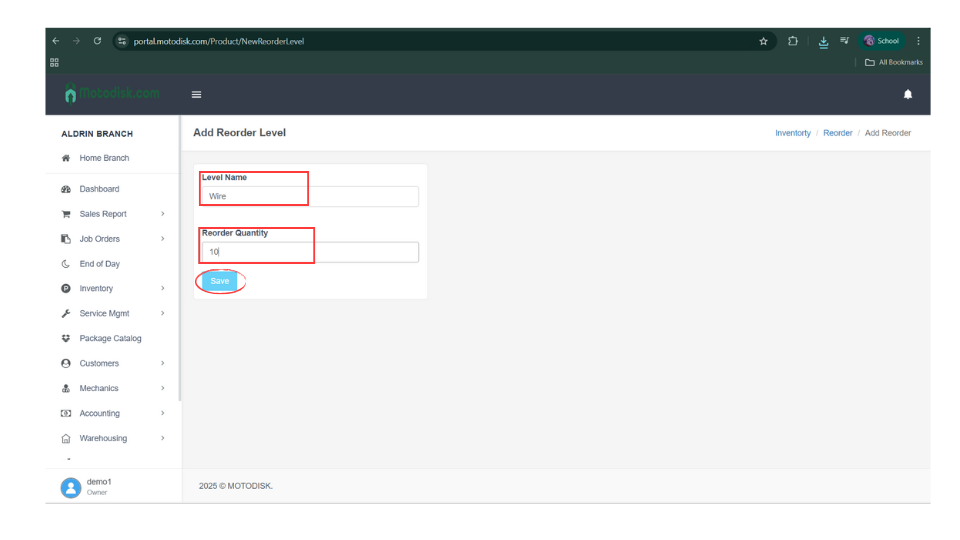
Step 4:First, enter a level name.
Step 5:Then enter the quantity for the level.
Step 6:Click the Save button.
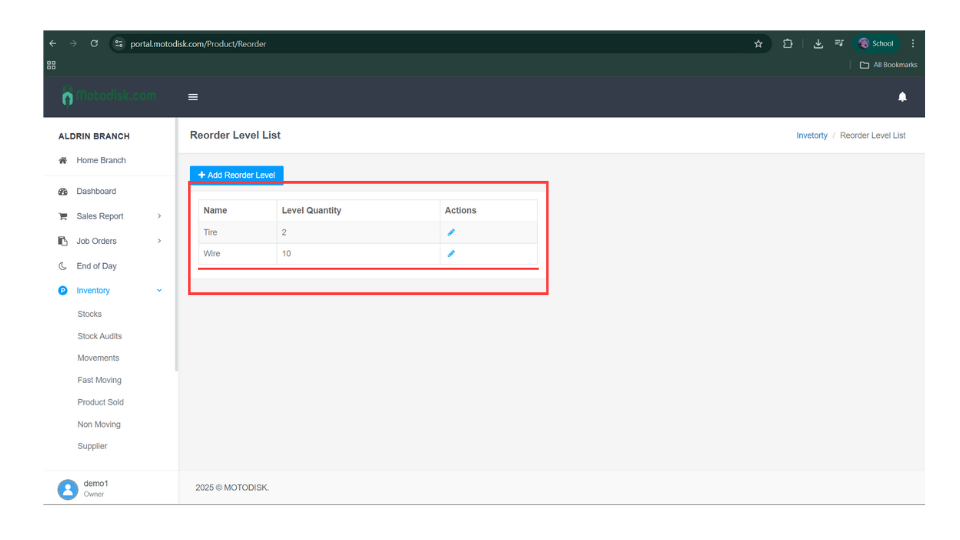
After clicking the Save button, it will be displayed here.
How to Edit Reorder Level
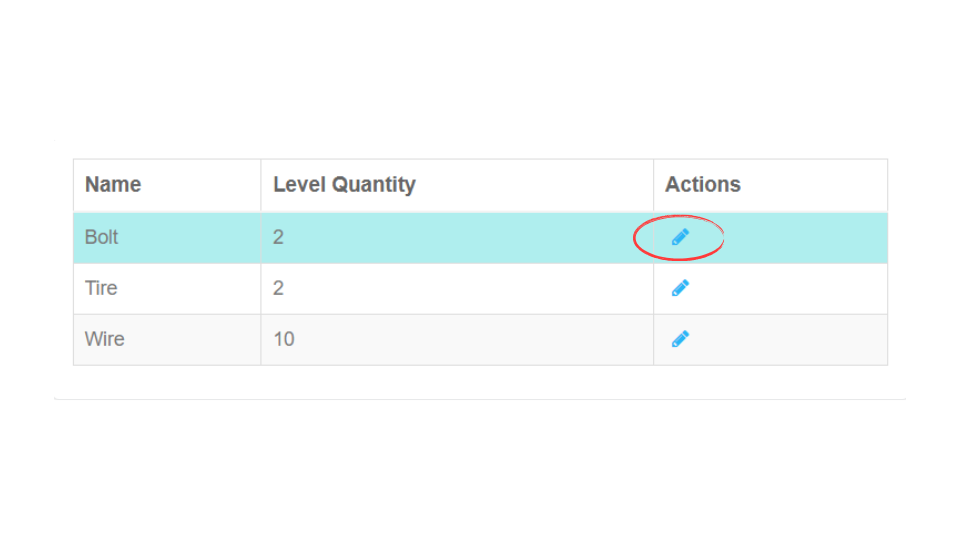
Step 1:Click the pencil icon to edit it.
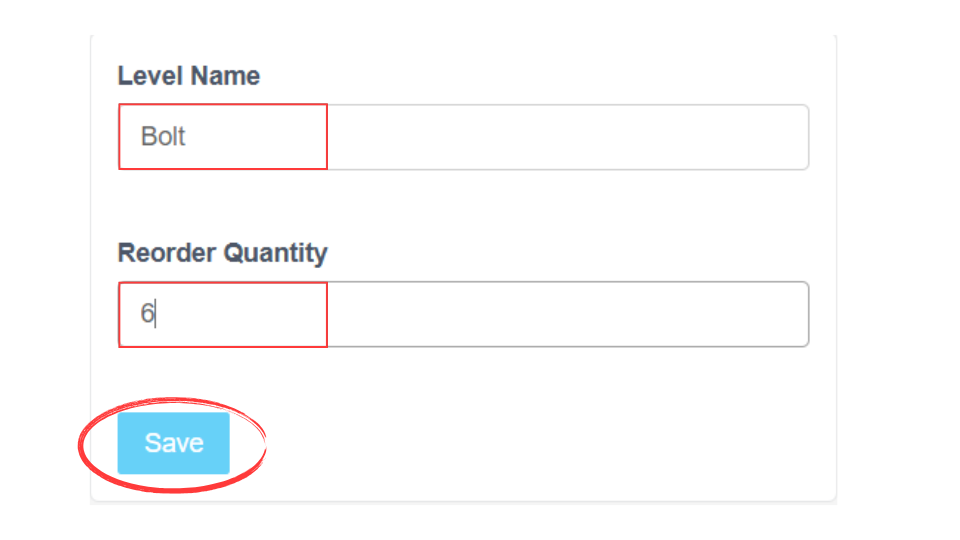
Step 2:Edit the level name and quantity, then click the Save button to update it.
Here’s the video guide on how to add and edit