
Step 1: Go to https://portal.motodisk.com.
Step 2: Enter your credentials to log in.
Step 3: From the sidebar, go to Inventory > Stocks.
ADD IMAGE:
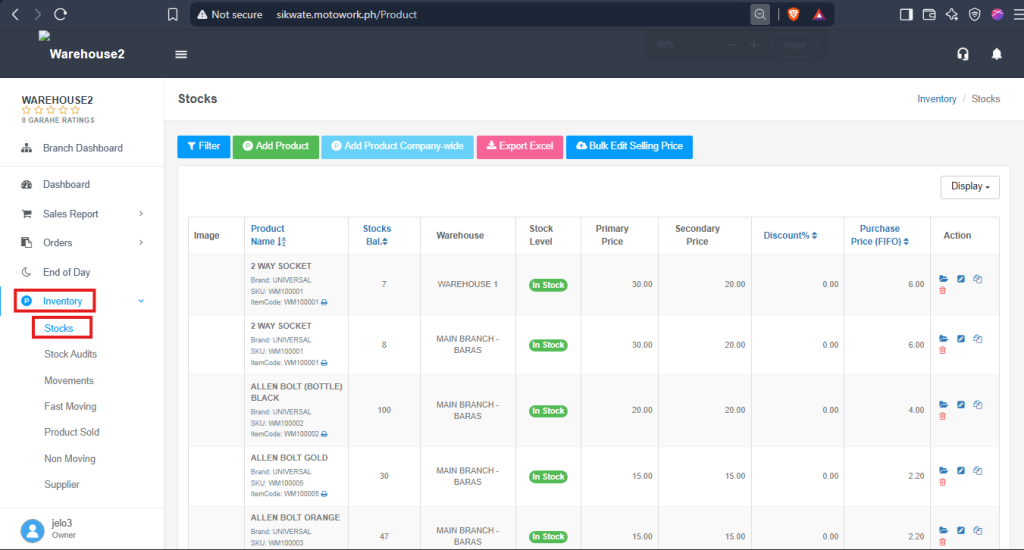
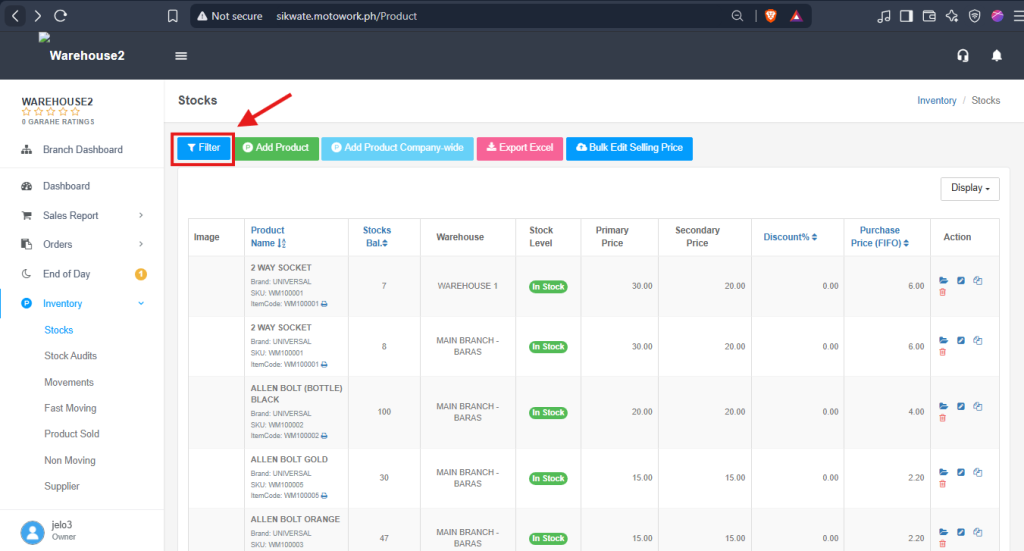
Step 4: Click Filter button to find the existing product item then, search the Product Name of the item.
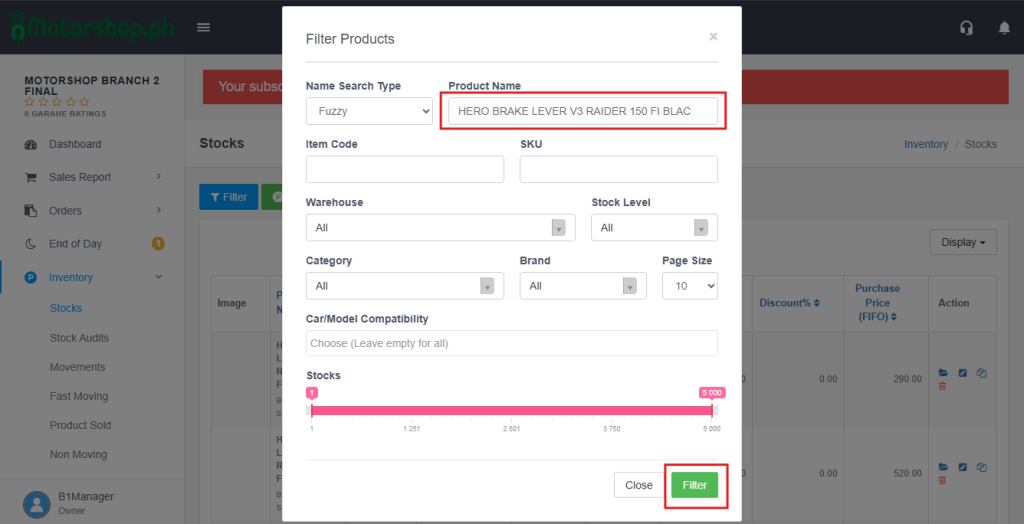
Step 5: Search the Product Name of the item then, click Filter to display only the products that match your search.
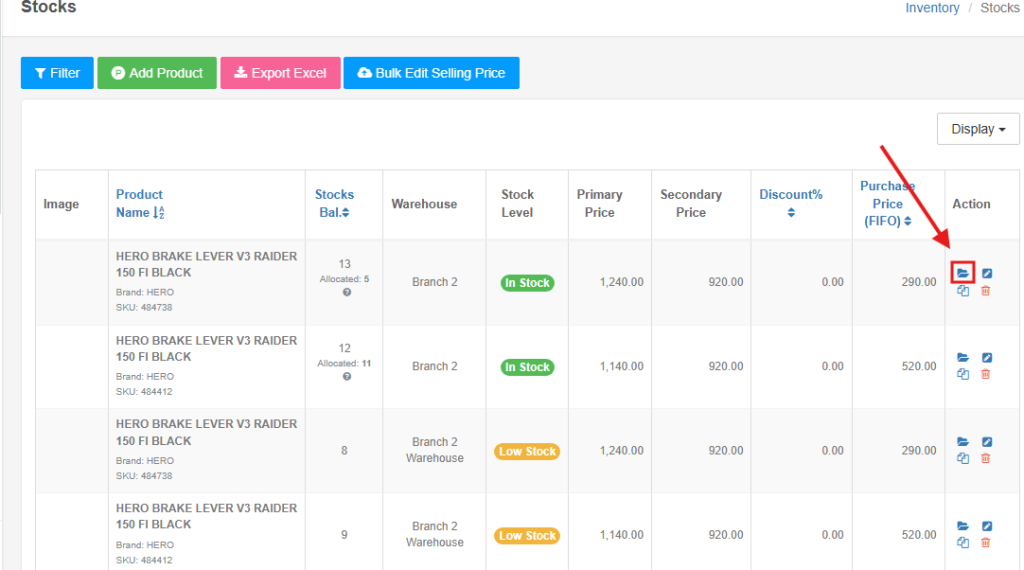
Step 6: Click the Folder icon of the selected Product Item under the Action column.
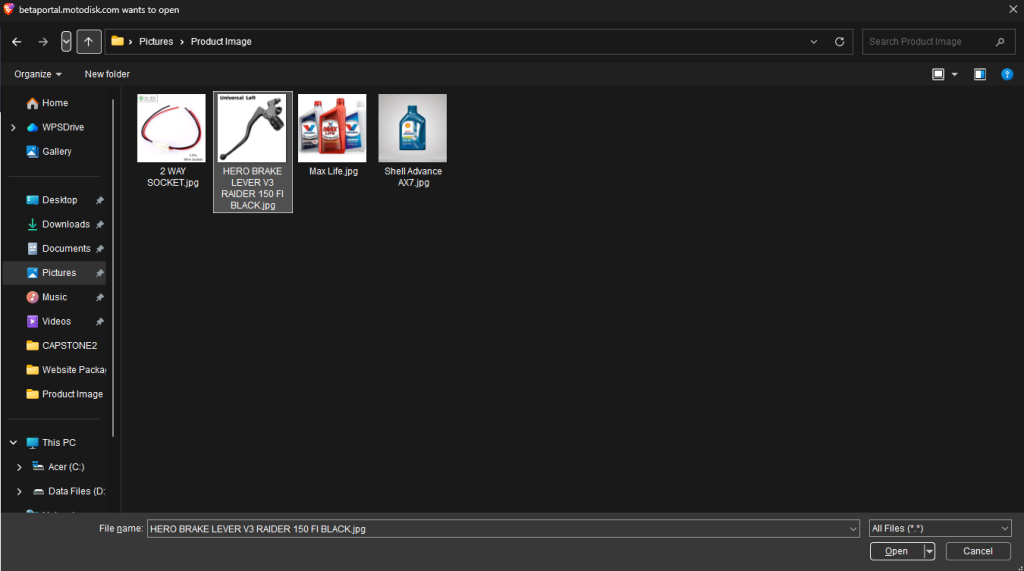
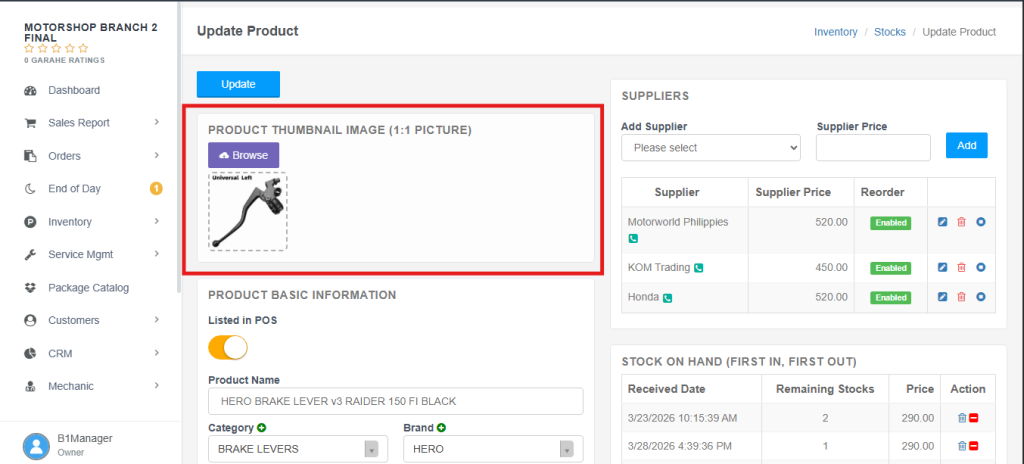
Step 7: To add Product Image, click Browse and choose the Product Image.
Select Product Image
Updated Product Image
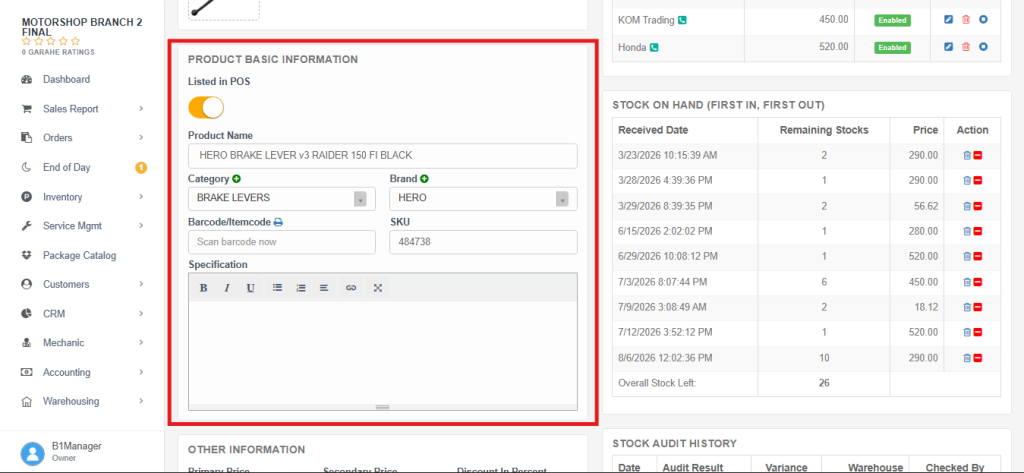
EDIT PRODUCT INFORMATION
Step 8: Find the Product Basic Information.
Edit the PRODUCT BASIC INFORMATION.
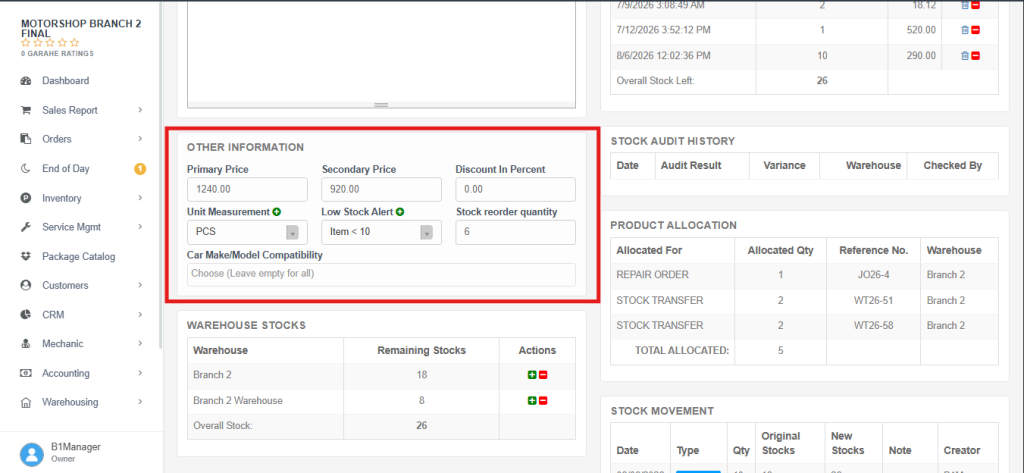
EDIT PRODUCT PRICE:
Step 9: Change or update the current selling price of a product.
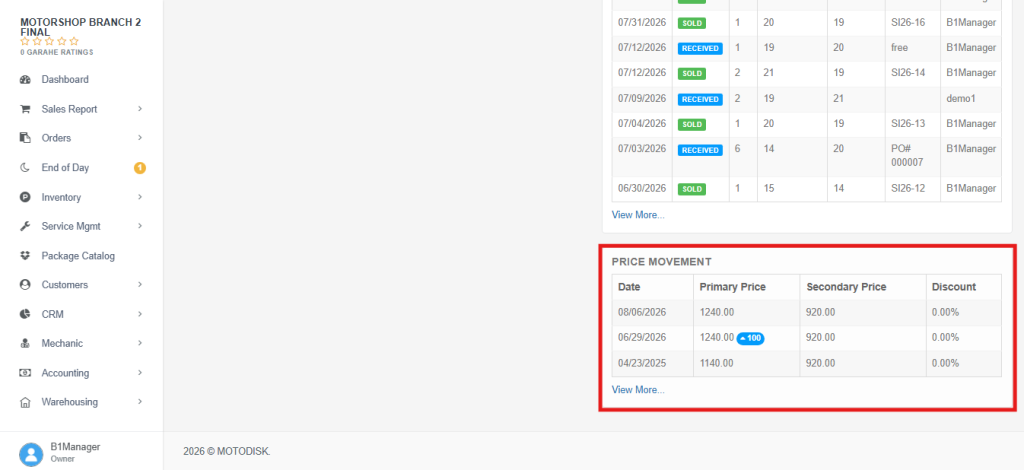
BEFORE:
This is the current Primary Price and Secondary Price of the Product Item.
Current Price Movement:
AFTER:
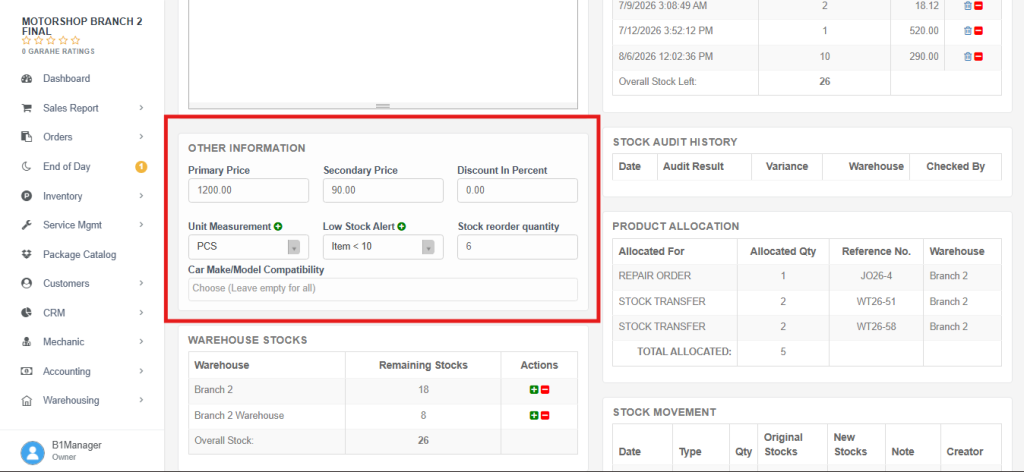
Change or update the Primary Price and Secondary Price.
The updated Primary Price and Secondary Price is set.
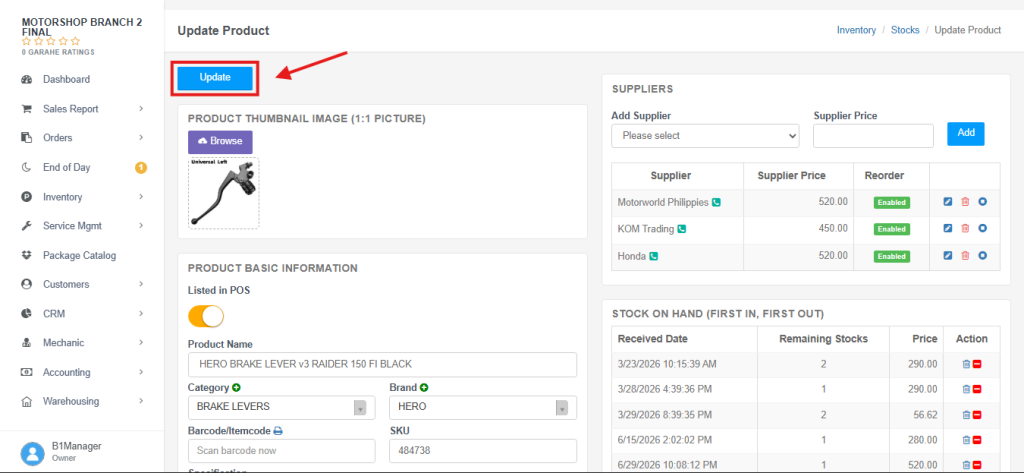
Step 10: Click Update to save the changes. The new Primary and Secondary Prices will be applied to the product.
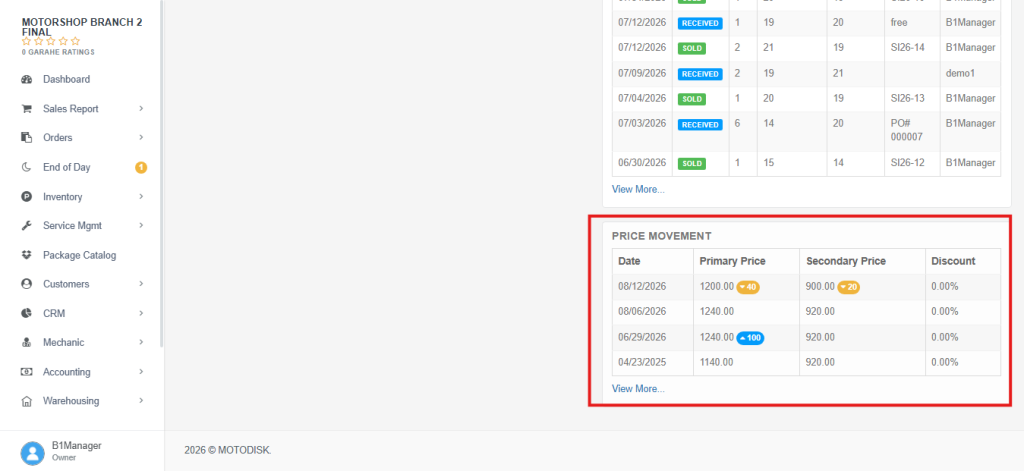
Updated Price Movement
Additional Information:
The Primary, Secondary Price, and Discount can be seen to the Price Movement.
Price Movement means the change in the price of a product or item over time.