
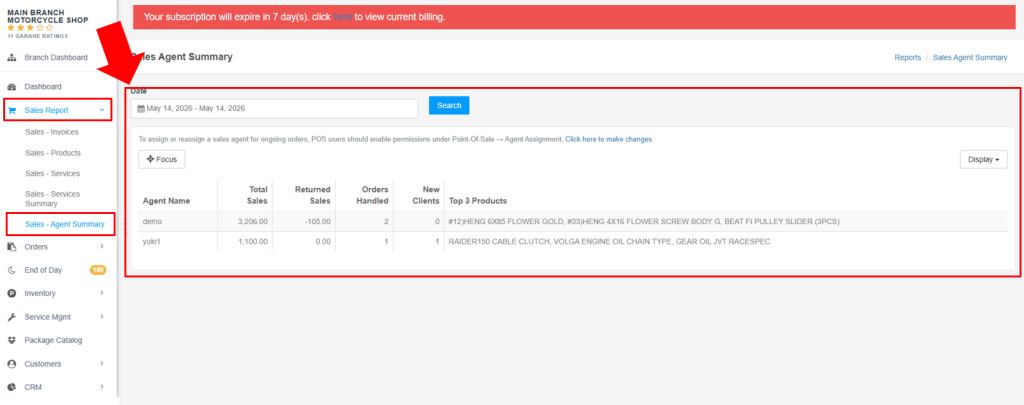
The Mechanic Summary page shows service performance by mechanic, including totals, service costs, and shop revenue.
Step-by-Step Navigation Instructions
1. Accessing the Mechanic Summary Page
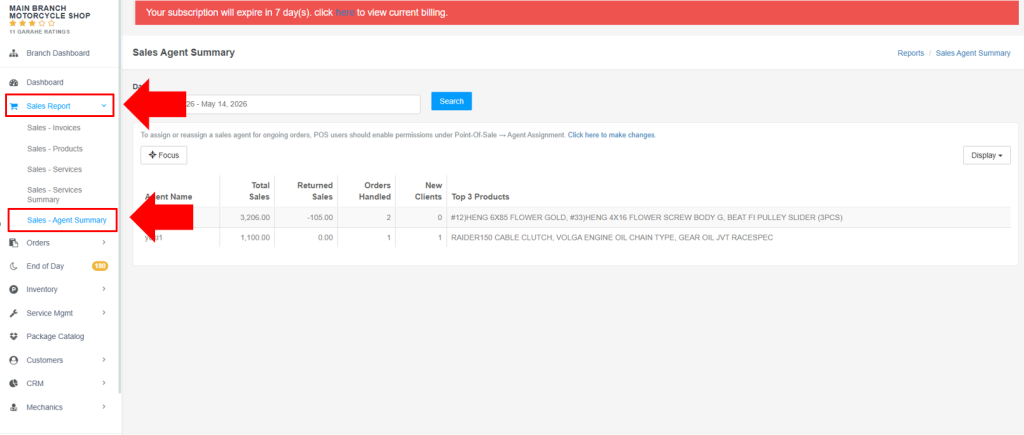
- In the left sidebar, find “MOTORSHOP MAIN“.
- Click “Sales Report” (shopping cart icon) to expand the menu.
- Click “Mechanic Summary” (highlighted in blue when active; may show a “New” badge).
2. Using the Date Filter
Date Field: Click the calendar icon next to the Date field.
- Quick Date Ranges: Choose from:
- Today, Yesterday, Last 7 Days, Last 30 Days, This Month, Last Month, One Year, Custom (for a specific range)
- Custom Date Selection: Select “Custom“, Use the left calendar to pick a start date. Use the right calendar to pick an end date.
- Click “OK” to confirm.
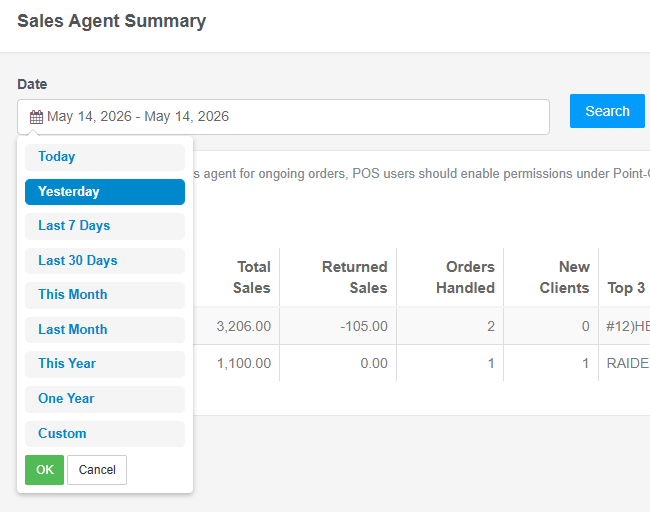
Apply Filter: Click the blue “Search” button to refresh results.
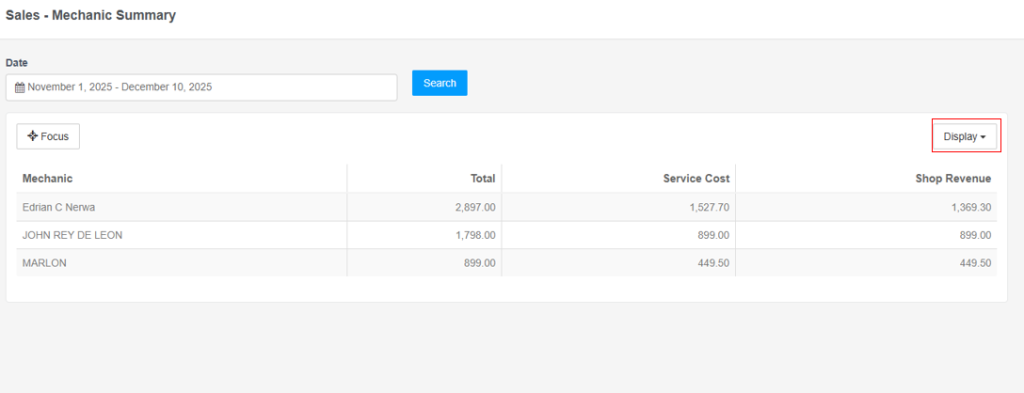
3. Understanding the Mechanic Summary Table
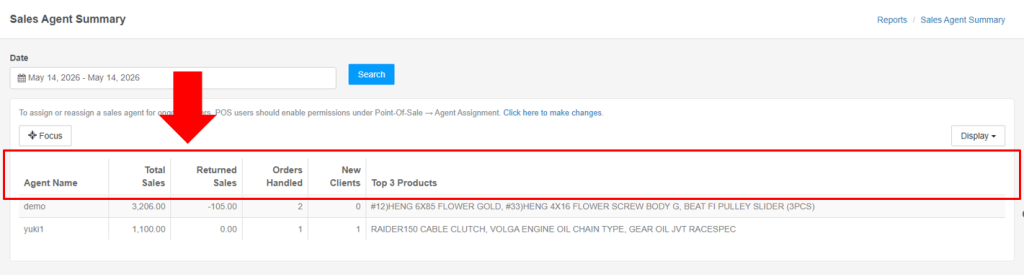
The table shows performance metrics for each mechanic:
Column Headers:
- Mechanic: Name of the mechanic
- Total: Total service revenue for the selected period
- Service Cost: Total cost allocated to the mechanic (mechanic share)
- Shop Revenue: Revenue retained by the shop (Total – Service Cost)
Data Interpretation:
- Each row represents one mechanic’s summary for the selected date range.
- Total = Service Cost + Shop Revenue.
- Use this to compare performance across mechanics.
4. Customizing the Table Display
Click the “Display” dropdown (top-right above the table).
- Toggle columns:
- ✓ Mechanic
- ✓ Total
- ✓ Service Cost
- ✓ Shop Revenue
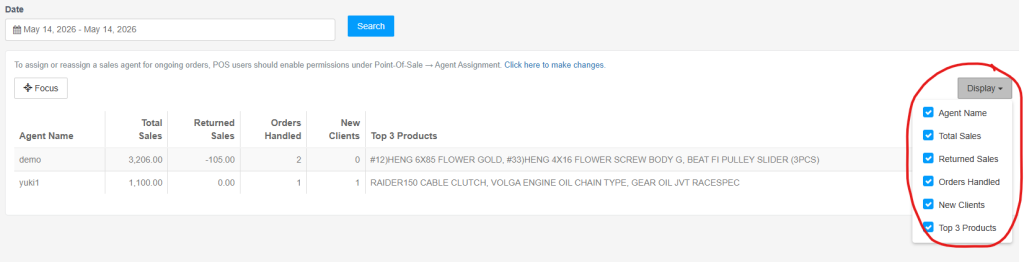
Uncheck columns you don’t need to simplify the view.
5. Using the Focus Feature
- Click the “Focus” button (top-left above the table).
- Highlights the selected row for easier viewing.
Video Tutorial
Tips for Effective Use
Date Range Selection:
- Use “This Month” for monthly reviews.
- Use “Last 30 Days” for rolling monthly analysis.
- Use “Custom” for specific periods (e.g).
Column Customization:
- Hide columns you don’t need to focus on key metrics.
- Show all columns for a complete view.
Performance Analysis:
- Compare Total revenue across mechanics.
- Review Shop Revenue to see shop profitability per mechanic.
- Check Service Cost to understand mechanic compensation.
Regular Monitoring:
- Review weekly or monthly to track trends.
- Identify top performers and areas for improvement.