
- Go to https://portal.motodisk.com and log in
- In the left sidebar, Click Sales Report click Sales Services
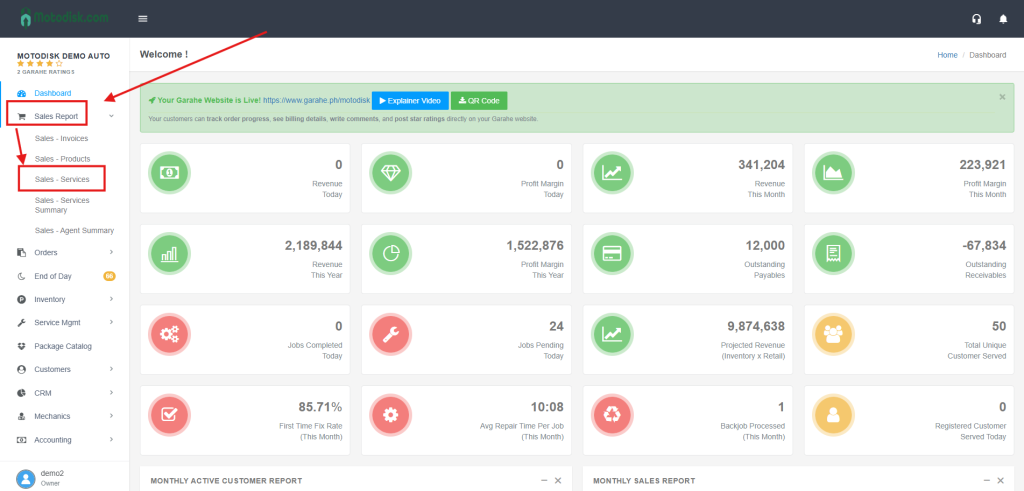
Click Sales- Service(highlighted in blue when active).
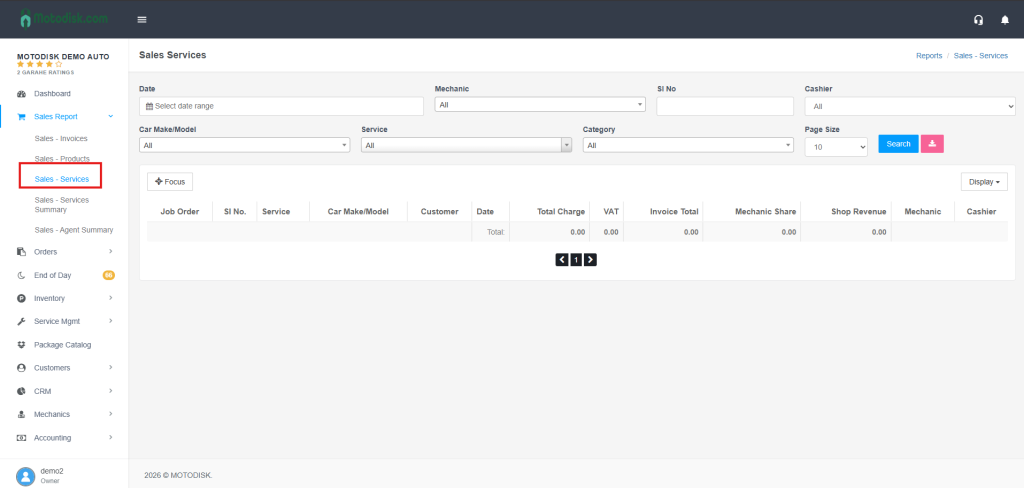
Filters
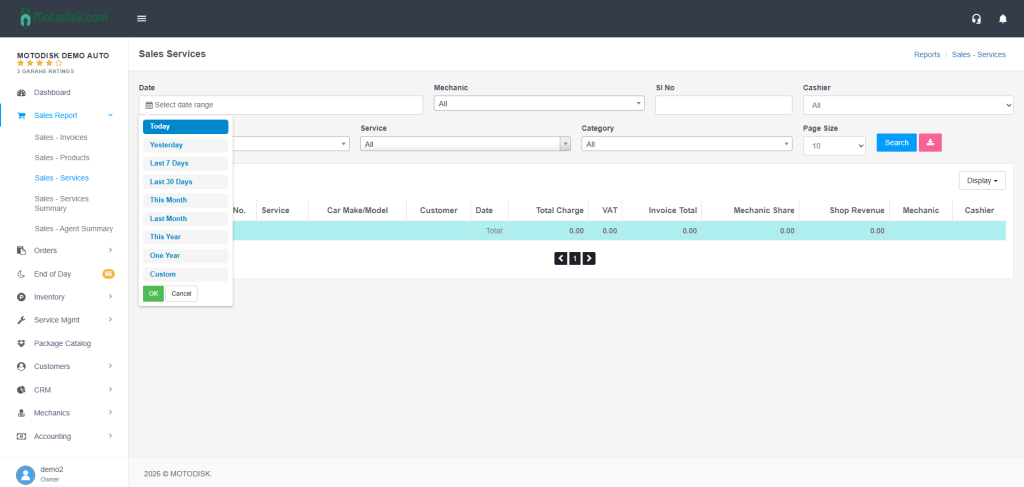
- Date: Calendar with quick ranges (Today, Yesterday, Last 7 Days, Last 30 Days, This Month, Last Month, One Year) or Custom; click OK to apply.
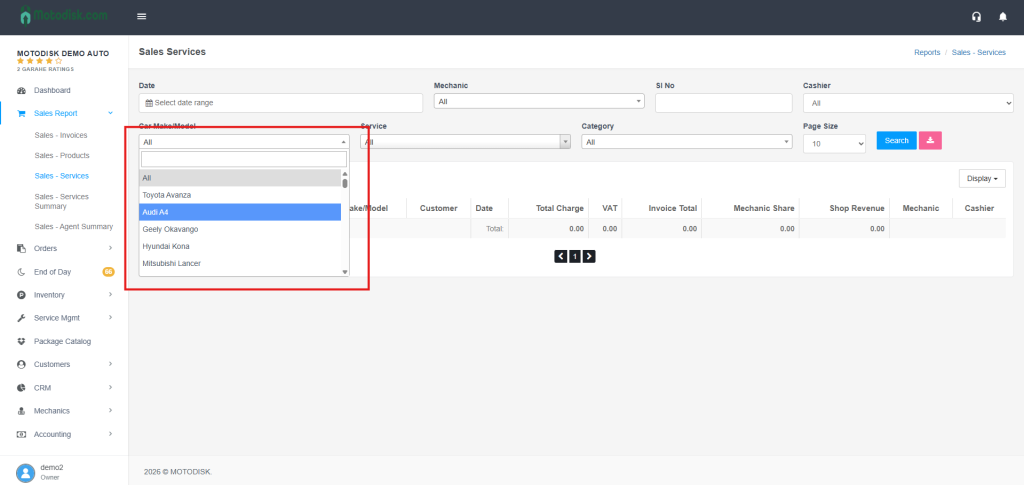
- Car make/model: Dropdown with search; choose a model or All.
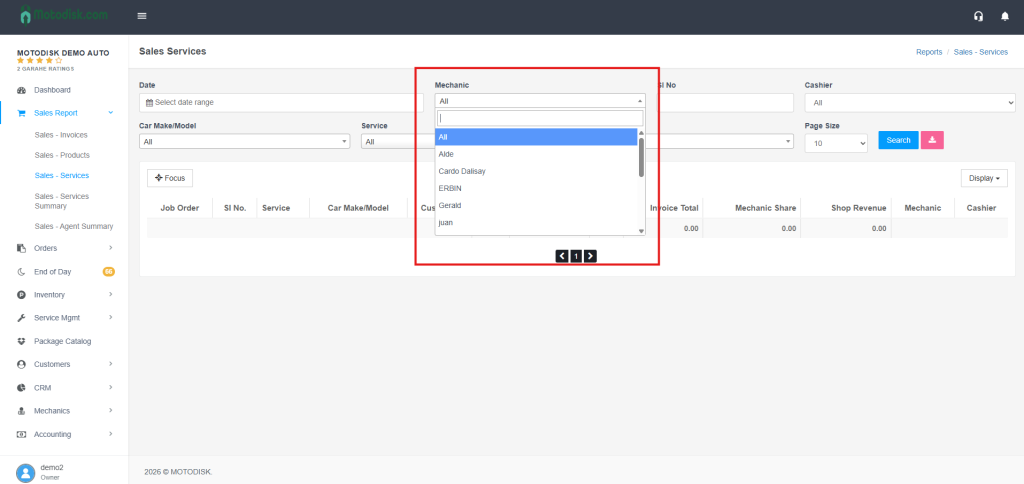
- Mechanic: Dropdown with search; pick a mechanic(e.g) or All.
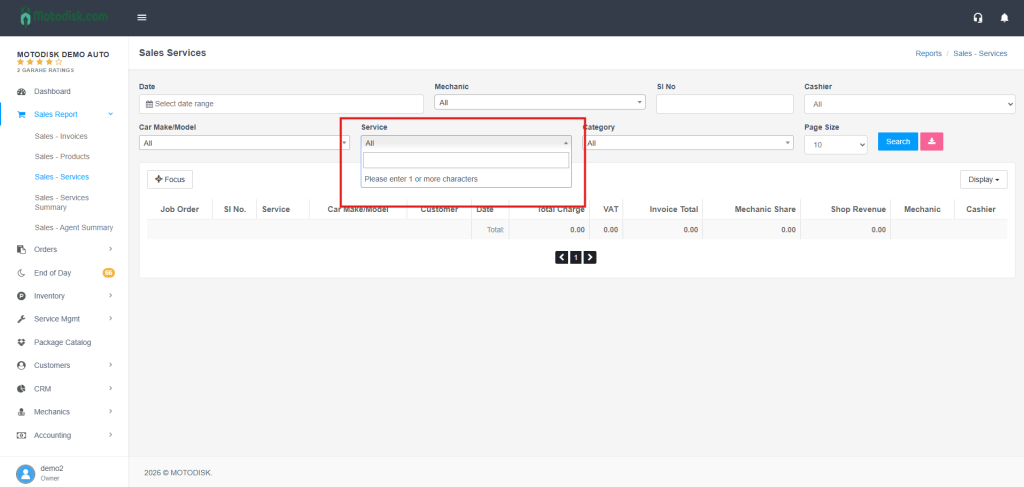
- Service: Type at least 1 character to search and select a service; or leave as Select for all.
- Cashier: Dropdown; pick a cashier(e.g) or All.
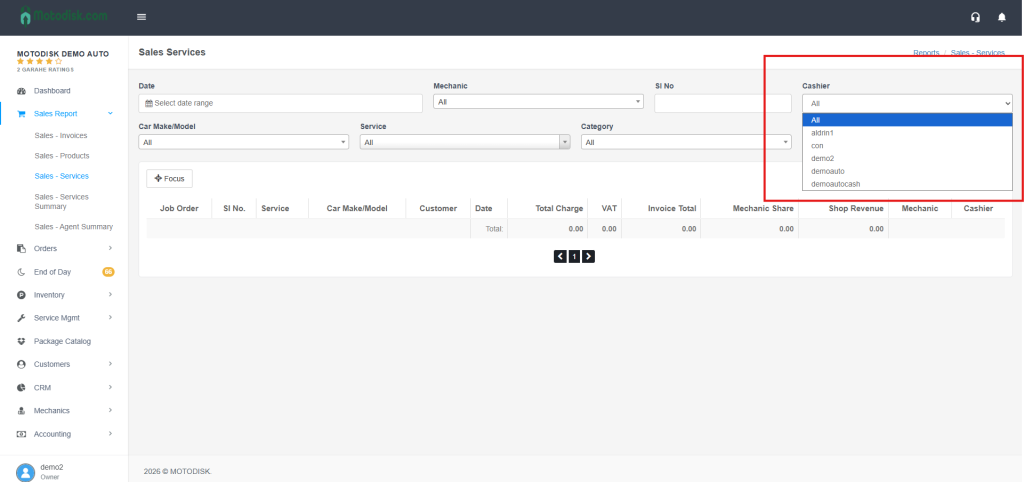
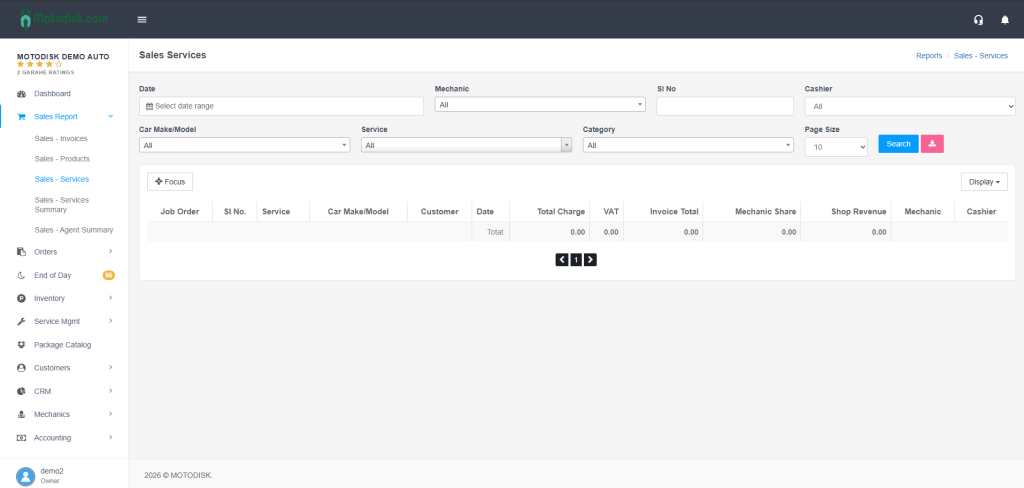
Table (Sales Services)
Columns (customizable via Display dropdown):
- Job Order (wrench icon)
- SI No.
- Service
- Car
- Customer
- Date
- Total
- Mechanic Share
- Store Profit
- Mechanic
- Cashier
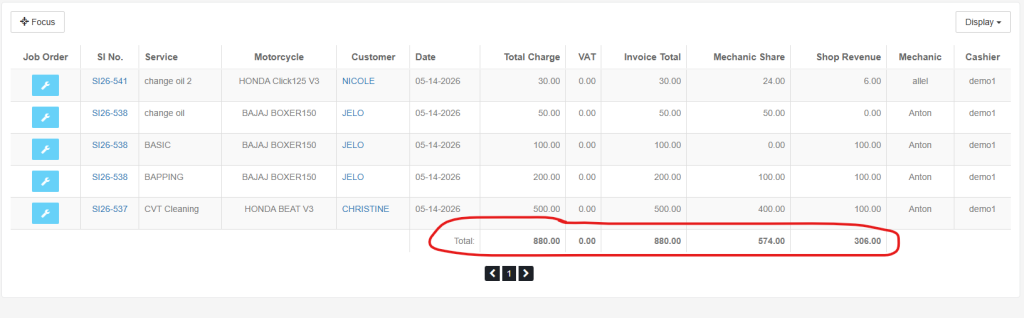
A totals row at the bottom shows summed Total, Mechanic Share, and Store Profit for the displayed rows.
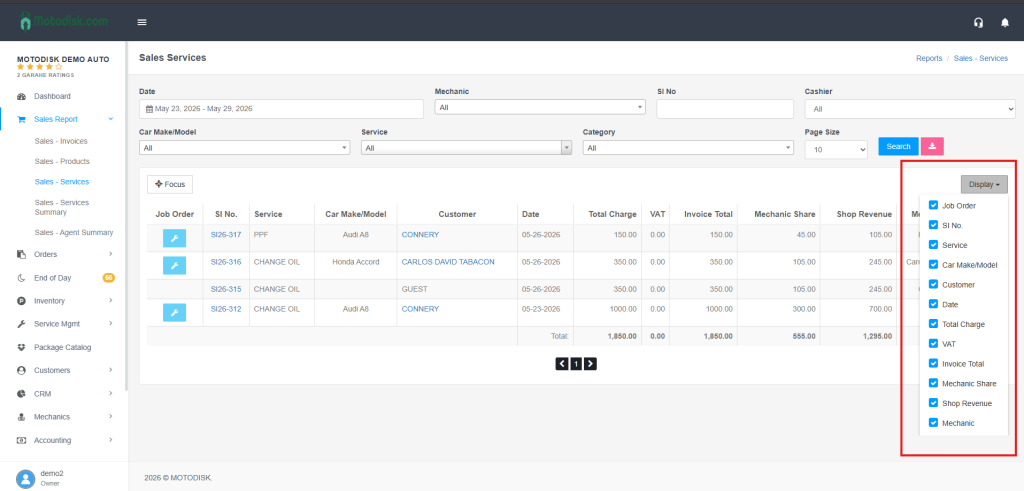
Display Options
Use the Display dropdown to show/hide columns as needed.
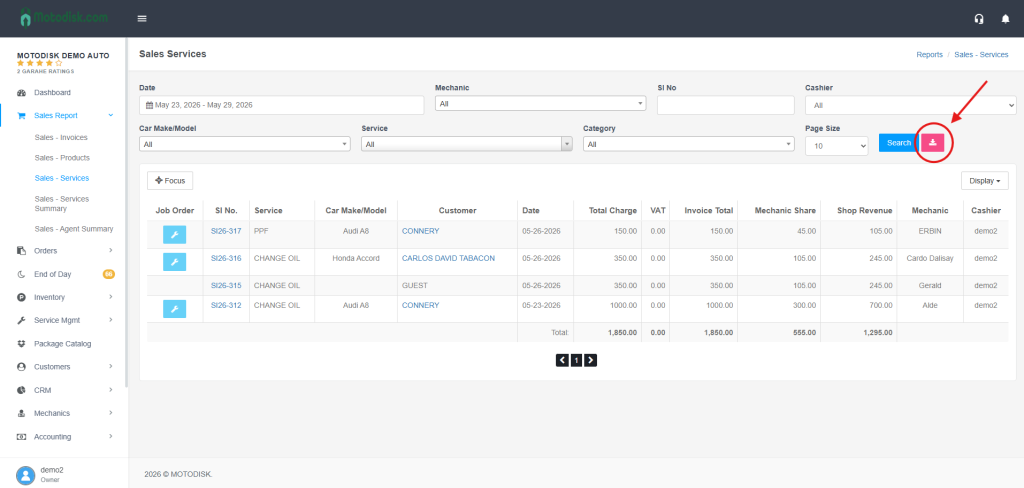
Export to CSV
- Click the pink export button (download icon)to export the current, filtered results to a CSV file for use in Excel or other tools.
Tips
- Combine filters (e.g., Date + Mechanic + Service) for precise results.
- Use the type-to-search fields (Motorcycle, Service) to quickly narrow long lists.
- The export respects your current filters and visible data.