
Step 1:Go to https://portal.motodisk.com and log in.
Step 2:In the sidebar, clickInventory > Product Orders > Create New Product Order
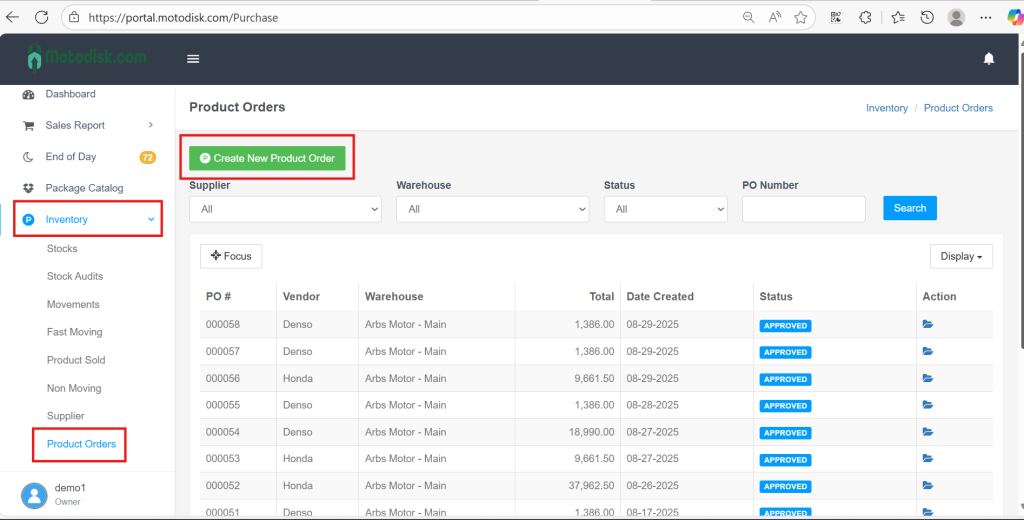
Step 3:Choose the Supplier, click Search and the system will automatically show all products linked to that supplier.
When the inventory list was first uploaded, it included a Supplier column—those items are what you’ll see here.)
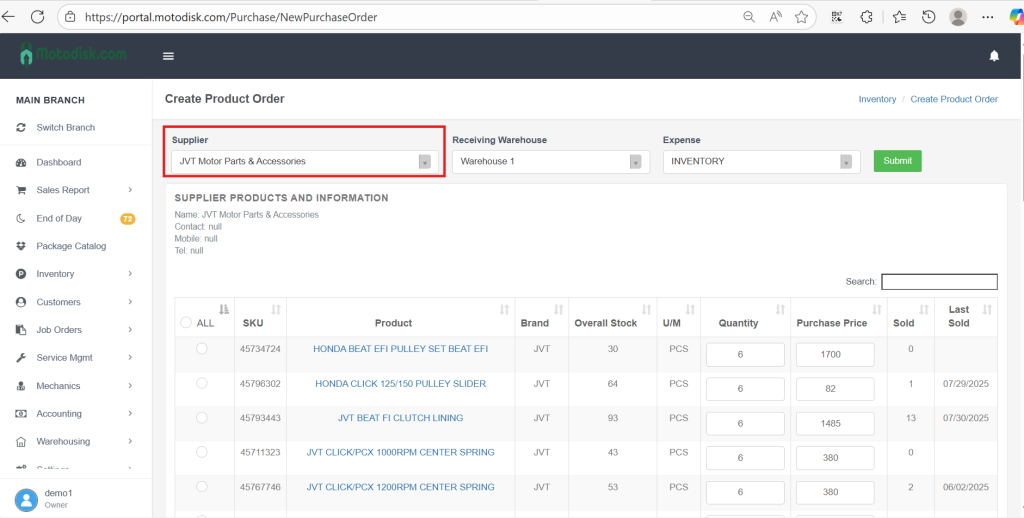
Step 4: Select the products and update the quantity that you want to order and then Submit.
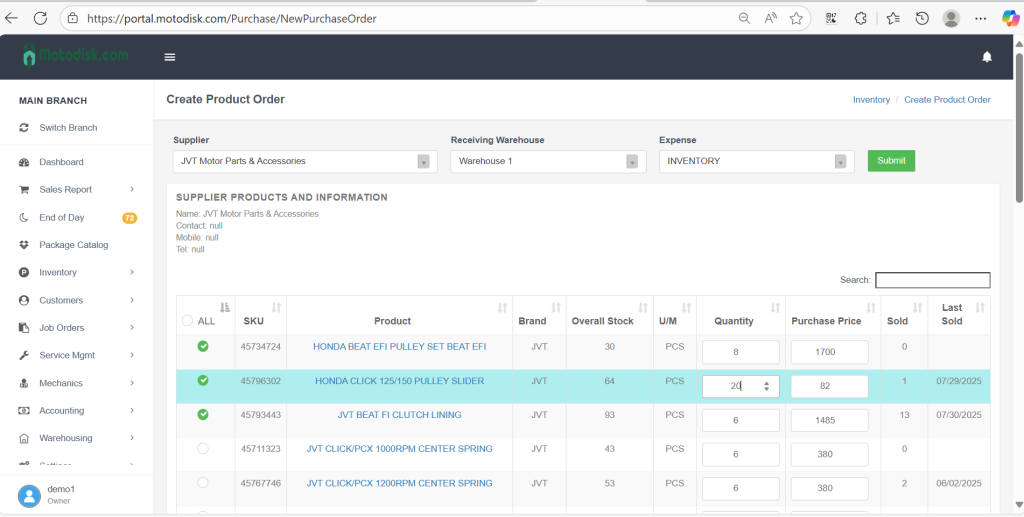
Note: By default, the receiving warehouse is set to your default warehouse, and the expense is set to Inventory. You can edit both fields if needed.
Here’s the video guide.