
Step 1: To allocate products, there must first be a Job Order or Approved Stock transfers
*In Job order
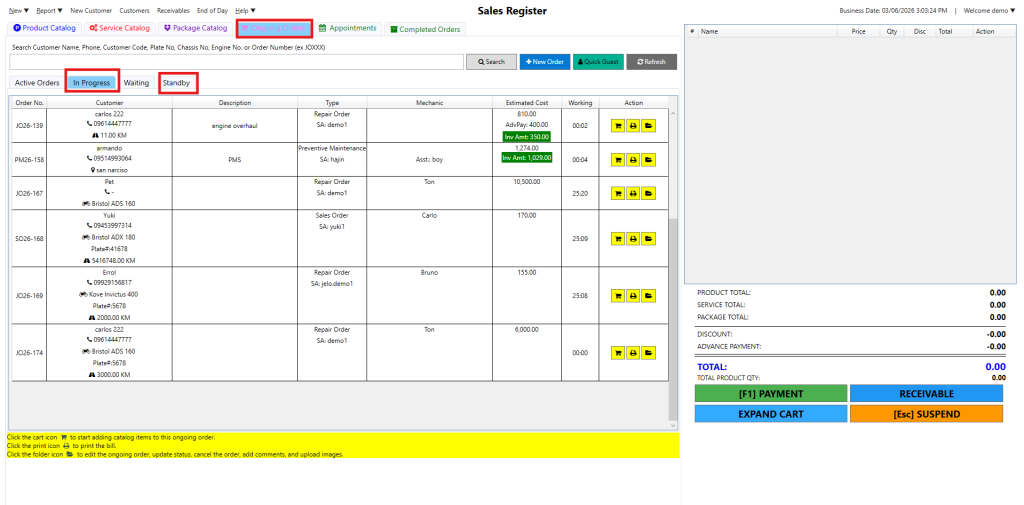
Go to Ongoing Orders, then select either In Progress or Standby.
Once the job order is either in Progress or Standby, the system will automatically reserve (allocate) the required items.
*In Approved Stock transfers
Log in to https://portal.motodisk.com
In the sidebar, click Warehousing, then select Stock Transfers.
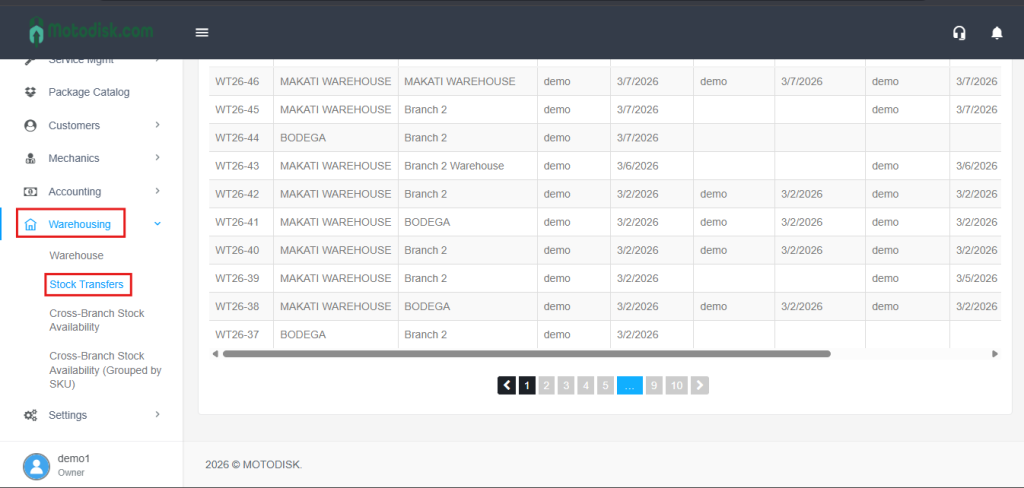
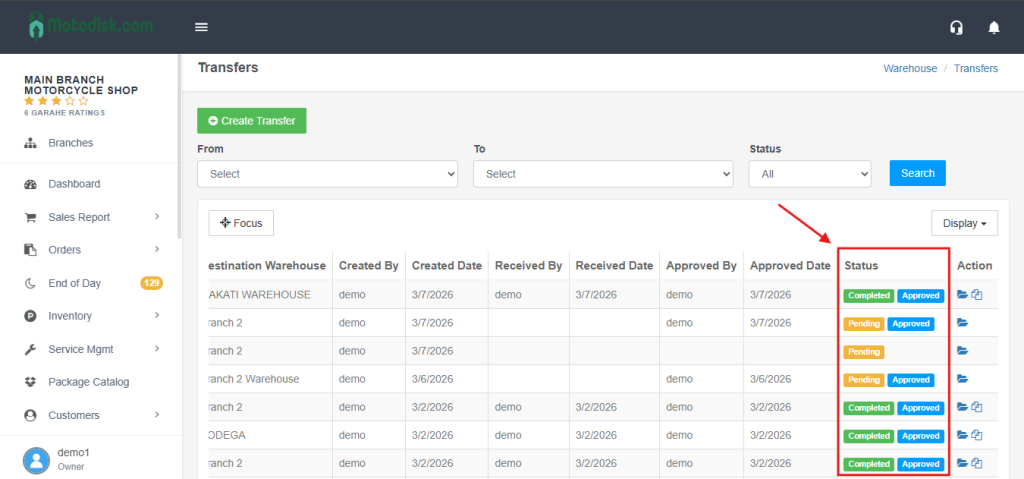
A table of stock transfers will appear. On the right side, the Status can be seen as Pending Completed or Approved. When the status is Approved, it means the transferred stocks have already been allocated.
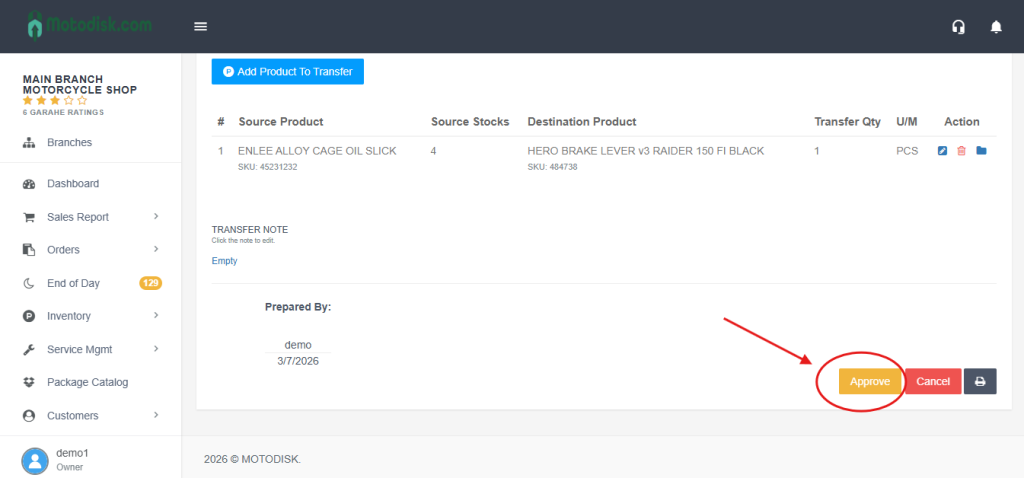
How to Approve a Stock Transfer
Click the folder button of the selected stock transfer, then click Approve.
How to Create a Stock Transfer?
Please refer to this guide for the complete steps:
https://support-motodisk.com/how-to-navigate-and-create-stocks-transfer/
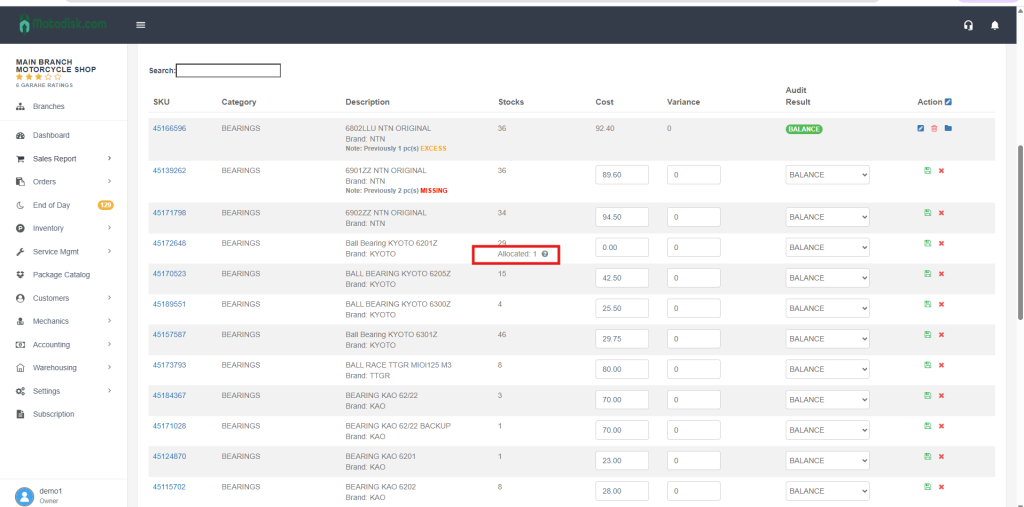
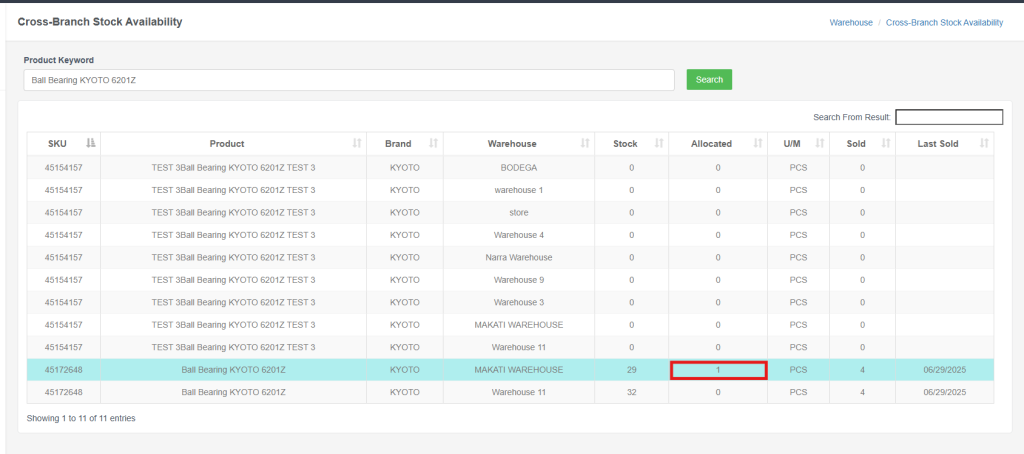
Step 2: Go to Inventory > Stocks. You will see the “Allocated” count listed under the item’s total stock, and you can also check it in the stock audit, and you can also see the allocated product in Cross-Branch Stock Availability,
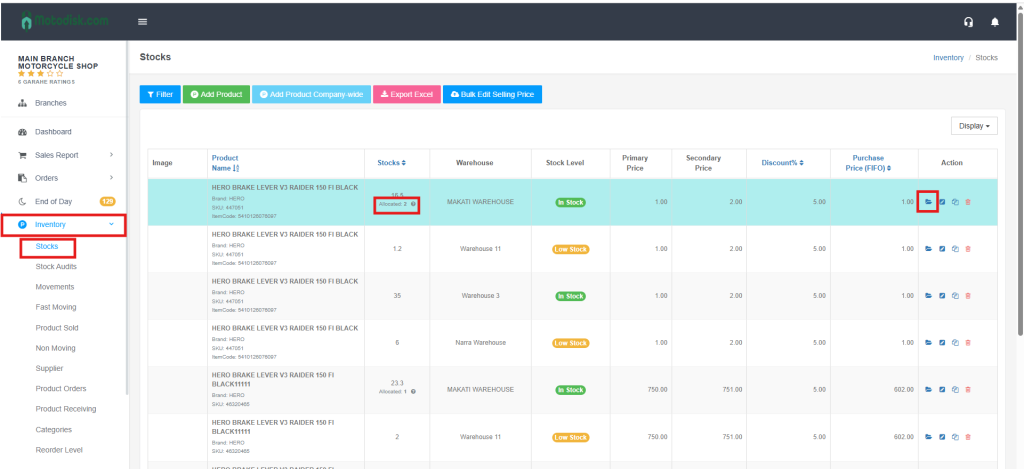
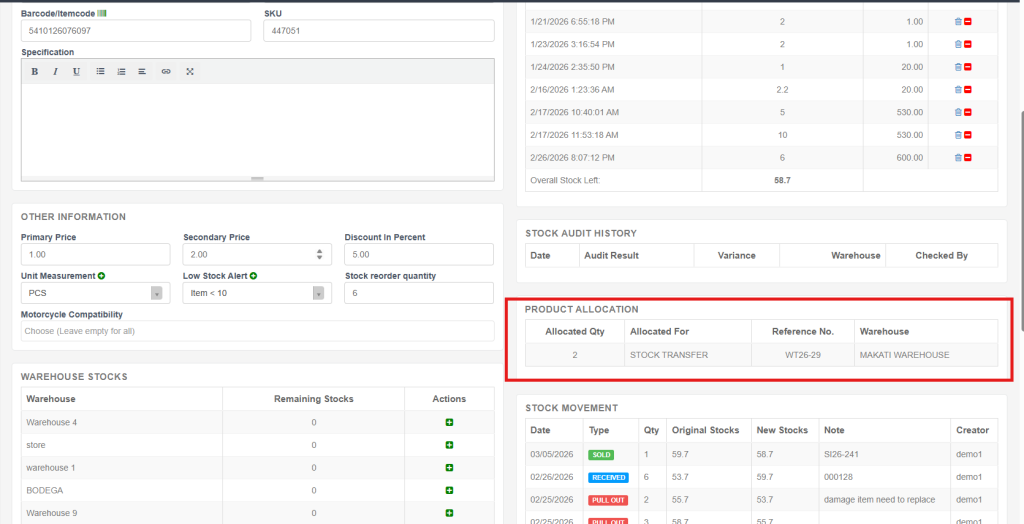
Step 3: Click the Folder Icon for that product. You can then view the specific Product Allocation
Video: Allocate Works