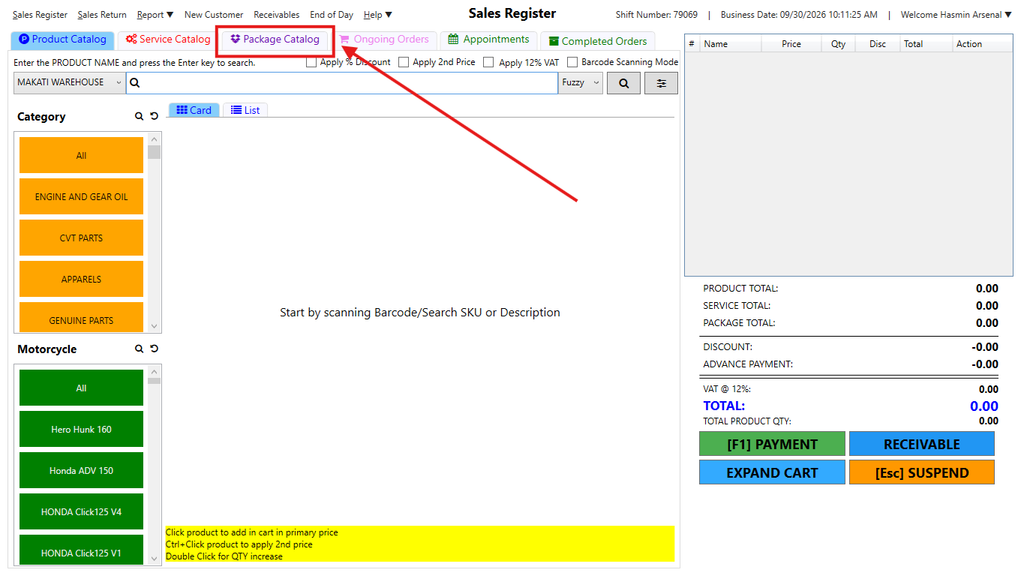
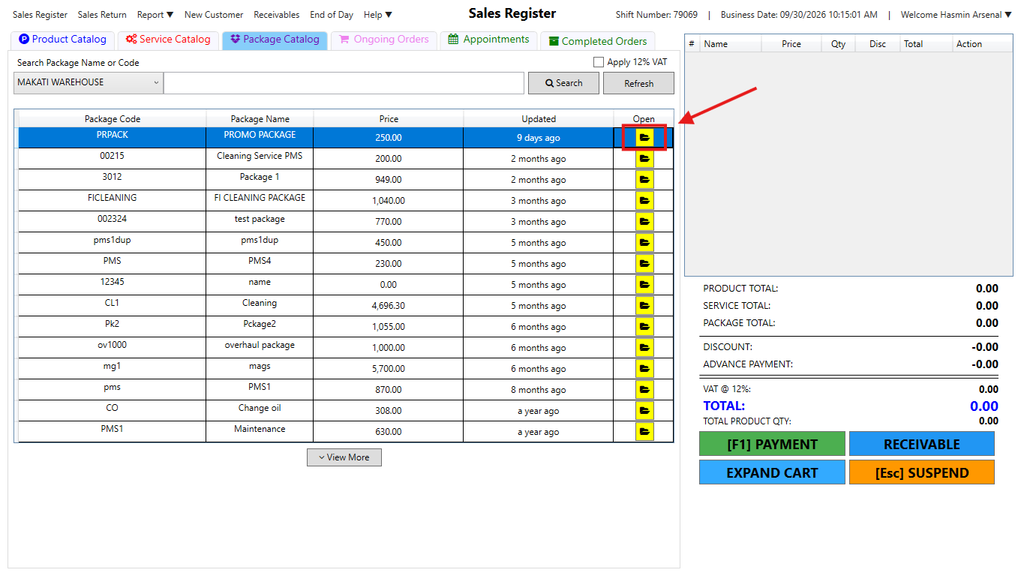
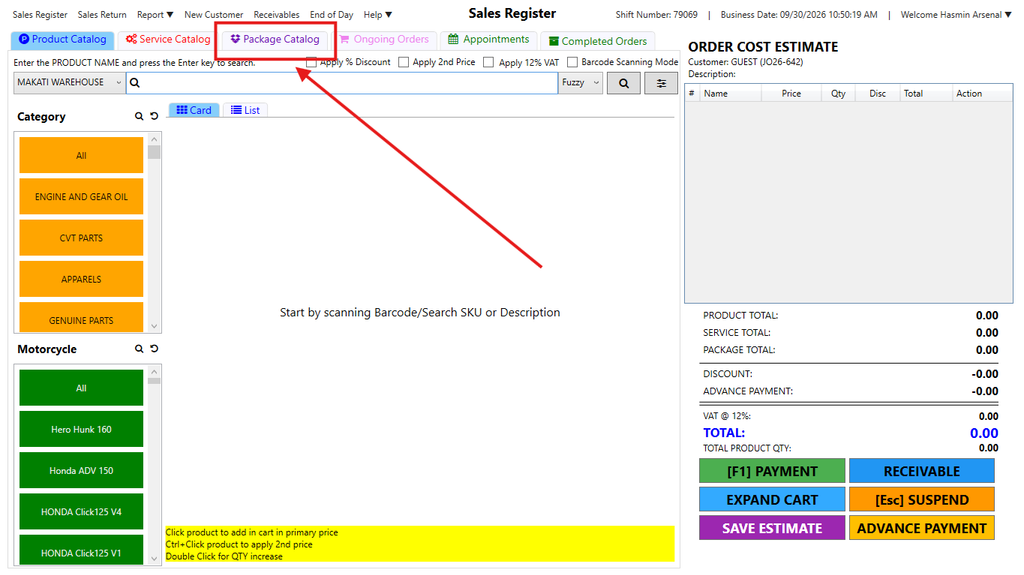
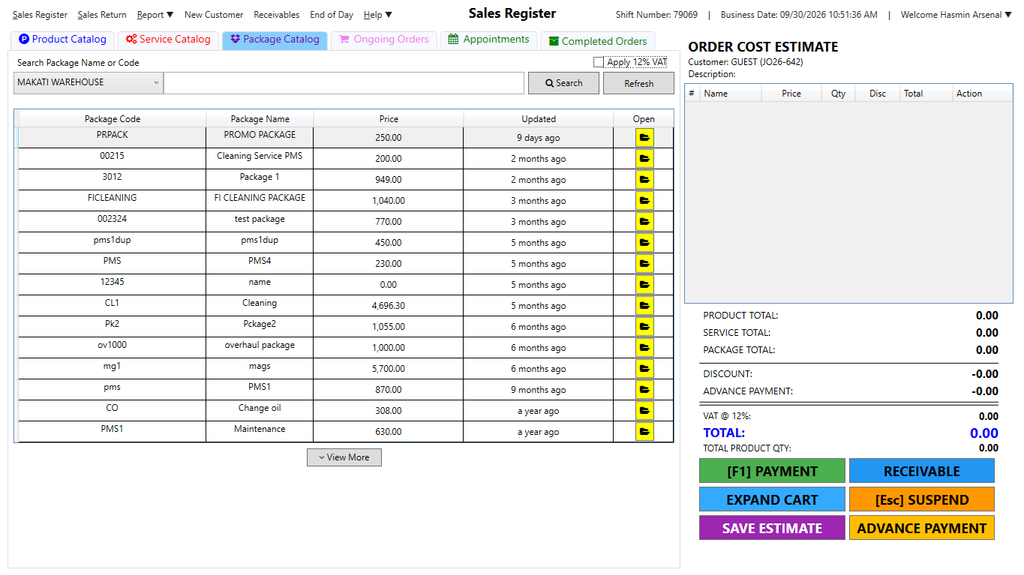
Step 2: Select the Package availed by the Customer by clicking the Folder icon
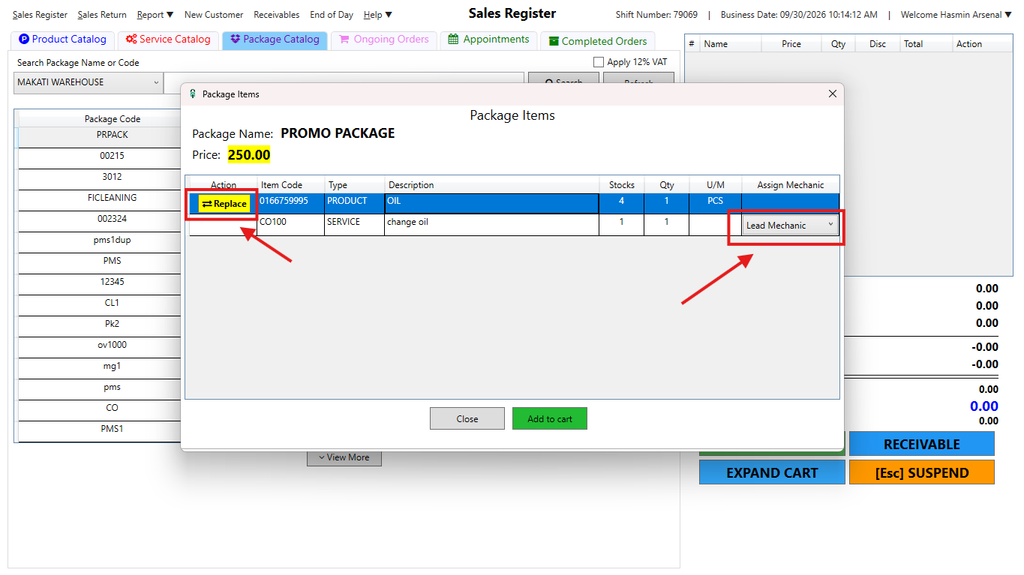
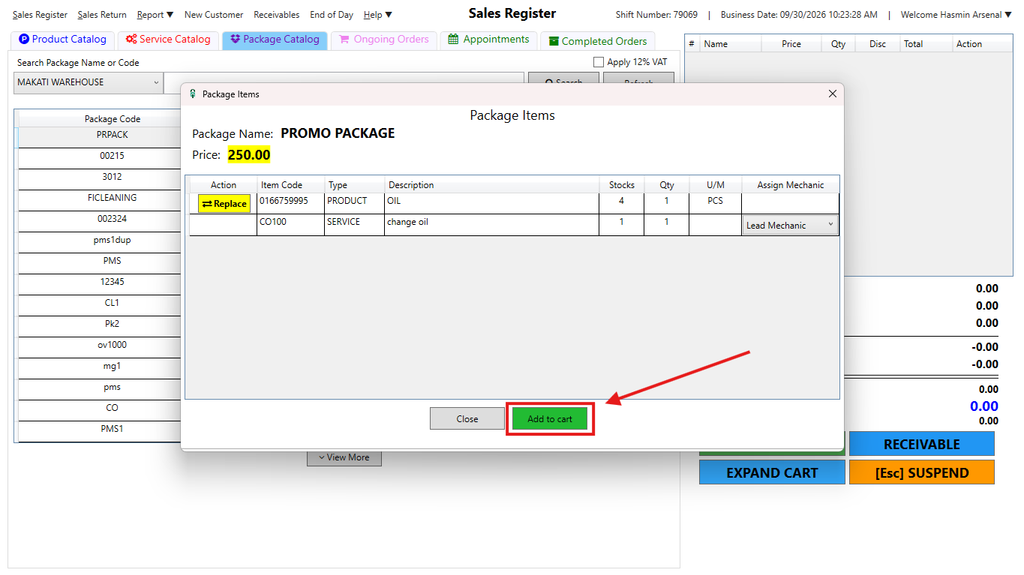
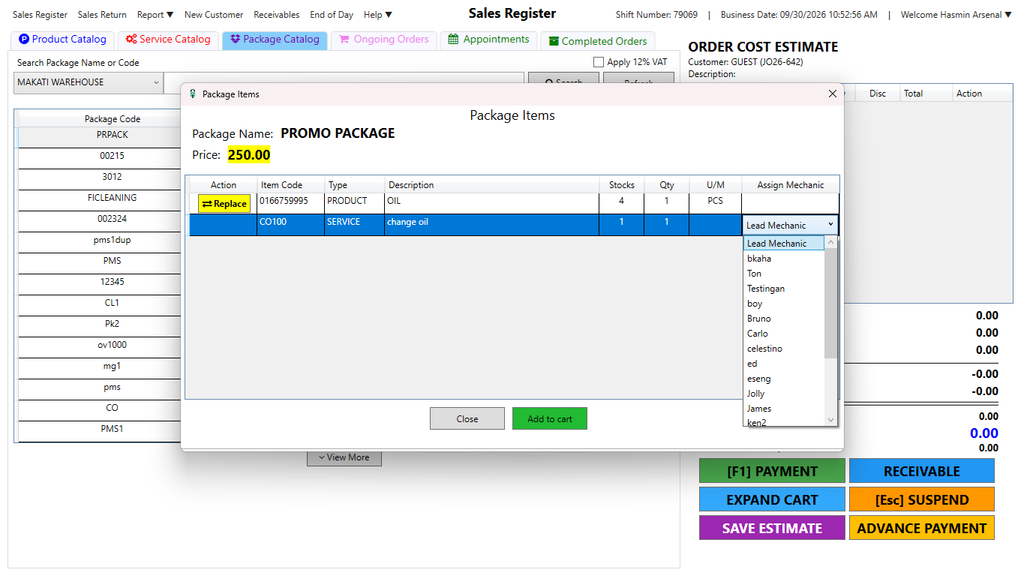
Step 3: Replace the product as needed, and select the Mechanic (required with Service).
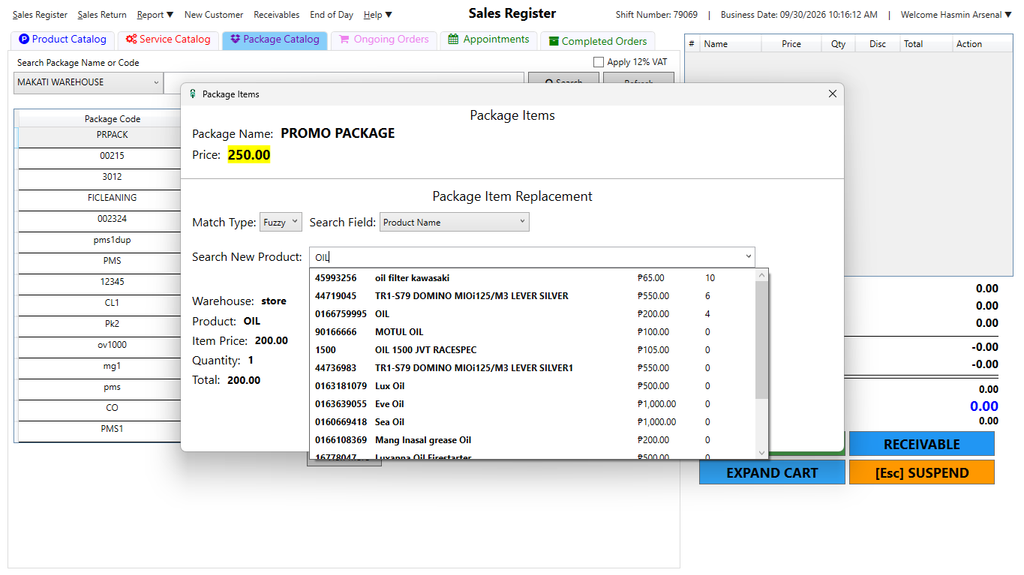
If you want to replace the product, click Replace and search for the new product in the Search bar
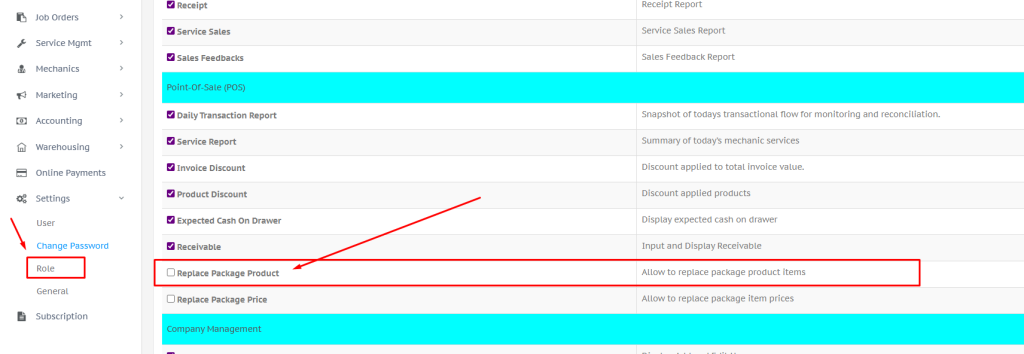
Note: The Replace Package Product feature is hidden by default. To enable it, go to: Settings → Role → Select a Role → Point-Of-Sale (POS) group, then check the box for Replace Package Product.
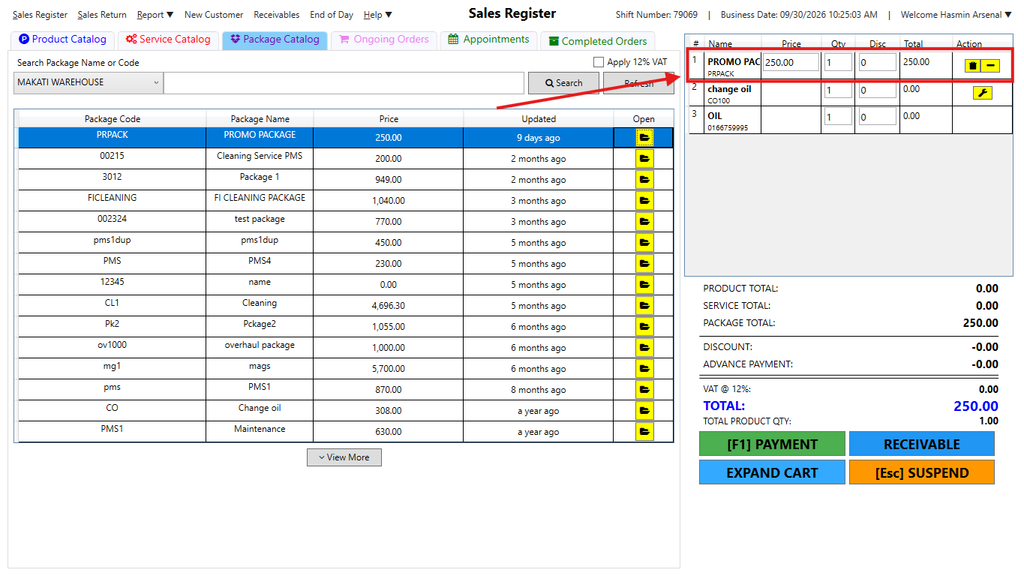
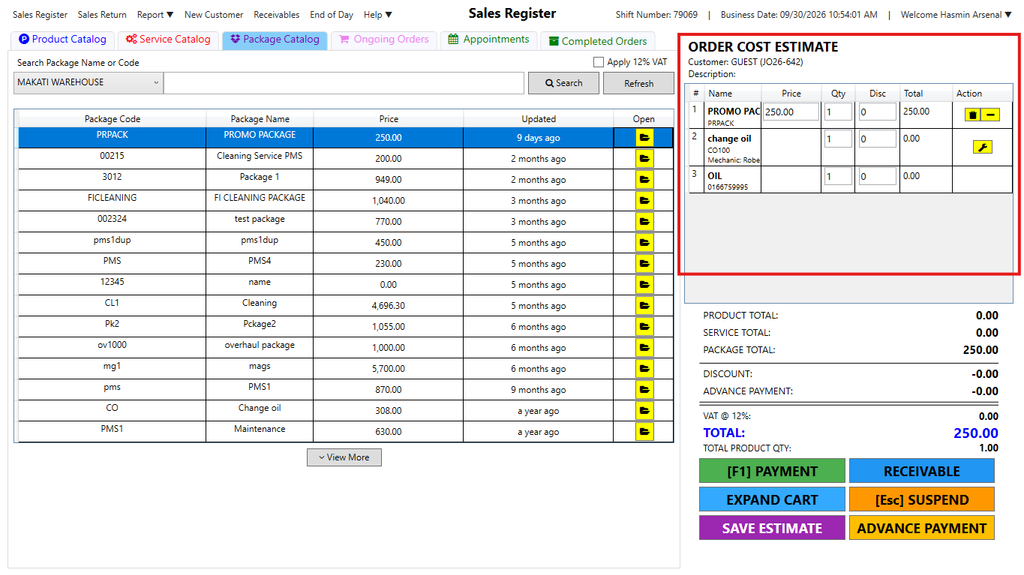
Click Add to Cart. Your package will be displayed in the Cart.
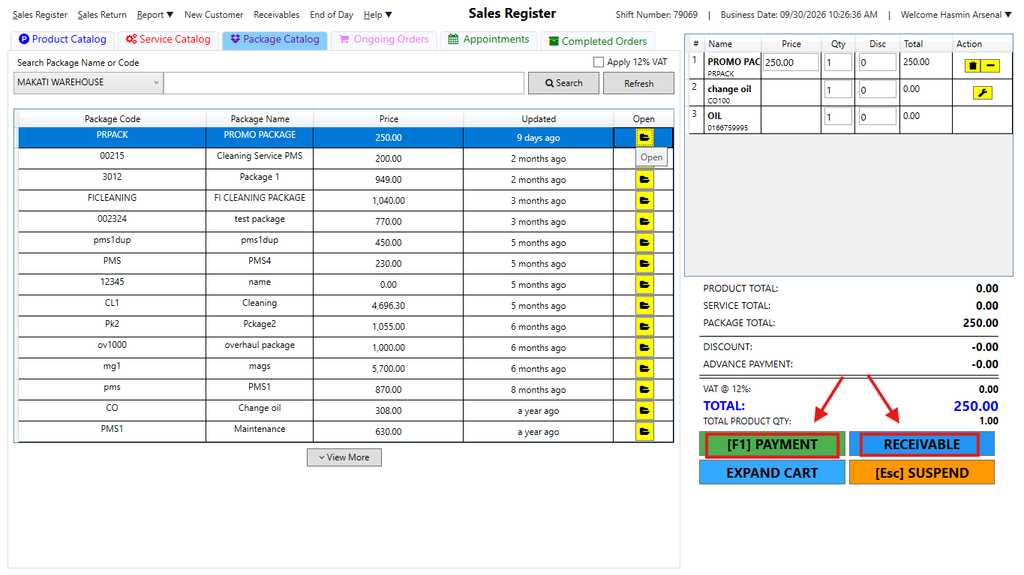
Step 4: Choose Payment if the customer is paying now, or Receivable if they’ll pay later.
Here’s the video guide:
Option 2: Package Sales with Job Order
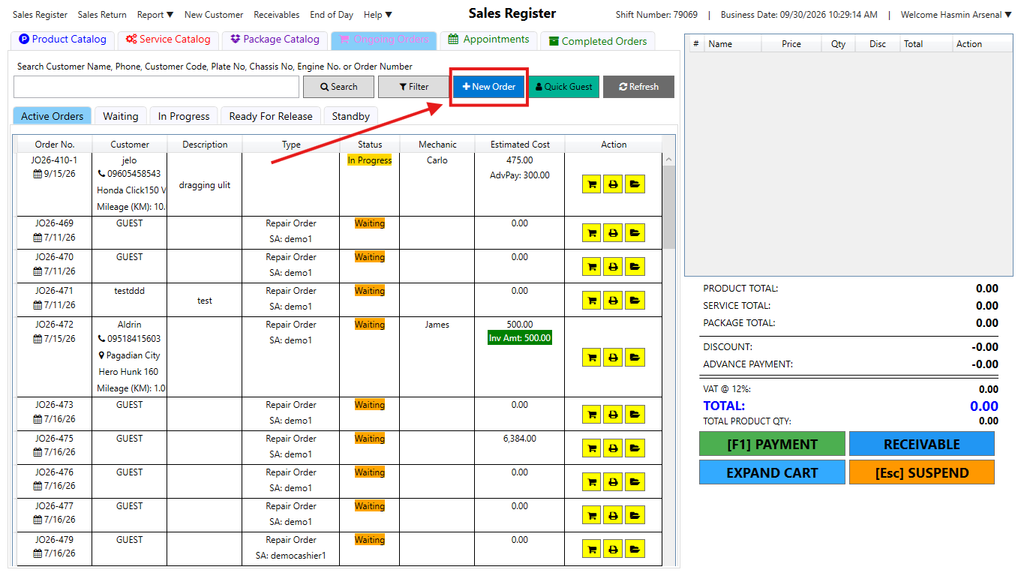
Step 1: Go to Ongoing Orders > New Order.
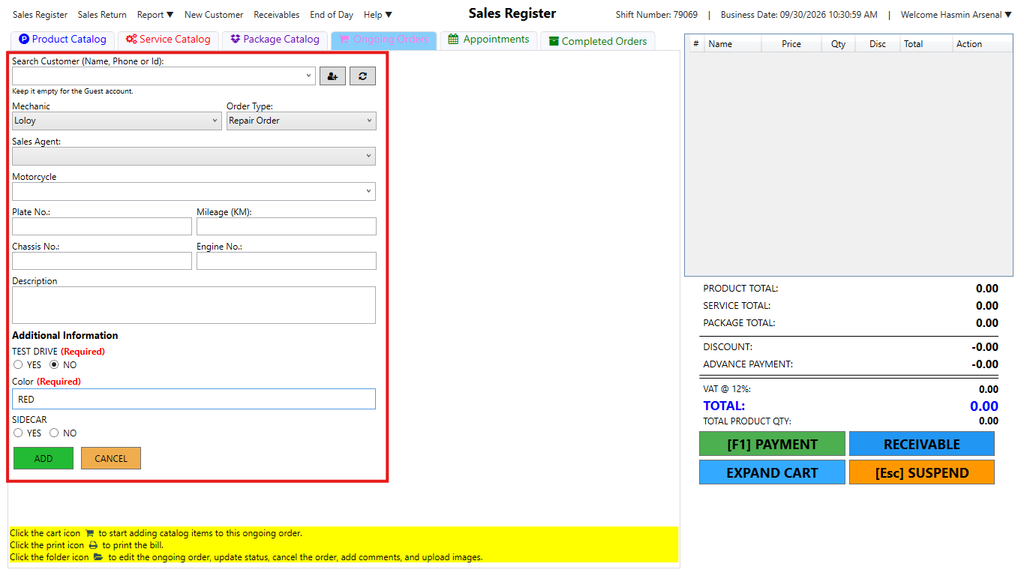
Fill in the fields,
Customer is optional
Mechanic is required since this is with Service
Motorcycle, Plate No, Odometer and Description is optional
Click Add
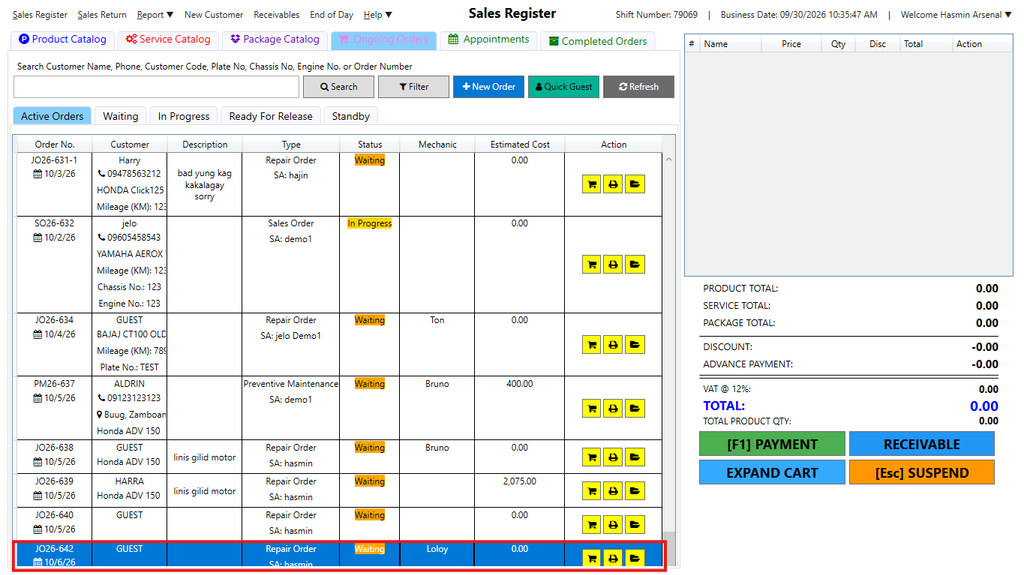
Step 2: Job order is now added, since its FIFO (First In , First Out) it will be displayed at the bottom of the list .
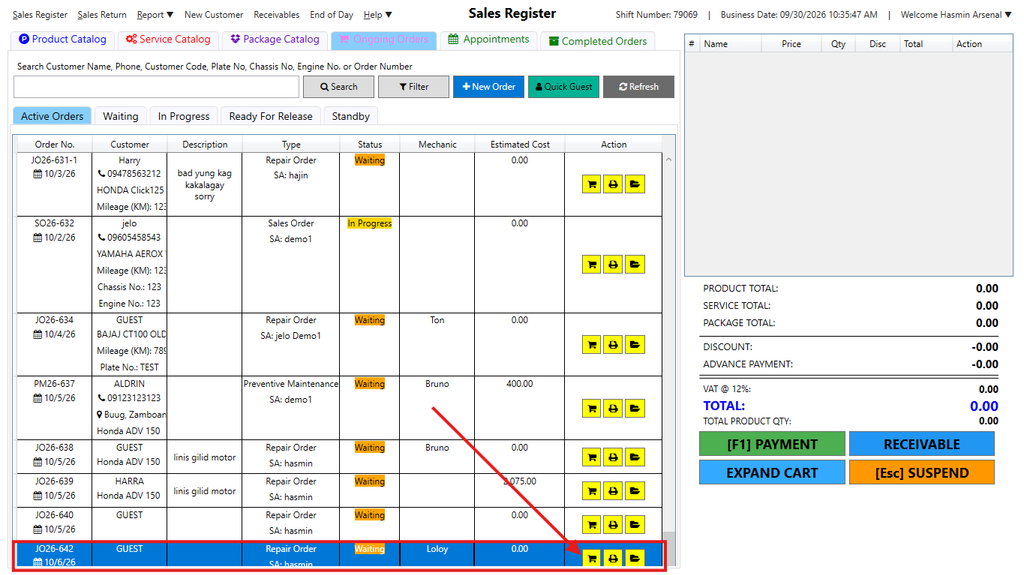
Step 3:. Click the folder icon to start adding a package
click the package catalog to choose the package you want.
Choose package the customer wants to avail then click the folder icon
Step 4: Select a Mechanic to be assigned for this customer and replace product, as needed. Then Add to Cart
Step 5:You will see the Package in the Cart, including its composition and the package price at the bottom.
Step 6:. Click Save Estimate if the customer isn’t ready to pay yet. Click Payment if they’re paying now, or Receivable if they’ll pay later.