Step 1: Go to https://portal.motodisk.com and log in
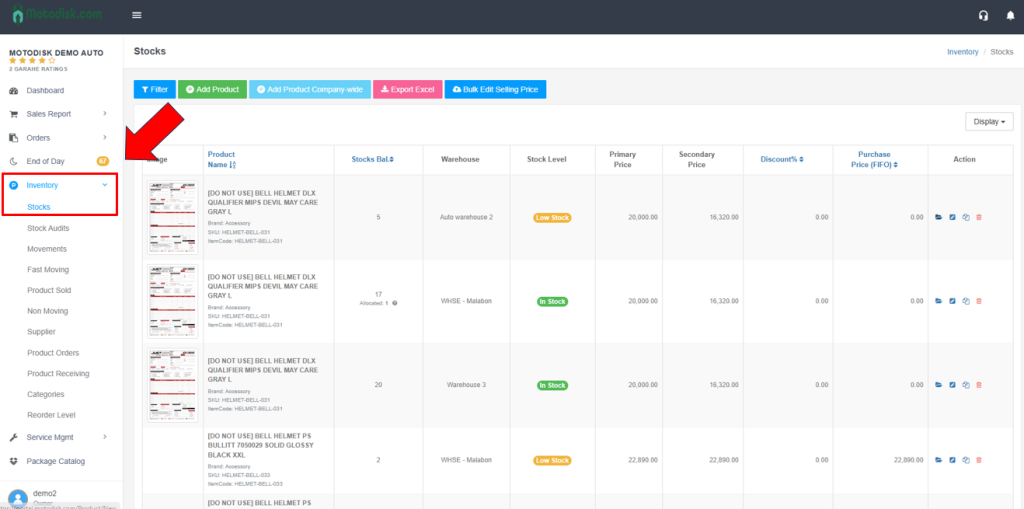
Step 2:In the side bar, select Inventory > Stocks
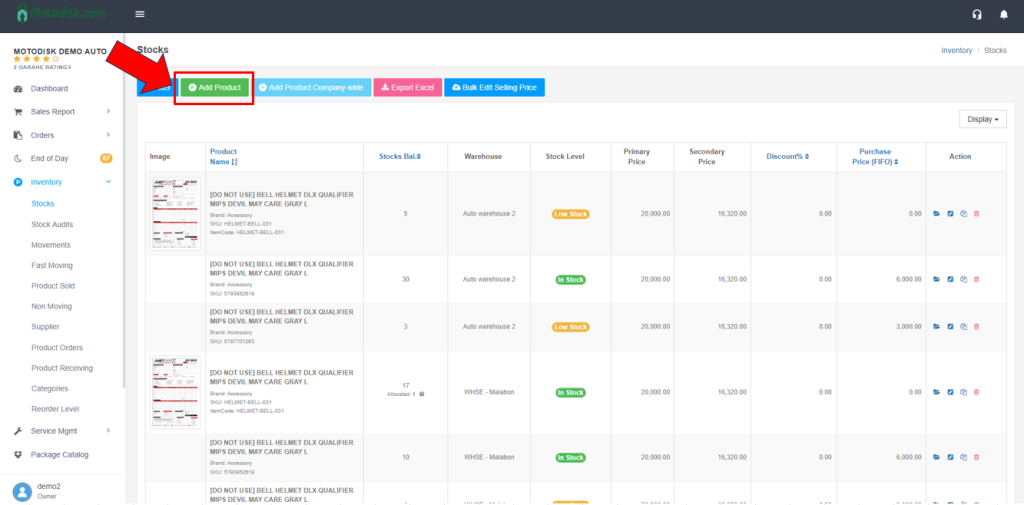
Step 3: Click Add Product
Step 4:Fill in the required information for the product you want to add, then use the Browse button to add a product image.
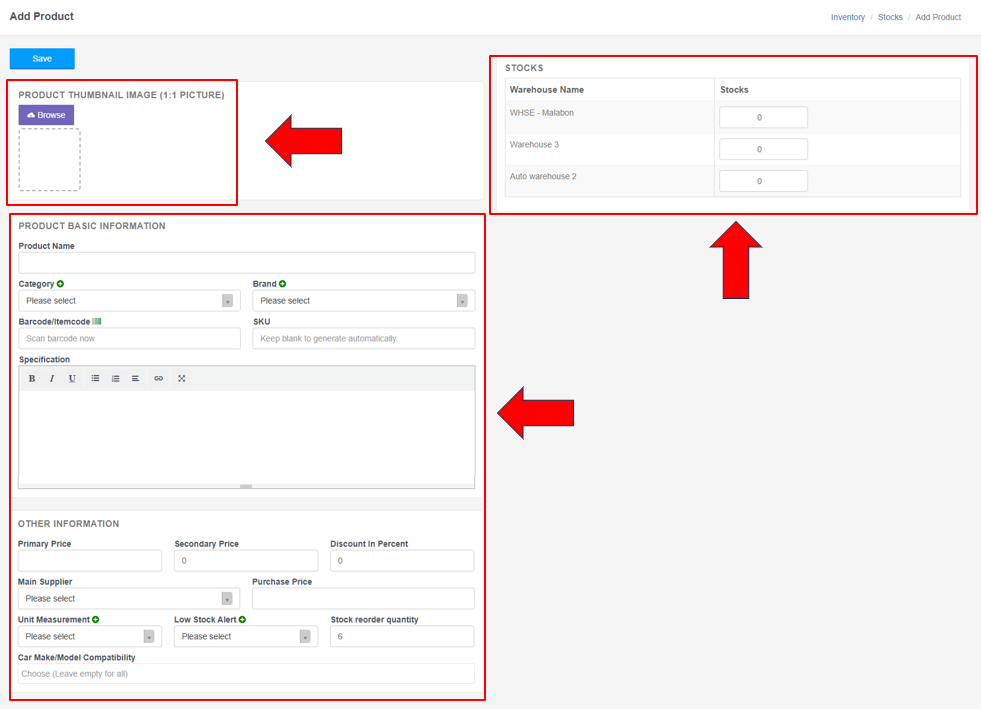
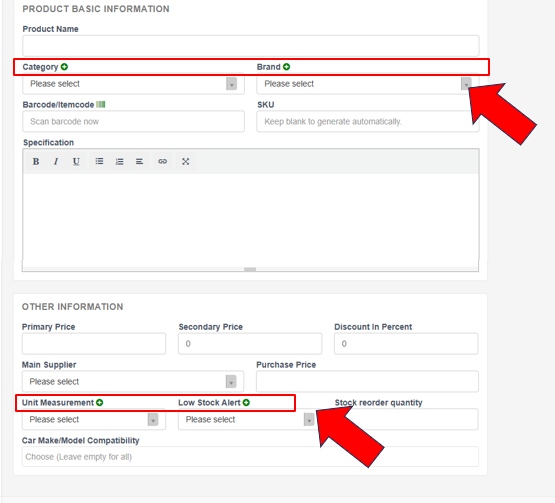
Step 5: The green plus (+) button allows you to add a new item that is not yet available in the dropdown list. Click the button to manually enter the information.
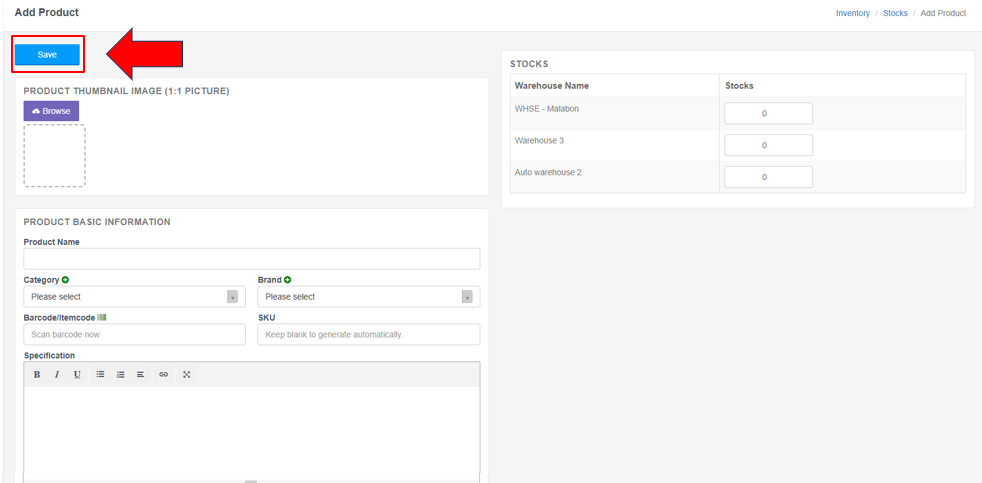
Step 6: After entering ALL the necessary details, click Save to save and add the item.