IMPORTANT NOTICE!!: Please follow and allow only the official system workflow.
Before proceeding, double-check if the status in the table is marked as “Pending”, as this indicates that the overall process has not yet been fully finalized.
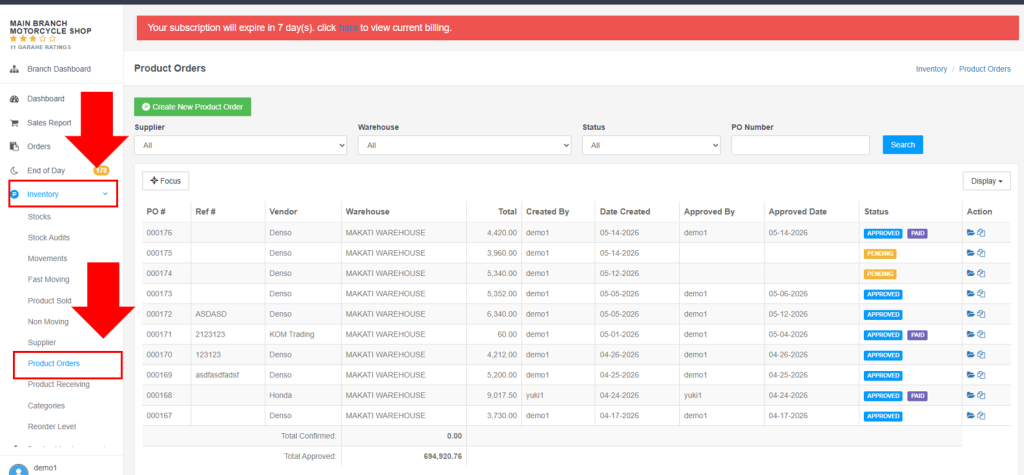
Step 1: Inventory > Product Orders (Note: Please double-check if the status is marked as “Pending”, as this means the overall process has not yet been fully finalized.)
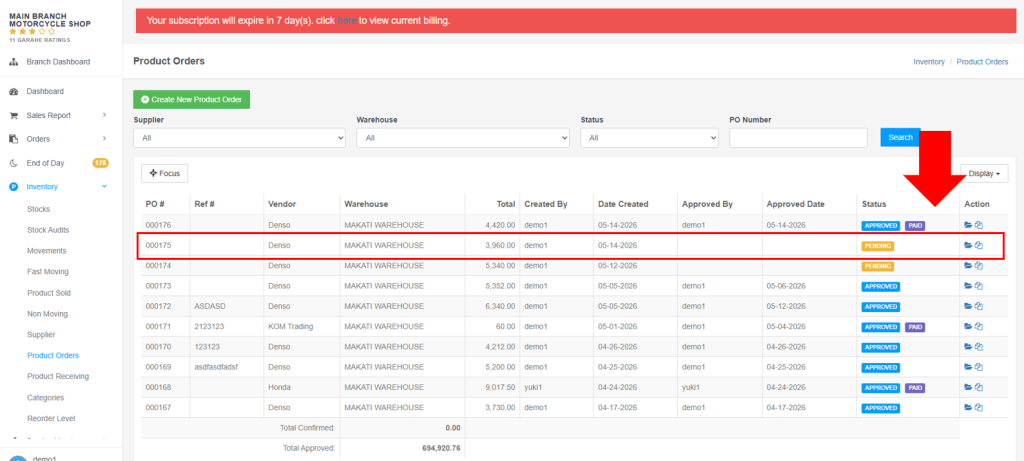
Step 2: Select a Purchase Order List
(IMPORTANT NOTICE!! : Read Carefully on the Supplier and Warehouse Address to be Received Column)
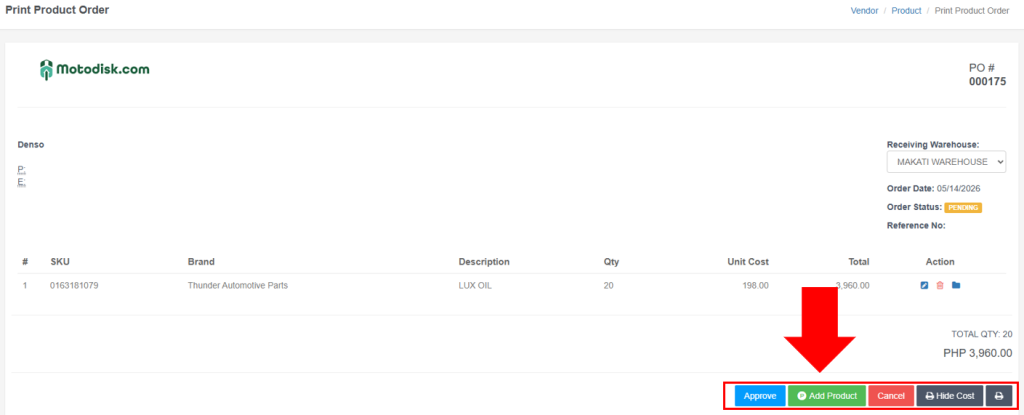
Step 3: Once, you have clicked that has a “Pending” Status, this User interface will show and click the green button named “Add Product”
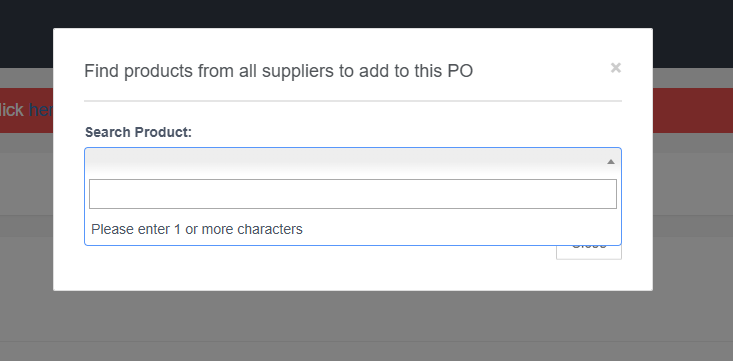
Step 4: Search a product name
(IMPORTANT NOTICE:You may only search for products that are currently provided or listed by the supplier.)
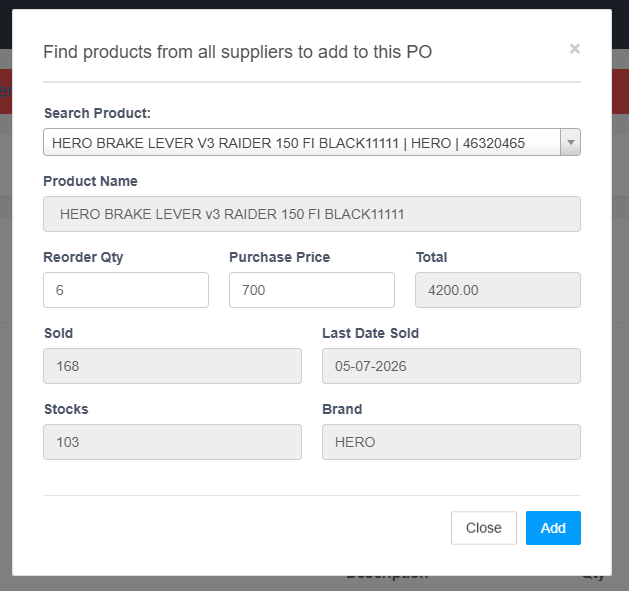
Step 5: Once product name is inputted fill up the following and click “ADD” button
Step 6: The search product has now added to the created purchase order
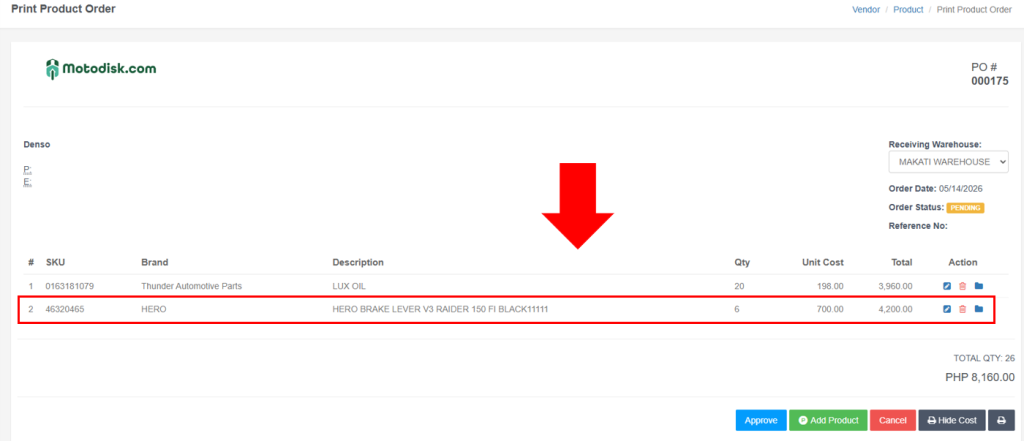
Step 7: Click the Add more Product if you want to add more.
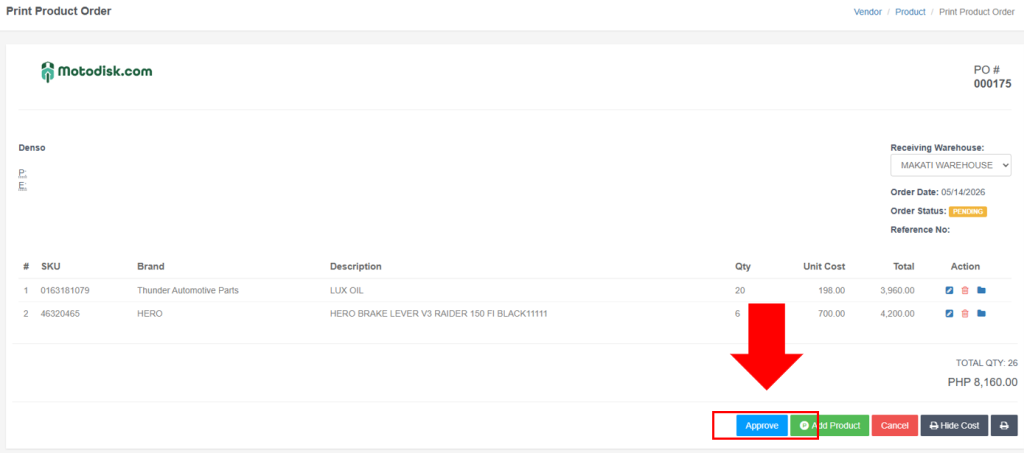
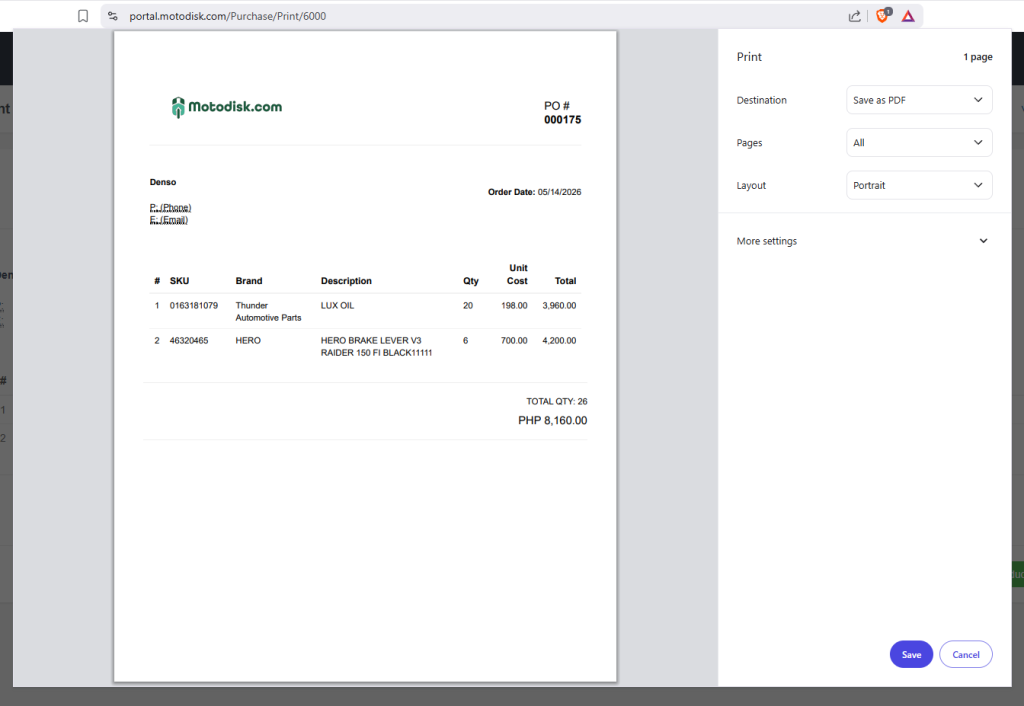
Step 8: Once you are done finalizing the purchase order list from this supplier, click the “Approve” Button and print the purchase list to be given on the Procurement agent