
Guide to identifying and analyzing products that sell quickly.
1. Accessing the Fast Moving Page
- In the left sidebar, find “MOTORSHOP MAIN”.
- Click “Inventory” (package icon) to expand the menu.
- Click “Fast Moving” (highlighted in blue when active).
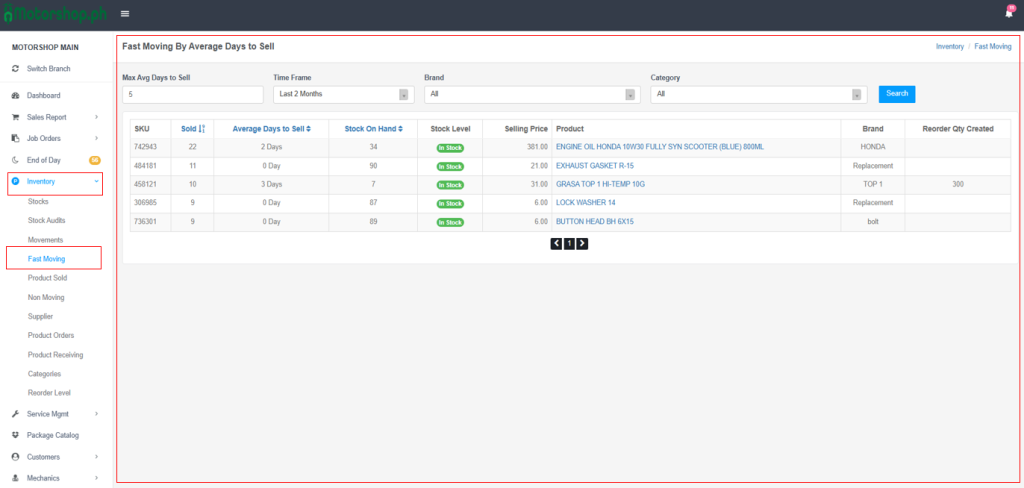
2. Understanding the Page Layout
The Fast Moving page shows:
- Filter Section (top): Criteria to refine results
- Data Table (main area): List of fast-moving products
- Pagination (bottom): Navigate through pages
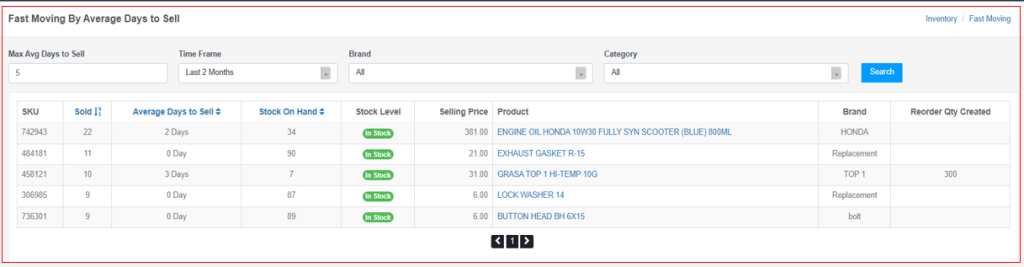
3. Using the Filters
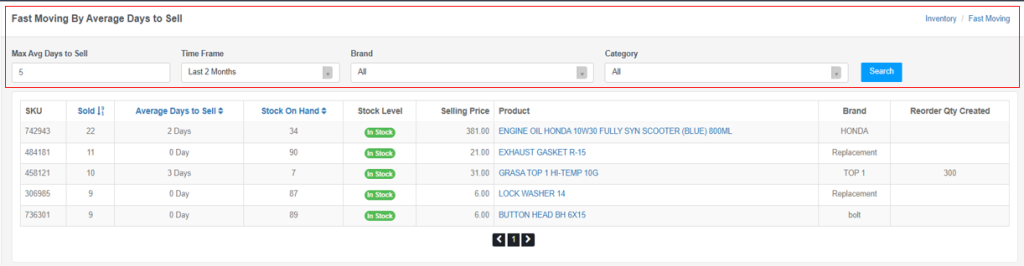
Max Avg Days to Sell
- Enter a number (default: 5).
- Shows products that sell, on average, within that many days or less.
- Example: “5” shows products that sell within 5 days on average.
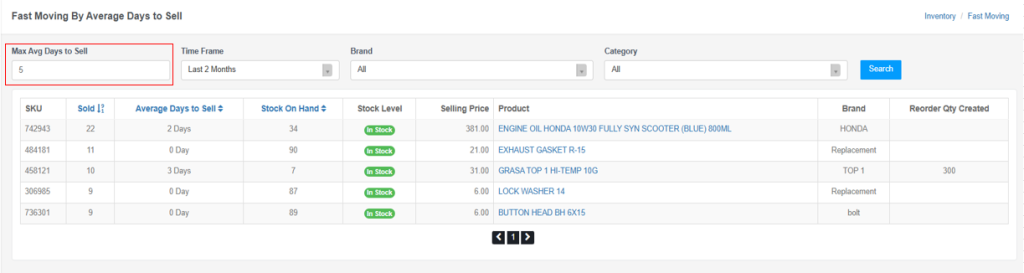
Time Frame
- Click the dropdown.
- Options:
- Last 2 Months (default)
- Last 3 Months
- Last 4 Months
- Last 5 Months
- Last 6 Months
- Select the period to analyze.

Brand Filter
- Click the dropdown.
- Select a brand or leave as “All”.
- Use the search bar to find brands quickly.
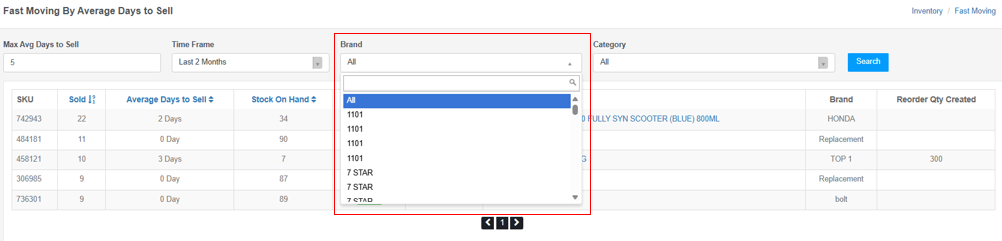
Category Filter
- Click the dropdown.
- Select a category (e.g., ACCESSORIES, ADVANCE TOOLS) or leave as “All”.
- Use the search bar to find categories quickly.
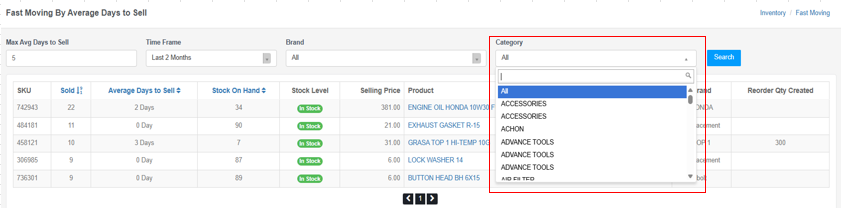
Applying Filters
- After setting filters, click the blue “Search” button to refresh results.

4. Understanding the Fast Moving Table
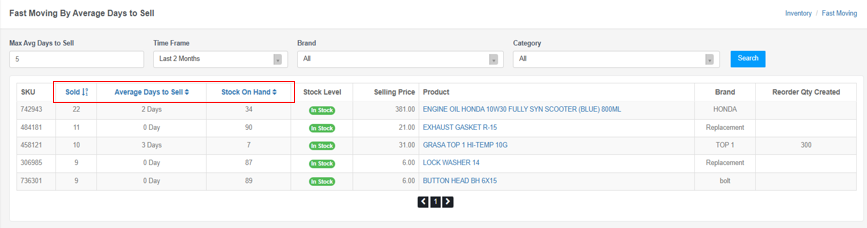
The table shows these columns:
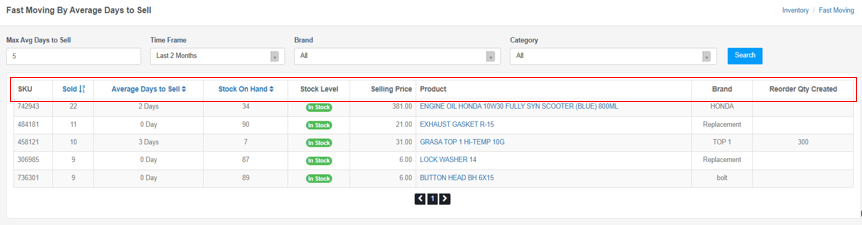
Column Descriptions:
SKU
- Stock Keeping Unit (unique product identifier)
Sold
- Number of units sold in the selected time frame
- Sortable (down arrow = descending by default)
- Higher numbers indicate faster-moving items
Average Days to Sell
- Average number of days to sell one unit
- Lower = faster turnover
- Examples: “0 Day” (sells immediately), “2 Days”, “3 Days”
- Sortable
Stock On Hand
- Current available quantity
- Sortable
- Compare with “Sold” to assess restocking needs
Stock Level
- Status badge: “In Stock” (green)
- Indicates current availability
Selling Price
- Current selling price per unit
Product
- Full product name/description
- Blue, clickable link (opens product details)
Brand
- Product brand (e.g., HONDA, Replacement, TOP 1)
Reorder Qty Created
- Quantity set for reordering (if applicable)
- Empty if not set
- Example: “300” indicates a reorder quantity has been created
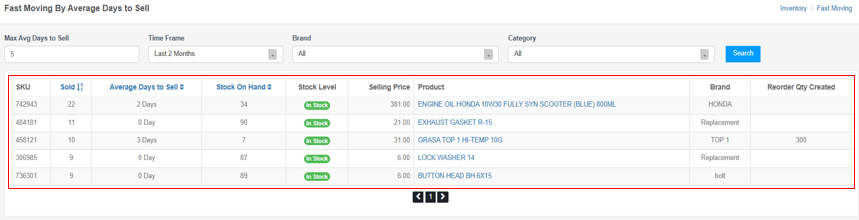
5. Reading Fast-Moving Product Data
Example 1: High-Volume Fast Mover
- SKU: 742943
- Sold: 22 units
- Average Days to Sell: 2 Days
- Stock On Hand: 34
- Product: ENGINE OIL HONDA 10W30 FULLY SYN SCOOTER (BLUE) 800ML
- Brand: HONDA
- Selling Price: 381.00
Interpretation: Sold 22 units in the last 2 months, averaging 2 days per unit. With 34 on hand, stock should last about 3 months at this rate. Strong seller.
Example 2: Very Fast Mover (Immediate Sale)
- SKU: 484181
- Sold: 11 units
- Average Days to Sell: 0 Day
- Stock On Hand: 90
- Product: EXHAUST GASKET R-15
- Brand: Replacement
Interpretation: Sells immediately (0 days). High demand; monitor stock closely.
Example 3: Product with Reorder Set
- SKU: 458121
- Sold: 10 units
- Average Days to Sell: 3 Days
- Stock On Hand: 7
- Product: GRASA TOP 1 HI-TEMP 10G
- Brand: TOP 1
- Reorder Qty Created: 300
Interpretation: Fast mover with low stock (7). Reorder quantity of 300 is set, indicating planned restocking.
6. Sorting the Table
- Click column headers to sort:
- Sold: Default descending (highest first)
- Average Days to Sell: Toggle ascending/descending
- Stock On Hand: Toggle ascending/descending
- Arrows indicate sort direction.
Video Tutorial
Tips for Effective Analysis
- Adjust Time Frame: Use longer periods (3–6 months) for more stable trends.
- Set Max Avg Days: Lower values (1–3) show fastest movers; higher (5–7) include moderate movers.
- Monitor Stock Levels: Fast movers with low stock need attention.
- Check Reorder Quantities: Review “Reorder Qty Created” to see if reorders are configured.
- Compare Metrics: Combine “Sold” and “Average Days to Sell” for a fuller picture.
- Filter by Brand/Category: Focus on specific segments.
- Click Product Names: Use the blue product links for detailed information.
Troubleshooting
- No products showing?
- Increase Max Avg Days to Sell
- Try a longer Time Frame
- Set Brand and Category to “All”
- Too many results?
- Lower Max Avg Days to Sell
- Filter by Brand or Category
- Use a shorter Time Frame
- Can’t find a specific product?
- Ensure it meets the “Max Avg Days to Sell” threshold
- Check the selected Time Frame covers recent sales
- Verify the product had sales in that period
This guide covers navigating and analyzing Fast-Moving Items. Use the filters and sorting to identify top sellers, assess restocking needs, and optimize inventory.