
Step-by-Step Guide to the Package Catalog
Accessing the Package Catalog
- From the left sidebar, click Package Catalog (box icon).
- You’ll land on the Package List page.
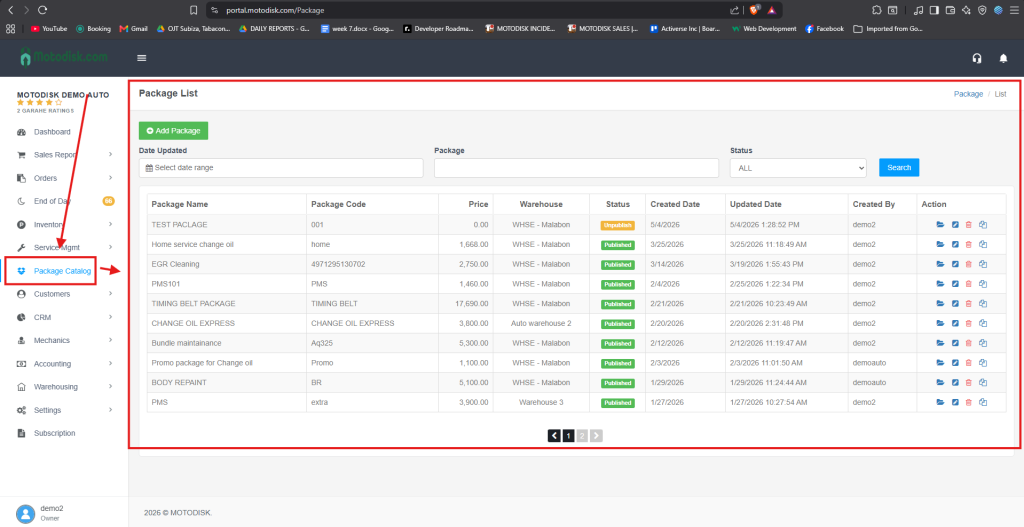
Page Layout & Key Sections
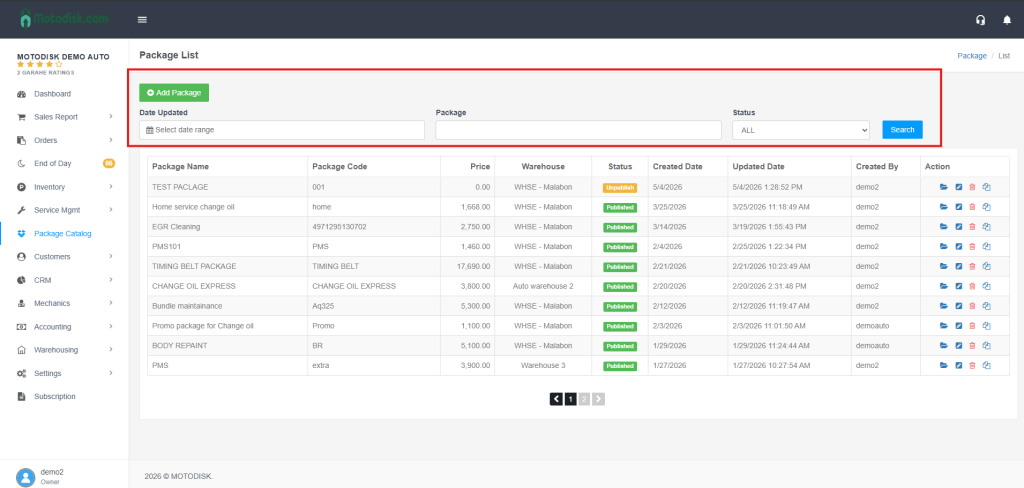
Top bar filters:
- Date Updated (calendar range)
- Package (text search)
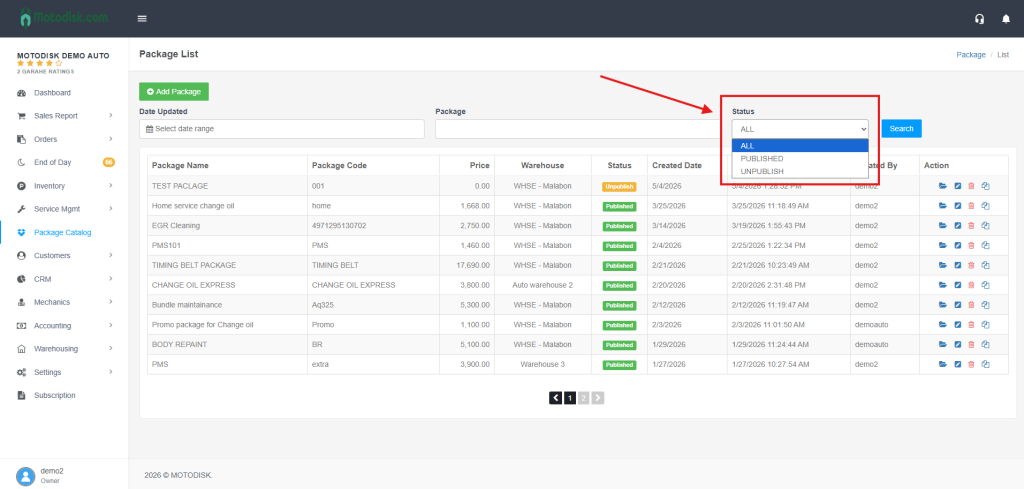
- Status dropdown: ALL / PUBLISHED / UNPUBLISH
- Search button
- Add Package button (green) – create a new package.
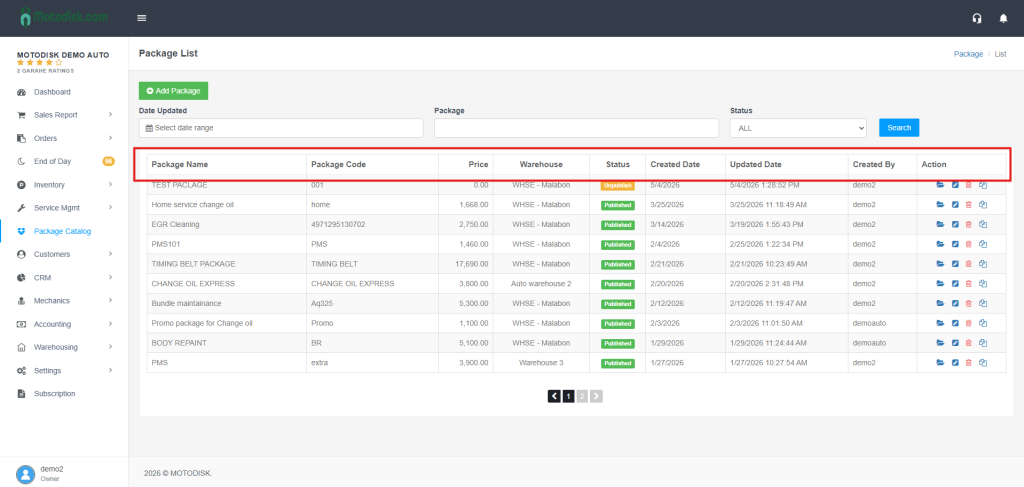
Package Table – columns:
- Package Name
- Package Code
- Price
- Warehouse
- Status (Published/Unpublish)
- Created Date / Updated Date
- Created By
- Action (view/open, edit, delete; icons in the rightmost column)
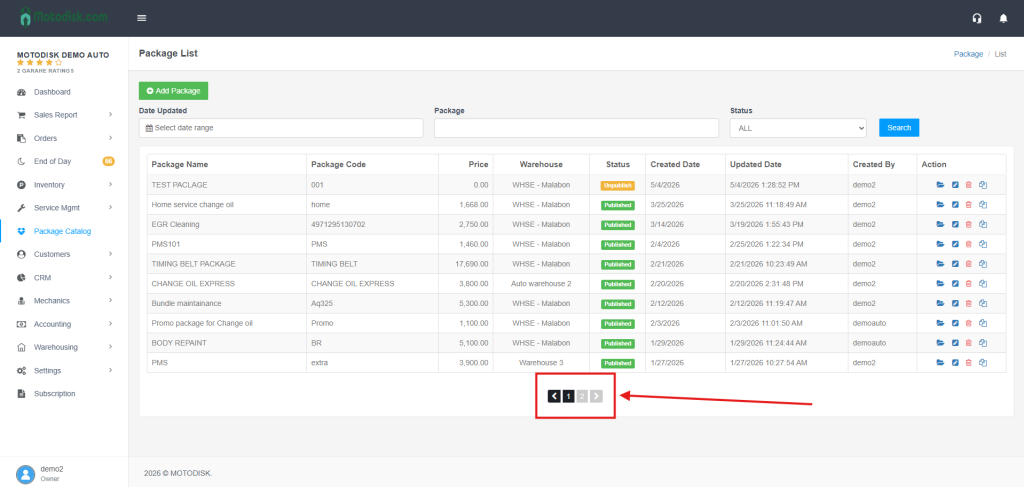
Pagination – arrows and page numbers at the bottom.
Filtering & Searching
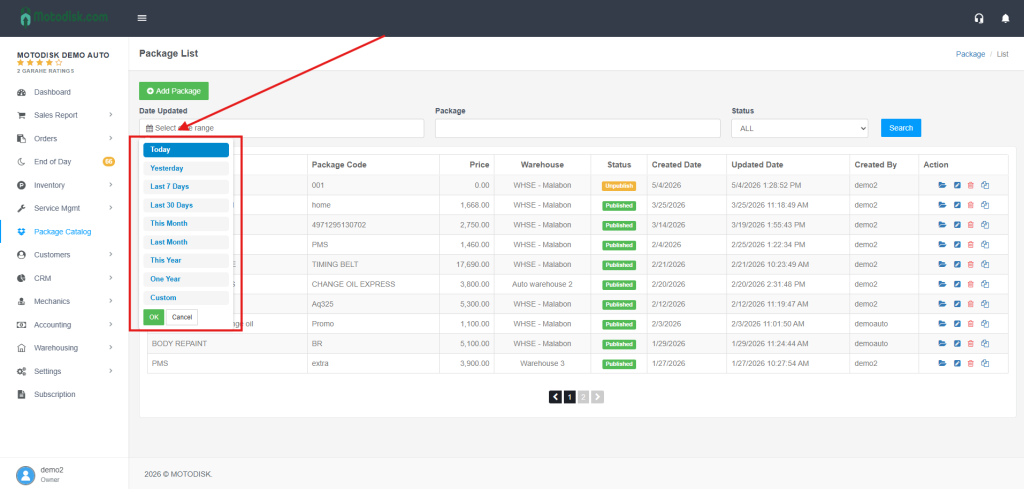
By Date Updated: Click the calendar, pick a quick range (Today, Yesterday, Last 7 Days, Last 30 Days, This Month, Last Month, One Year) or set a Custom start/end, then OK.
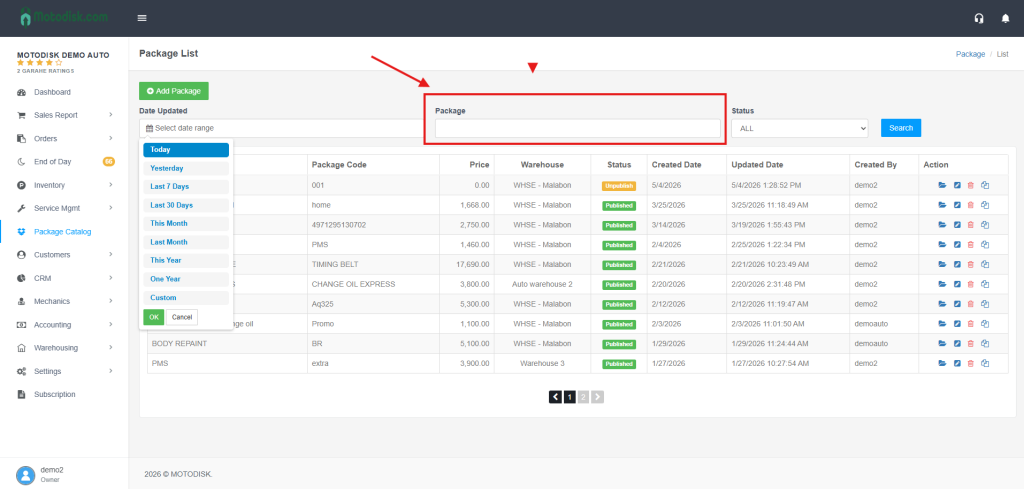
By Package name/code: Type part of the name/code in the Package box.
By Status: Choose ALL, PUBLISHED, or UNPUBLISH.
Common Tasks (How-To)
- Find a package quickly
- Set a relevant Date Updated range → type a keyword in Package → pick Status (or leave ALL) → Search → open via the Action/view icon.
- View package details (Promo Package view)
- Click the view/open icon in the Action column.
- You’ll see items (products/services), stocks, U/M, status (In Stock / Out-of-Stock / Reorder), quantities, price, totals, and warehouse, plus package status.
- Add a new package
- Click Add Package → fill Package Name, Package Code, Warehouse → Save.
- Edit a package
- Click the edit icon → update Name, Code, Warehouse → Save.
- Delete a package
- Click the delete icon → confirm in the “Are you sure?” dialog.
- Change publish status
- In the list, use Status filter to find PUBLISHED/UNPUBLISH packages. (If a toggle exists per row, use it; otherwise, edit the package and save with desired status.)
Tips for Effective Use
- Start broad, then narrow: begin with Status = ALL and a reasonable Date Updated range, then refine by Package keyword.
- Use Last 30 Days or This Month to focus on recent changes.
- Check Warehouse and Status columns to confirm where a package is stored and whether it’s live.
- If you can’t find something, clear the Package text box, set Status = ALL, widen the date range, and search again.
- In the detail view, watch stock status (Out-of-Stock / Reorder) to decide replenishment.