
Below is a concise, step-by-step guide to navigating and updating Settings → General.
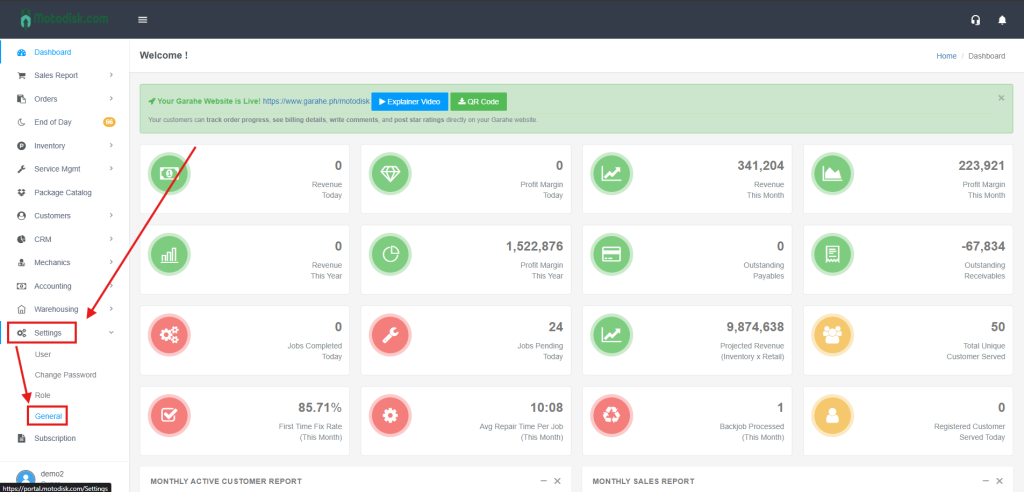
Access
1) Go to the left sidebar, click Settings (gear icon).
2) Under Settings, choose General.
How the page works
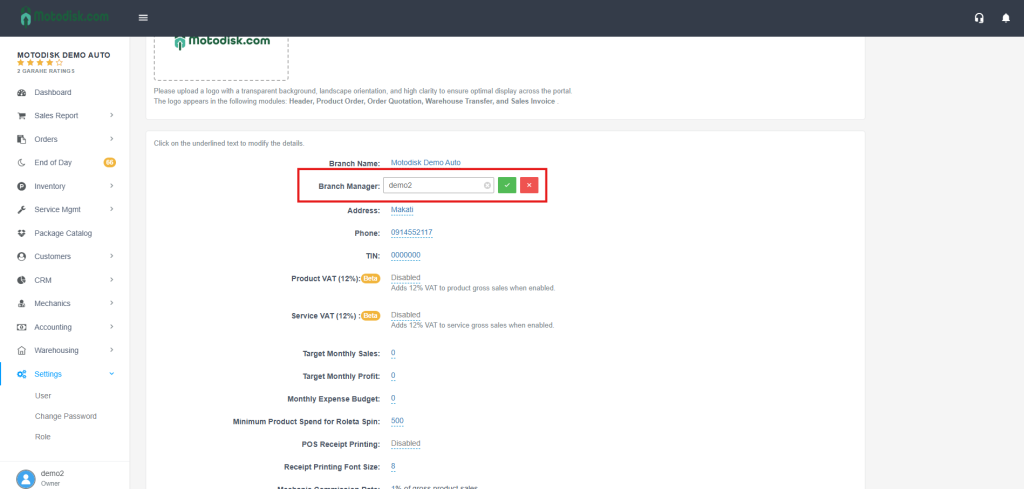
- Most fields are inline-editable (underlined). Click the underlined value to edit.
- For text/number fields: after editing, click the green check to save or red X to cancel.
- For dropdowns: select a value, then confirm with the green check.
- For text areas (multi-line): edit text, then confirm/cancel.
Sections & Fields (what they mean)
Shop Logo: Browse/Upload a transparent, landscape logo; appears on Header, Product Order, Order Quotation, Warehouse Transfer, Sales Invoice.
Edit/Change your logo
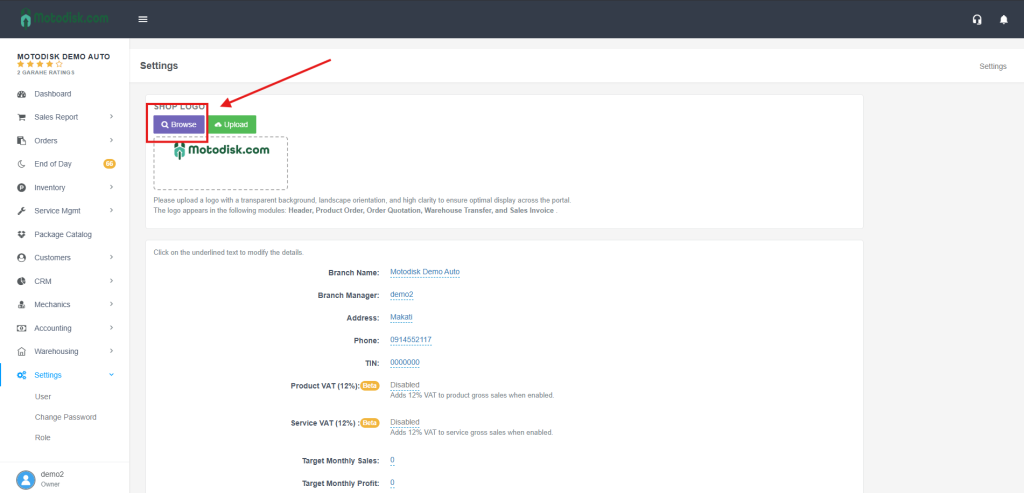
Click “Browse“
Browse your logo
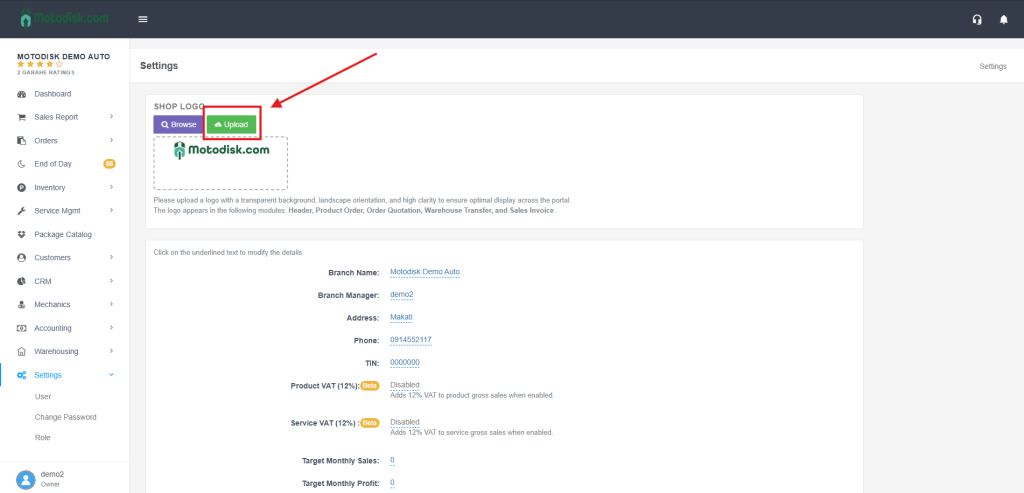
then click upload to set the logo
After uploading, the logo will be applied automatically.
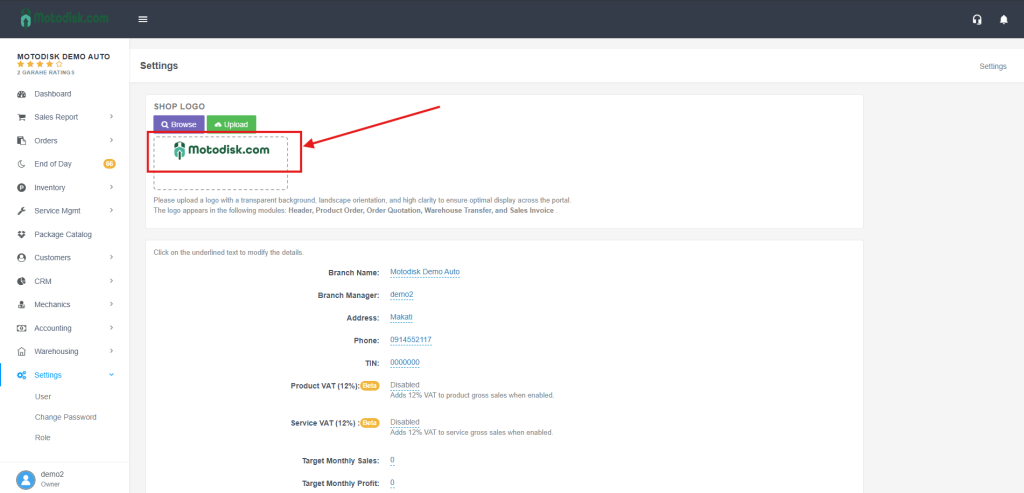
Genaral Informations.
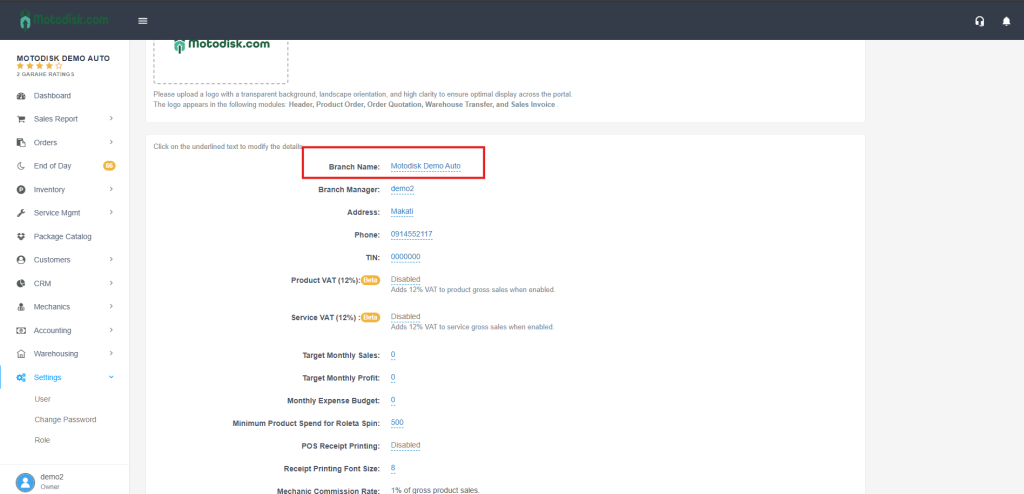
All General information can be edit with the same process. just Click the Underlined name to edit, click “check “button to save and “X” button to cancel
Quick reference to key tokens (SMS)
- {CustomerName} – customer full name
- {ShopCode} – branch code/short identifier
- {Vehicle} – registered vehicle details
- {LastOdometerReading} – last recorded odometer
- {InvoiceDate} – date of the last linked transaction
Common edits (step-by-step)
- Edit a text/number field: Click the underlined value → type the new value → click ✅.
- Change a dropdown (e.g., POS Receipt Printing): Click value → choose Enabled/Disabled → ✅.
- Update SMS template: Click the template text → edit message with tokens → ✅.
Helpful tips
- Save after each field change (use ✅); if you made a mistake, use the red X.
- Keep a transparent, landscape logo for best print/display results.
- Use tokens in the SMS template to personalize reminders and keep them concise.
- Set realistic targets and warranty periods that match your shop policy.
- If receipts look too small/large, adjust Receipt Printing Font Size and test print.